Key points about Azure Spot VMs and its eviction.

At a technical level, spot VMs are the same as regular VMs. They use the same images, hardware, and disks that translate to the same performance. The difference between spot and regular VMs comes down to priority and availability. Spot VMs have no priority to access compute capacity, and they have no availability guarantees after accessing that compute capacity.

Spot VMs are cheaper because of the eviction possibility.

https://learn.microsoft.com/en-us/azure/architecture/guide/spot/spot-eviction#understand-spot-virtual-machines

How to build workloads on spot virtual machines

https://learn.microsoft.com/en-us/azure/architecture/guide/spot/spot-eviction

What is the spot eviction rate?

· Azure Spot Instances are not reliability guaranteed, they get evicted with a 30seconds heads up.

· Virtual Machines (VMs) have eviction rates expressed as percentages per hour, ranging from 0–5% to 20+%, and can vary by region. For example, an eviction rate of 10% means that there is a 10% chance that a VM will be evicted within the next hour.

· Azure Spot Virtual Machines (VMs) have eviction rates expressed as percentages per hour, ranging from 0–5% to 20+%, and can vary by region. For example, an eviction rate of 10% means that there is a 10% chance that a VM will be evicted within the next hour

Using Azure Resource Graph (ARG) to get Spot Eviction Rates and Alternative Spot Instance Types: Navigate to ARG in Azure portal using this link

https://portal.azure.com/#view/HubsExtension/ArgQueryBlade

Queries:

1. To Display Eviction Rates and the Top 3 Best Alternatives for all Instance Types in a Region

SpotResources | where type =~ ‘microsoft.compute/skuspotevictionrate/location’ | where location in~ (‘westus2’) | project SKU_Name = tostring(sku.name), Location = location, spotEvictionRate = tostring(properties.evictionRate) | join ( SpotResources | where type =~ ‘microsoft.compute/skualternativespotvmsize/location’ | where location in~ (‘westus2’) | project SKU_Name = tostring(sku.name), Location = location, Best_Alternative = tostring(properties.alternativeSkus[1].vmSku), Second_Best_Alternative = tostring(properties.alternativeSkus[2].vmSku), Third_Best_Alternative = tostring(properties.alternativeSkus[3].vmSku) ) on $left.SKU_Name == $right.SKU_Name | project SKU_Name, Location, spotEvictionRate, Best_Alternative, Second_Best_Alternative, Third_Best_Alternative | order by SKU_Name asc

Result

2. To Display Eviction Rate and the Top 3 Best Alternatives for a Particular Instance Type

SpotResources | where type =~ ‘microsoft.compute/skuspotevictionrate/location’ | where location in~ (‘westus2’) | where sku.name =~ ‘standard_d32ds_v5’ | project SKU_Name = tostring(sku.name), Location = location, spotEvictionRate = tostring(properties.evictionRate) | join ( SpotResources | where type =~ ‘microsoft.compute/skualternativespotvmsize/location’ | where location in~ (‘westus2’) | project SKU_Name = tostring(sku.name), Location = location, Best_Alternative = tostring(properties.alternativeSkus[1].vmSku), Second_Best_Alternative = tostring(properties.alternativeSkus[2].vmSku), Third_Best_Alternative = tostring(properties.alternativeSkus[3].vmSku) ) on $left.SKU_Name == $right.SKU_Name| project SKU_Name, Location, spotEvictionRate, Best_Alternative, Second_Best_Alternative, Third_Best_Alternative | order by SKU_Name asc

3. To check Eviction Rates of an Instance type in multiple Regions in the US, use this query

SpotResources | where type =~ ‘microsoft.compute/skuspotevictionrate/location’ | where sku.name =~ ‘standard_d32ds_v5’ | where location in~ (‘westus’, ‘westus2’, ‘westus3’, ‘centralus’, ‘eastus’, ‘eastus2’, ‘northcentralus’) | project SKU_Name = tostring(sku.name), Location = location, spotEvictionRate = tostring(properties.evictionRate)

Posted in Azure, Cloud | Tagged , , , , , , | Leave a comment

Azure tag Policies Issues and fixes

Tags in Azure Resource Manager are key/value pairs you apply to subscriptions, resource groups, and resources (not management groups) for things like cost tracking, environment classification, owner identification

Special Characters are not supported in tag names for few Azure resources

Azure enforces rules around how tags can be used on resources. For example, certain services disallow spaces, colons (:) or other special characters in tag names, and some also prohibit tag names that begin with a number.

For EX

Azure DNS Zones

Azure Traffic Manager

To address this issue we can use the custom policy so that resources which do not support special characters in their tagging are excluded from policy evaluation. This exclusion explicitly covers those resource types and any of their child resources

Certain Azure services—such as virtual machines, virtual machine scale-sets, and App Services—automatically spin up additional components (for example NICs, VM extensions, load-balancers, or autoscale settings) during deployment. When a tag applied at the parent level must flow down to all children, enforcing a policy that requires tags on every resource may cause the deployment of those child resources to fail, which can in turn block the deployment of the parent resource.

The list of services excluded are listed below

              “Microsoft.Network/privateDnsZones”,
              “Microsoft.Network/trafficManagerProfiles”,
              “microsoft.Network/privatednszones/virtualnetworklinks”,
              “microsoft.Network/privatednszones/SOA”,
              “microsoft.Network/privatednszones/NS”,
              “Microsoft.Network/trafficManagerProfiles/azureEndpoints”,
              “Microsoft.Network/trafficManagerProfiles/externalEndpoints”,
              “Microsoft.Network/trafficManagerProfiles/nestedEndpoints”,
              “Microsoft.Compute/virtualMachines/extensions”,
              “Microsoft.Network/networkInterfaces”,
              “Microsoft.Insights/autoscaleSettings”,
              “Microsoft.Compute/virtualMachines/runcommands”,
              “Microsoft.Network/dnszones”,
              “Microsoft.EventGrid/systemTopics”,
              “Microsoft.Compute/disks

There is not solution for this issue and the workaround is selectively excluding certain child resources from policy evaluation

Adding tags is not supported in portal. 

Some Azure resources support tagging but don’t allow tags to be added or edited via the Azure Portal. To ensure they comply with tagging policies, tags must be applied through the Azure REST API.

Follow the steps below to add tags

           Click on Try it

  • Enter the resource ID of the resource in the scope
  •  In the body Enter the tag name and value
  • Click on Run to invoke the REST API. The success response will be 200

Posted in Azure, Azure policy | Tagged , , , | Leave a comment

Azure Policy “Encryption at Host”

In this blog we can see the steps to enable the Encryption at host for VMs and AKS nodes.

The policy targets the resource types Microsoft.Compute/virtualMachines and Microsoft.Compute/virtualMachineScaleSets, with the field securityProfile.encryptionAtHost

For New VM

Check the status of the Azure Feature

Azure CLIaz loginaz feature show --namespace "Microsoft.Compute" --name "EncryptionAtHost" --query "properties.state"
Azure PowerShellConnect-AzAccountGet-AzProviderFeature -FeatureName "EncryptionAtHost" -ProviderNamespace "Microsoft.Compute"

Register the Azure Feature

Azure CLIaz loginaz feature register --namespace "Microsoft.Compute" --name "EncryptionAtHost"
Azure PowerShellConnect-AzAccountRegister-AzProviderFeature -FeatureName "EncryptionAtHost" -ProviderNamespace "Microsoft.Compute"

az account set --subscription "<your-subscription-id>"

Deploying VM using AZ CLI command

  • Without “–encryption-at-host” parameter – Disallowed by our Policy
    • “–encryption-at-host” parameter value set to false – Disallowed by our Policy
      • “–encryption-at-host” parameter value set to true- VM deployed successfully

Sample:

az vm create `
--name <your-vm-name>`
--resource-group <your-resource-group-name>`
--image "<your-image-name>" `
--size <your-sku-name> `
--admin-username <your-username> `
--admin-password <your-password> `
--authentication-type password `
--security-type TrustedLaunch `
--enable-vtpm true `
--enable-secure-boot true `
--encryption-at-host true `
--vnet-name <your-vnet-name>`
--subnet <your-subnet-name> `
--nics-delete-option delete `
--os-disk-delete-option delete `
--public-ip-address "" `
--no-wait

Deploying VM using AZ PowerShell command

Without “-EncryptionAtHost” parameter – Disallowed by our Policy

With “-EncryptionAtHost” parameter – VM deployed successfully

For Existing VMs

It cannot be enabled if Azure Disk Encryption (ADE) is already enabled

<PowerShell>

$rg_name = "<your-resource-group>"

$vm_name = "<your-vm-name>

# Deallocate VM

Stop-AzVM -ResourceGroupName $rg_name -Name $vm_name -Force

# Enable Encryption at Host
$vm = Get-AzVM -ResourceGroupName $rg_name -Name $vm_name
$vm.SecurityProfile = @{EncryptionAtHost = $true}
Update-AzVM -ResourceGroupName $rg_name -VM $vm

AKS Nodes

Encryption at Host

  • This encrypts data before it is written to disk, at the hypervisor level, offering a higher level of protection.
  • It must be explicitly enabled during node pool creation using Azure CLI or Terraform.
  • This setting is not visible in the Azure Portal, which is why the portal still shows “Not enabled” even if it was configured.

To verify if encryption at host is enabled, please run the following Azure CLI command:

az aks show \

  –resource-group Ganeshtest \

  –name test-encrypt-aks \

  –query “agentPoolProfiles[].enableEncryptionAtHost”

If the output is true, Then encryption at host is confirmed as enabled on your node pool.

Encryption at host cannot be enabled in AKS Cluster using Azure Portal. It can be done only via Azure CLI and Terraform
command:

az aks create \

  –name test-encrypt-aks \

  –resource-group Ganeshtest \

  –node-vm-size Standard_D4ds_v5 \

  –enable-encryption-at-host \

  –node-count 1 \

  –generate-ssh-keys

After performing the above command successfully, Add a user node pool with encryption at host:

Existing Node Pools cannot be modified to enable encryption at host. Those node Pools must be deleted and new ones should be created with encryption enabled. Using this command:

az aks nodepool add \

  –resource-group Ganeshtest \

  –cluster-name test-encrypt-aks \

  –name userpool1 \

  –node-vm-size Standard_D4ds_v5 \

  –node-count 1 \

  –mode User \

  –enable-encryption-at-host

AKS cluster must have at least one node pool designated as a “System” node pool to ensure that essential system services continue to run. 

In AKS, at least one node pool must be marked as a system mode pool, which is responsible for hosting critical system components like CoreDNS, kube-proxy, and Azure Policy pods. Since the original agentpool is still the only system node pool in the cluster

To resolve this, you’ll need to create a new node pool with –mode System specified in the command. Once that new system node pool is up and running,

az aks nodepool add –name newagpool –cluster-name ganeshtesttobedel-ci-aks–resource-group Ganeshtest –node-vm-size Standard_D4ds_v5 –enable-encryption-at-host –mode System 

These are the steps to migrate the pods to a healthy node pool:


1. Cordon the failing node pool
This marks its nodes as unschedulable.

kubectl get nodes -l agentpool=<oldpool-name> # repeat for each node kubectl cordon <node-name>

2. Evict running pods from failing nodes
This safely drains pods from the failing nodes to the healthy ones.

kubectl drain <node-name> –ignore-daemonsets –delete-emptydir-data

Repeat for each node in the failed pool.
Pods are automatically rescheduled 

3. Delete the failed node pool

Deploying VMs with Terraform

If you are deploying VMs with Terraform you should have the following line:

encryption_at_host_enabled = true

Posted in Azure, Azure policy, Cloud | Tagged , , , , , | Leave a comment

Azure Private Resolver solution

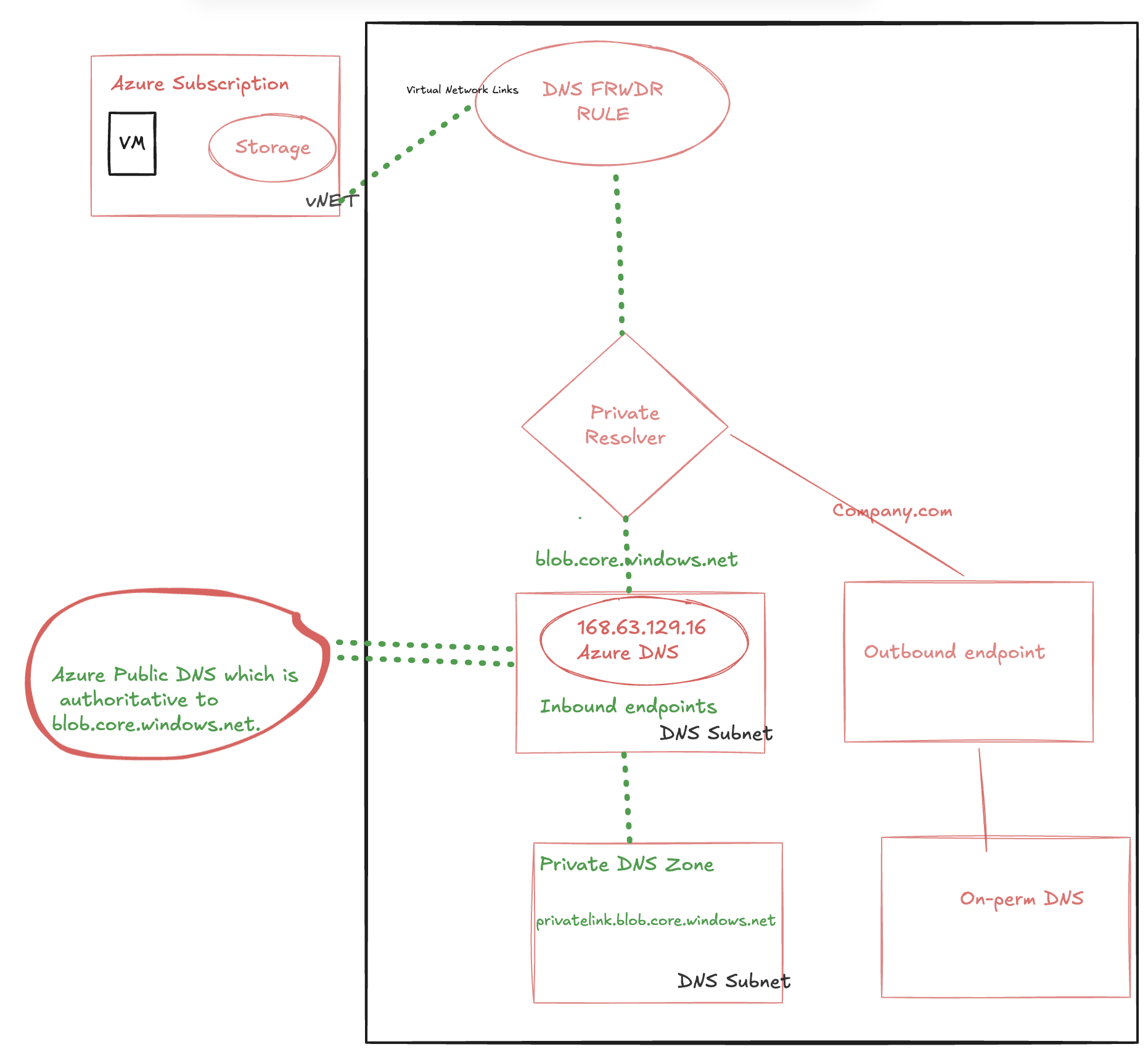
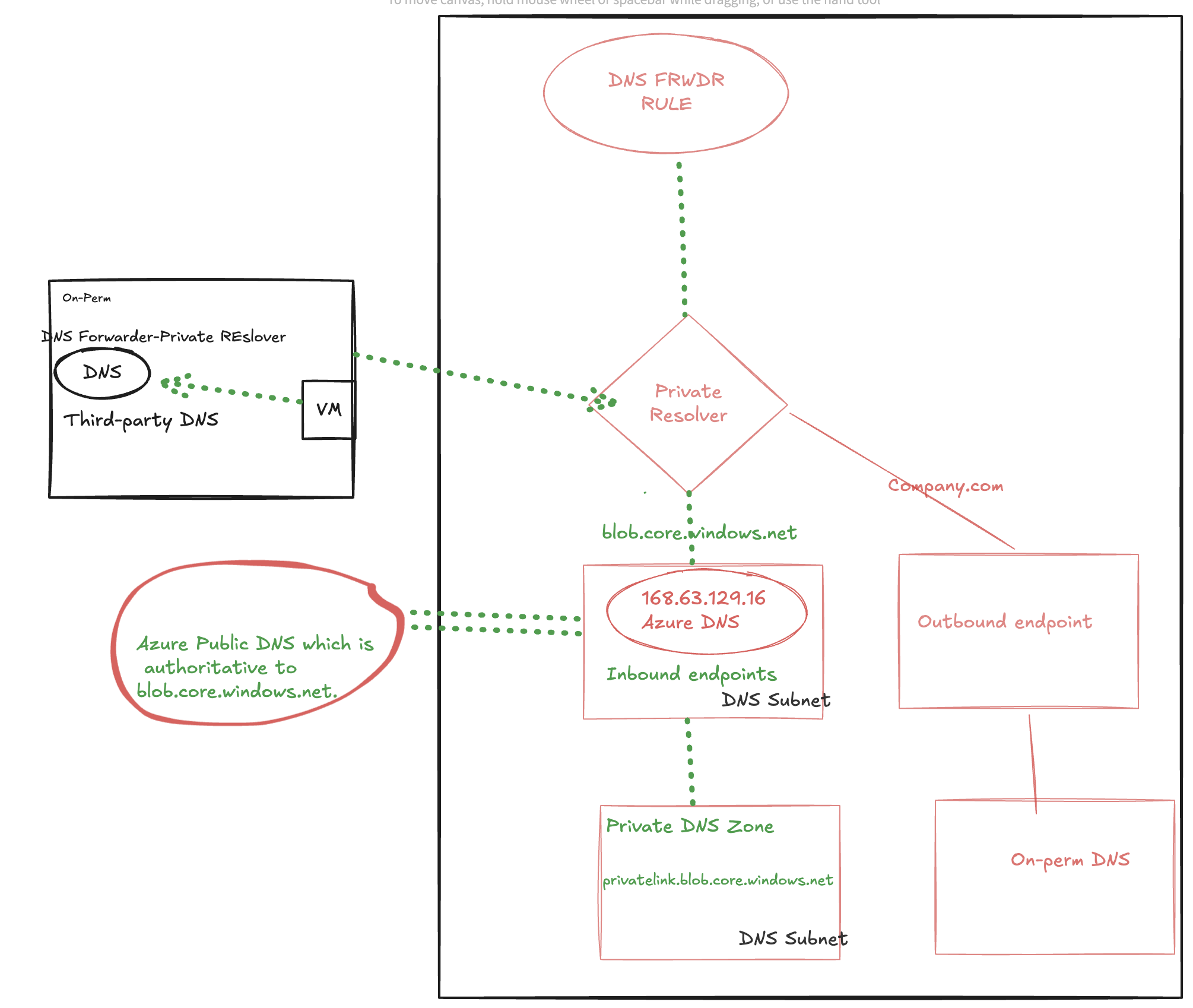
We have a requirement to make sure all the Azure VMs are resolving to our company.com which is our primary DNS domain for on-perm services and also VMs running Azure and from on-perm should resolve azure services like Storage,AKS.

Reference: The Azure DNS Private Resolver service is injected into your Virtual Network and utilises network interfaces for two functions:

Outbound Endpoints – a maximum of five – used to forward resolution requests to destinations within your internal private network (Azure or On-Premises), that cannot be resolved by Azure DNS Private Zones. How the outbound endpoint behaves in respect to forwarding, is dictated by the configuration of the associated DNS Forwarding Ruleset

Inbound Endpoints – a maximum of five – used to receive inbound resolution requests from clients within your internal private network (Azure or On-Premises).

Azure VM resolving the services in on-perm company.com

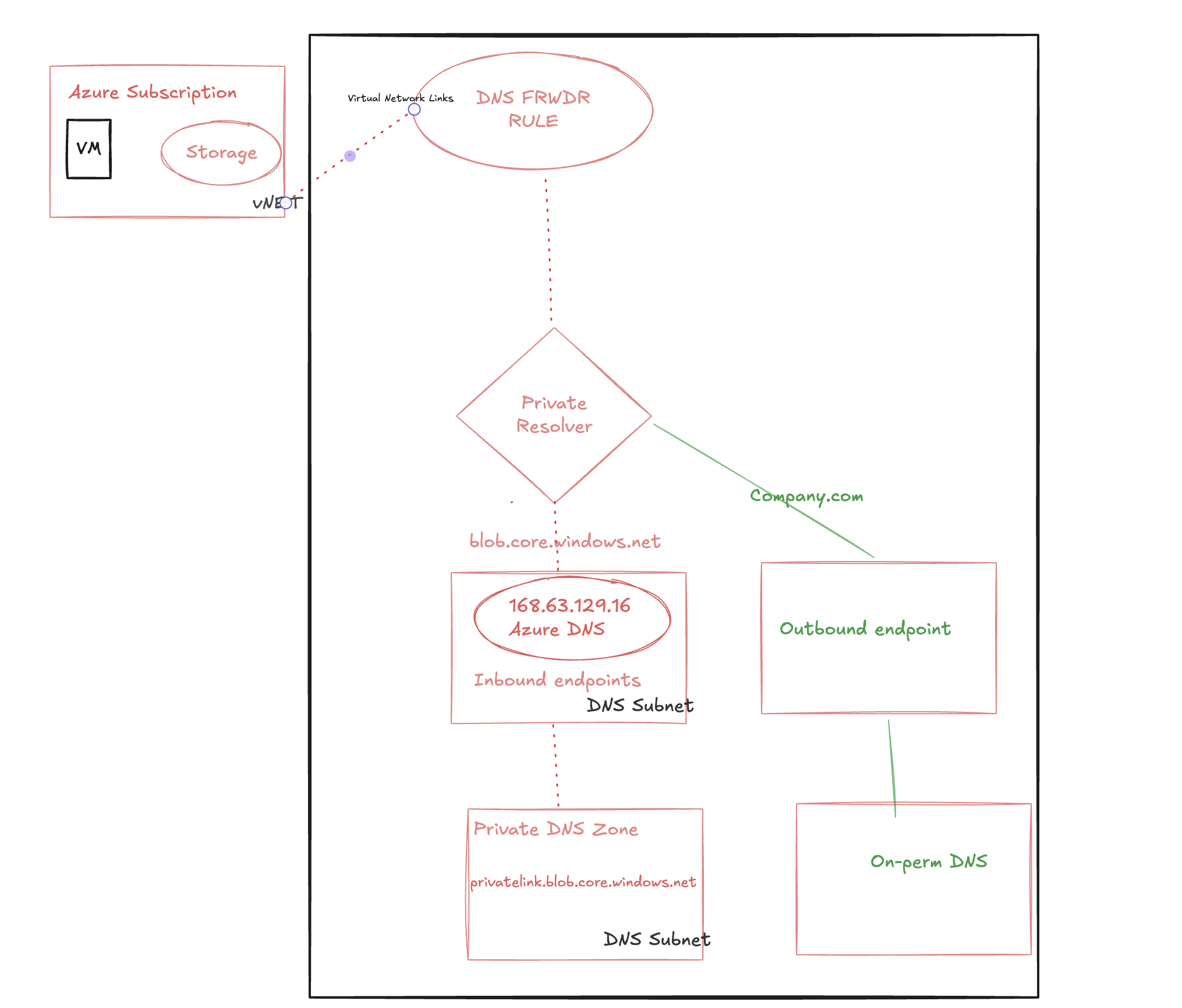
For the first scenario to access the services hosted in our on-perm from Azure VM, we created the private resolver with outbound rule and if any DNS request to company.com then it will route the traffic to the out-bound rule in the private resolver.

  1. VM sends a DNS query asking for IP associated to gittest.company.com to Azure Provided DNS 168.63.129.16.
  2. DNS forwarder rule will route the traffic to outbound endpoint since it is company.com
  3. As final step outbound endpoint will route it to the on-perm DNS.
  4. The VM will now be able to access the gittest.company.com via Private Endpoint.

Azure VM resolving the blob.core.windows.net

For the second scenario to access the Azure blob services from the Azure VM, it will route the request to the private resolver in-bound rule and it will resolve to the private DNS zone.

  1. VM sends a DNS query asking for IP associated to test.blob.core.windows.net to Azure Provided DNS 168.63.129.16.
  2. Azure Provided DNS sends query to the authoritative DNS Server that hosts blob.core.windows.net zone and process it.
  3. That authoritative DNS Server responds back to Azure provided DNS in the VNET that with the correct CNAME: test.privatelink.blob.core.windows.net.
  4. Azure Provided DNS is aware that Private DNS Zone hosts privatelink.blob.core.windows.net zone and can process as host name (A record) from gbbstg1 to its private endpoint IP 10.0.0.5.
  5. Private DNS zone returns private endpoint IP back to Azure Provided DNS.
  6. As final step Azure Provided DNS returns private endpoint IP back to the client.
  7. The VM will now be able to access the Storage Account via Private Endpoint IP.

On-perm VM resolving the test.blob.core.windows.net

For the third scenario to access the Azure services like blob from the on-perm.we have configured the forwarder to the private-endpoint IP in our third-part DNS server so any request from the on-perm VM test.blob.core.windows.net, it will forwarde the request to the private resolver and it get resloved.

Reference: https://learn.microsoft.com/en-us/azure/dns/dns-private-resolver-get-started-portal#add-rules-to-the-forwarding-ruleset

https://github.com/adstuart/azure-resolver-topologyoptions

https://github.com/dmauser/PrivateLink/tree/master/DNS-Integration-Scenarios#2-how-dns-resolution-works-before-and-after-private-endpoints

Posted in Azure, Cloud | Tagged , , , , , , | Leave a comment

How to create the AKS cluster with Entra-ID.

Use the below code to create the new AKS cluster with the Entra-ID Group.

az aks create –resource-group myResourceGroup –name myManagedCluster –enable-aad –aad-admin-group-object-ids <id> [–aad-tenant-id <id>] –generate-ssh-keys

use the below command to update it to the existing cluster

az aks update –resource-group MyResourceGroup –name myManagedCluster –enable-aad –aad-admin-group-object-ids <id-1>,<id-2> [–aad-tenant-id <id>]

We can confirm the Entre-ID settings  and also in the JASN format 

We can confirm the Entre-ID settings  and also in the JASN format 

AKS Cluster – Settings – Security Configuration – Authentication and Authorization.

Jason – Format

Overview – JASON View –

Get the user credentials to access your cluster using the az aks get-credentials command.

az aks get-credentials –resource-group myResourceGroup –name myManagedCluster


Install the kubelogin

Windows:

az aks install-cli 

Follow your instructions to sign in.

Set kubelogin to use the Azure CLI.

kubelogin convert-kubeconfig -l azurecli

Mac

# install
brew install Azure/kubelogin/kubelogin

# upgrade
brew update
brew upgrade Azure/kubelogin/kubelogin

Set kubelogin to use the Azure CLI.

kubelogin convert-kubeconfig -l azurecli

View the nodes in the cluster with the kubectl get nodes command.

kubectl get pods -owide –all-namespaces –output=wide

it will provide you a line of text with a url and code:

https://microsoft.com/devicelogin

Above Url will be re-directing to microsoft AD login. There you needs to login with you azure active directary login credentials. This will enable the KubeCtl access to your terminal or shell.

Posted in Azure, Cloud | Tagged , , | Leave a comment

How to identify the incoming connection of Azure storage blob container.

To check and identify which IP is hitting the Azure blob container, we need to enable the logs under Diagnostic settings – Log Analytics workspace – Enable Audit logs \ all logs

Run this query which will show from which agent \ IP and status.

StorageBlobLogs
| where AccountName == “Storage_AccountName”
| project TimeGenerated, OperationName, CallerIpAddress, UserAgentHeader, StatusCode
| order by TimeGenerated desc

calleripAddress is the one shows the IP and If the status if 409 then it is failed request and it shows the IP details

Posted in Azure, Cloud | Tagged , | Leave a comment

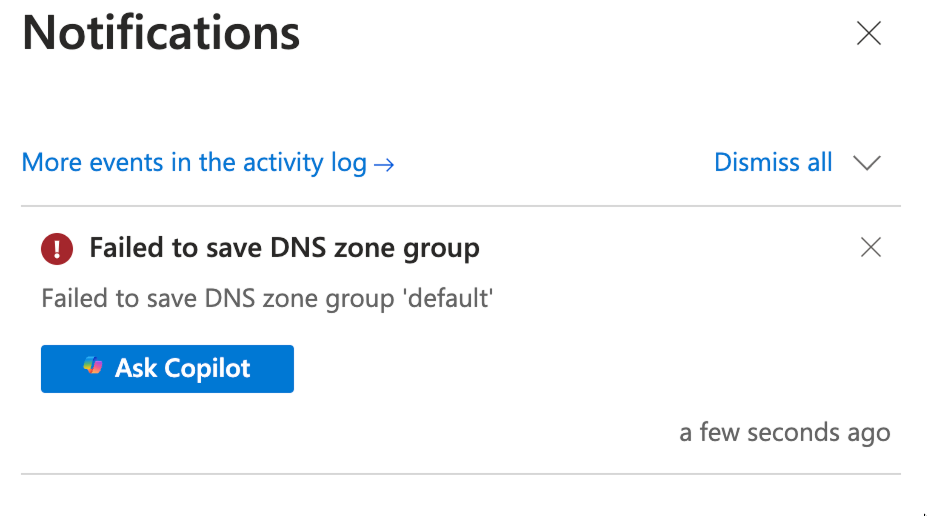
Failed to save DNS zone group.

We were facing an issue with running an operation from your Azure Storage Account to create a private DNS zone for a specific private endpoint connection across our DNS subscription. From the logs, we can see an error when trying to apply the configuration to create the private DNS zone.

Upon further checking the logging around this error, I don’t see it being received by the Azure platform; there is no request received by Azure Resource Manager (ARM). This is normally the first hop for operations performed in the portal, Azure PowerShell, or any other command methods. This confirms that the operation was not submitted successfully, likely due to incorrect user permissions over the DNS subscription, as we discussed. This behavior is expected if a permissions issue blocks the request. The validation process that Azure uses first checks roles and permissions and will block the request before an actual request is generated towards the resource. As outlined in the Custom Rule setting, these are the actions required over the DNS subscription for your user account. Reference: Protecting private DNS Zones and Records – Azure DNS | MicrosoftLearn.

Posted in Azure, Cloud | Tagged , , , , , | Leave a comment

vCenter 8.0 upgrade issue and fixes.

  1. Content library service was failing in the firstboot start phase.

The error is pointing out to Content library, from the logs we verified that the cl_metadata table is corrupt.

Solution Recommendation : Edited the vCenter Database, changed the cl_metadata table.

Made changes to the table as follows :
 database.schema.version | [ “1.0.0”, “1.0.12”, “1.0.24”, “1.0.44”, “5.0.0” ]

2. Deploying the temp instance the network was not available.

Solution Recommendation :

  1. Created a new standard switch
  2. created the related kernel port
  3. create new port group 
  4. Now the network was listed in the deployment page
  5. selected this port group during the installation
  6. later edited the NIC for the temp VM and changed to DV switch.

3. vCenter Server has extensions registered that are unsupported by the new vCenter Server. Extensions: NSX Manager (by VMware)

Solution Recommendation : Uninstalled the NSX Plugin

4. TRUSTED_ROOTS has weak signature algorithm sha1WithRSAEncryption.Required with a certificate that uses the SHA-2 signature algorithm.

Solution Recommendation : SHA1 is not supported in vSphere 8.x. Stale entry removal is required as replication partners have to be in a healthy status for upgrade.

5. VMDir Replication between partners is not working.

Solution Recommendation : Due to the Linked mode state with the old retired VC, unregistered the old VC from the upgrade VC.

5. Host profiles with versions lower than 6.7 are not supported by vCenter Server 8.0.0. Upgrade.

Solution Recommendation : Upgrade the host profle.

Posted in logs, Vcenter Appliance, VCSA8.0, VMware, VPXD | Tagged , , , , | Leave a comment

NFS4 Slowness and Vcenter update 3f fixes the issue.

Pls check this blog which I explained about the NFS3 slowness and we were constantly testing every update and working with VMware.

Recently we have upgraded the vCenter to update 3f and tested the NFS4 with NFS3 and we are happy with the results.

On addition to that NFS4 datastore disconnect during the Netapp upgrade, pls check this blog for more details and in the upgrade notes it is mentioned that issue has been fixed while failover.

Posted in logs, vcsa7.0, VCSA8.0, VMware | Tagged , , | 4 Comments

VMware Licensing issue after the Broadcom portal migration

We already own the perpetual licensing for vSphere and after the migration we have noticed ESXi 8.0 license are started showing as end date and when we applied it to the new ESXi hosts it started showing the expire date instead of never expires.

We contacted the VMware support and they asked to split and merge the license and it started working after few days. Not sure if any background work was done from the support but it worked for us.

Posted in ESXi issue, vcsa7.0, VCSA8.0, VMs, VMware | Tagged , | Leave a comment