Powershell script to find the HP Enclosure information

In this blog we can see by using the powershell script to get the below enclosure information.

Enclosure name

 Enclosure type

Onboard Administrator hardware version

Enclosure Rack U Position

Enclosure part number

Serial number

Asset tag

Onboard Administrator MAC address 

We need HP powershell cmdlet to run the script and download it from the below link .

http://www8.hp.com/us/en/products/server-software/product-detail.html?oid=5440657#!tab=features

Install the HPOACmdlets-x64.msi and look for the pdf for the installation steps.

Get-Help *hp* – It will show all the commands related to the HP

hod

Get-Help *hpoa* – It will show all the commands related to the HP-onboard administrator.

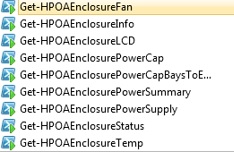
We need Get-HPOAEnclosureInfo cmdlet to get the Enclosure information.

Also use the below HP cmdlets to get various function of the enclosure. just replace the appropriate cmdlet on the script.

1HP

Git-hub or Dropbox

Related links:

Powershell script to find the current status of the specified HP Enclosure Fan

Powershell script to find the basic health and status of the HP Enclosure

Powershell to find the firmware version of the HP Enclosure Onboard Administrator and its related components.

Powershell to get the graph report of VMware VMs configured Memory.

Steps to upgrade the firmware of HP Virtual Connect Module using Virtual Connect Support Utility ( VCSU )

Posted in HP, Powershell | Tagged , , , | 3 Comments

Powershell script to find the current status of the specified HP Enclosure Fan

This blog explains about the powershell script to find the current status of the specified HP Enclosure Fan .

We need HP powershell cmdlet to run the script and download it from the below link .

http://www8.hp.com/us/en/products/server-software/product-detail.html?oid=5440657#!tab=features

Install the HPOACmdlets-x64.msi and look for the pdf for the installation steps.

Get-Help *hp* – It will show all the commands related to the HP

hod

Get-Help *hpoa* – It will show all the commands related to the HP-onboard administrator.

We need Get-HPOAEnclosureFan cmdlet get the information and current status of the specified enclosure fan.

Also use the below HP cmdlets to get various function of the enclosure. just replace the appropriate cmdlet on the script.

1HP

Download the script from the below location.

Git-Hub or Dropbox

Related Links:

Powershell script to find the basic health and status of the HP Enclosure

Powershell to find the firmware version of the HP Enclosure Onboard Administrator and its related components.

Powershell to get the graph report of VMware VMs configured Memory.

Steps to upgrade the firmware of HP Virtual Connect Module using Virtual Connect Support Utility ( VCSU )

Posted in HP, Powershell | Tagged , , , , | 3 Comments

Powershell script to find the basic health and status of the HP Enclosure

Pls check my other blog about powershell on HP Enclosure and here by using the below script we can get status of the Enclosure (OnboardAdministrator, PowerSubsystem, CoolingSubsystem running on multilpe HP Enclosure ).

We need HP powershell cmdlet to run the script and download it from the below link .

http://www8.hp.com/us/en/products/server-software/product-detail.html?oid=5440657#!tab=features

Install the HPOACmdlets-x64.msi and look for the pdf for the installation steps.

Get-Help *hp* – It will show all the commands related to the HP

hod

Get-Help *hpoa* – It will show all the commands related to the HP-onboard administrator.

We need Get-HPOAEnclosureStatus cmdlet  to get the basic health and status of the enclosure subsystem. A list of connection objects must be provided as a parameter.

Download the script from the below location.

Git-Hub or Dropbox

Posted in HP, Powershell | Tagged , , , , | 4 Comments

Powershell to find the firmware version of the HP Enclosure Onboard Administrator and its related components.

In this blog we can find the various firmware version of HP Enclosure c7000 by using the HP powershell cmdlet and download the HP cmdlet from the below link .

http://www8.hp.com/us/en/products/server-software/product-detail.html?oid=5440657#!tab=features

To find the HP OA firmware , make sure to install the HPOACmdlets-x64.msi and look for the pdf for the installation steps.

Get-Help *hp* – It will show all the commands related to the HP

hod

Get-Help *hpoa* – It will show all the commands related to the HP-onboard administrator.

We need Get-HPOAFWSummary to find the Firmware version of OA.

hppd

By using the below script we can get the firmware version of the below components.I have provided three scripts which does the same job with different options according to our requirement and comfort.

OnboardAdministratorFirmwareInformation

EnclosureComponentFirmwareInformation

InterconnectFirmwareInformation

DeviceFirmwareInformation.

Download the powershell script and provide the OA IPs in a text file and also the location to save the out-put for each OA IPs provided.

Git-Hub or Dropbox

Below is the another version of the script similar to the above and here it will show the menu option to select the components.

Git-hub or Dropbox

Below is the same script , just different version in which out-put will be saved automatically with the OA IPs and make sure to provide the correct path in the script  out-put location.

Change only the bold item in the script to the appropriate path.

( “C:\tmp\” + $dd + “_device_firmware.txt” )

( “C:\tmp\” + $dd + “_EnclosureComponent_Firmware.txt” )

( “C:\tmp\” + $dd + “_Interconnect_Firmware.txt” )

( “C:\tmp\” + $dd + “_OnboardAdministrator_Firmware.txt” )

Git-Hub or Dropbox

Posted in Firmware upgrade, HP, Powershell | Tagged , , , , | 4 Comments

Powershell to get the graph report of VMware VMs configured Memory.

Found the below blog which explains to get the report using powershell in graph pattern so wants to try the same to get the VMs configured memory from the vCenter.It is very useful for the disk space and other administration tasks to get the result in graph format from multiple computers.

We need to download the cmdlet from the below link and save it as Out-ConsoleGraph.psm1 , import the module in to the powershell.

http://jdhitsolutions.com/blog/wp-content/uploads/2013/01/Out-ConsoleGraph-v3.txt

Read the below description and help to get the more detailed info about the command.

get-help Out-ConsoleGraph -full

Description

This command takes objects and creates a horizontal bar graph based on the property you specify. The property should return a numeric value. This command does NOT write anything to the pipeline. All output is to the PowerShell host.

The default behavior is to use the same color, Green, for all graphed values.But you can specify conditional coloring using -HighColor, -MediumColor and-LowColor. If you specify one you must specify all three. The maximum available graph value is divided into thirds. The top third will be considered high, the next third medium and the rest low.

The final option is to send the graph results to Out-Gridview. You cannot use conditional formatting nor specify a graph color. But the grid view will include the property value.

To load Powercli module and to run the VMware cmdlts run the below command.

Add-PSSnapin VMware.VimAutomation.Core

Connect-VIServer VCenterIP\Name

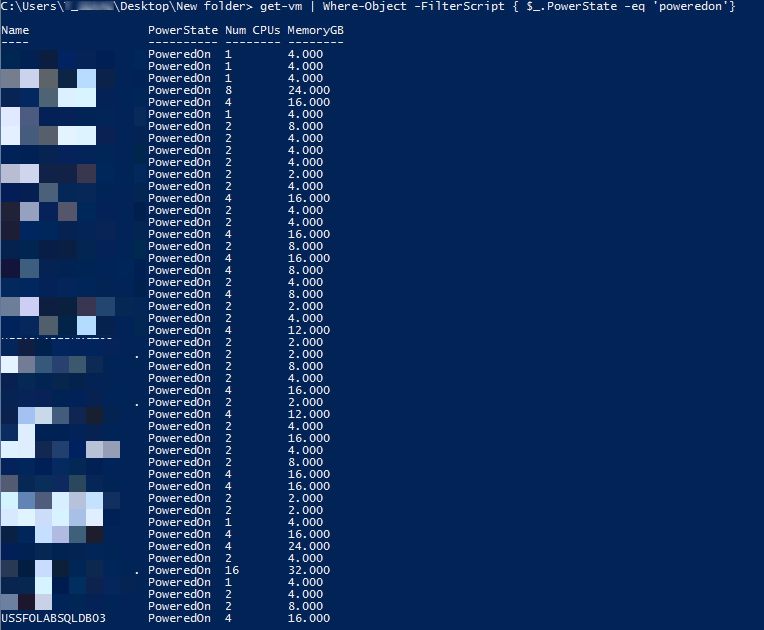
Filter the powerdon VM

get-vm | Where-Object -FilterScript { $_.PowerState -eq ‘poweredon’}

Ud_censored

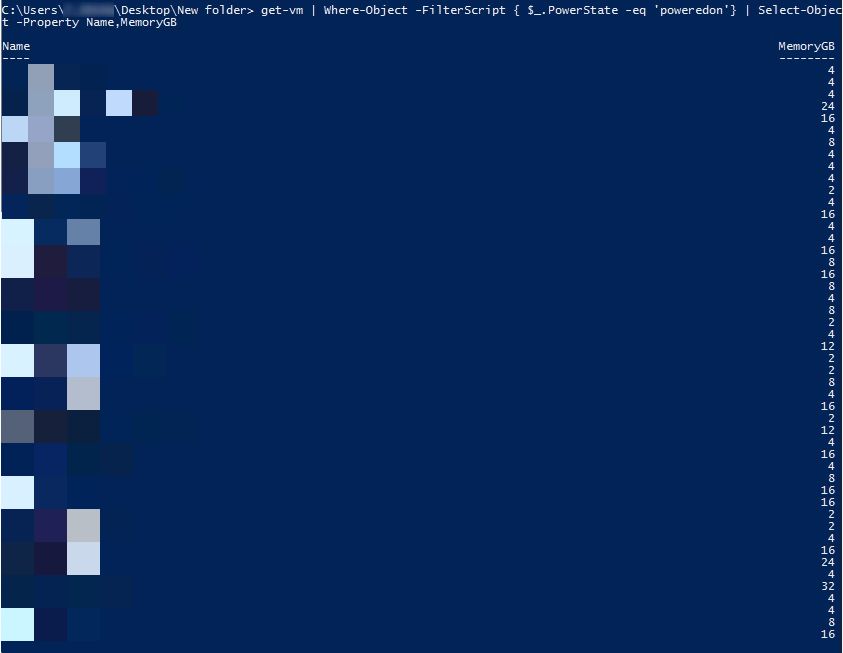
Select object for Name and Memory in GB.

 get-vm | Where-Object -FilterScript { $_.PowerState -eq ‘poweredon’} | Select-Object -Property Name,MemoryGB

Ued_censored

Using the Out-ConsoleGraph we can get the configured memory in Graph view and by default it will come with Green color and also we have option to choose the color.

 get-vm | Where-Object -FilterScript { $_.PowerState -eq ‘poweredon’} | Out-ConsoleGraph -Property MemoryGB 

Untitd_censored

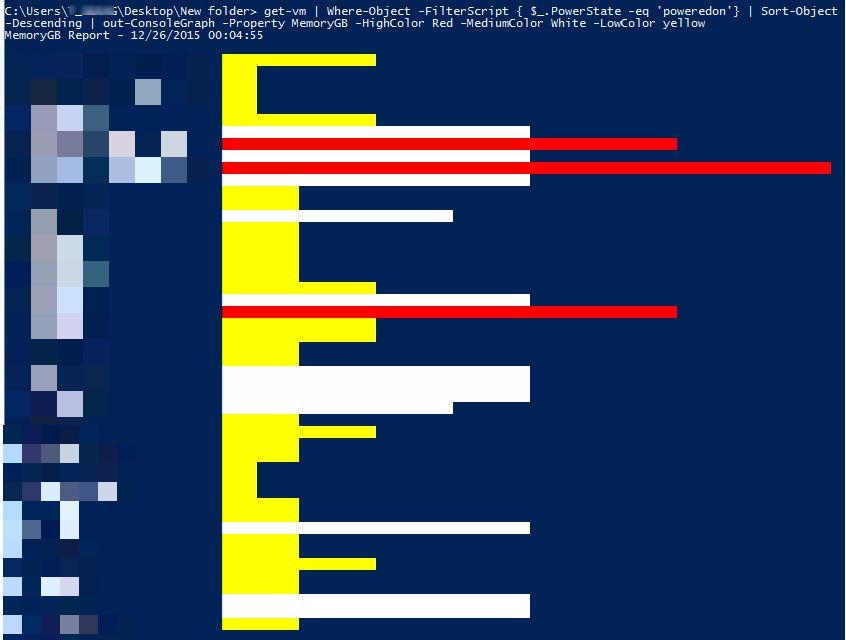
Below command explains to choose corresponding color for High-low-medium configured memory.

 get-vm | Where-Object -FilterScript { $_.PowerState -eq ‘poweredon’} | Out-ConsoleGraph -Property MemoryGB -HighColor Red -MediumColor White -LowColor yellow

Untitleeed_censored

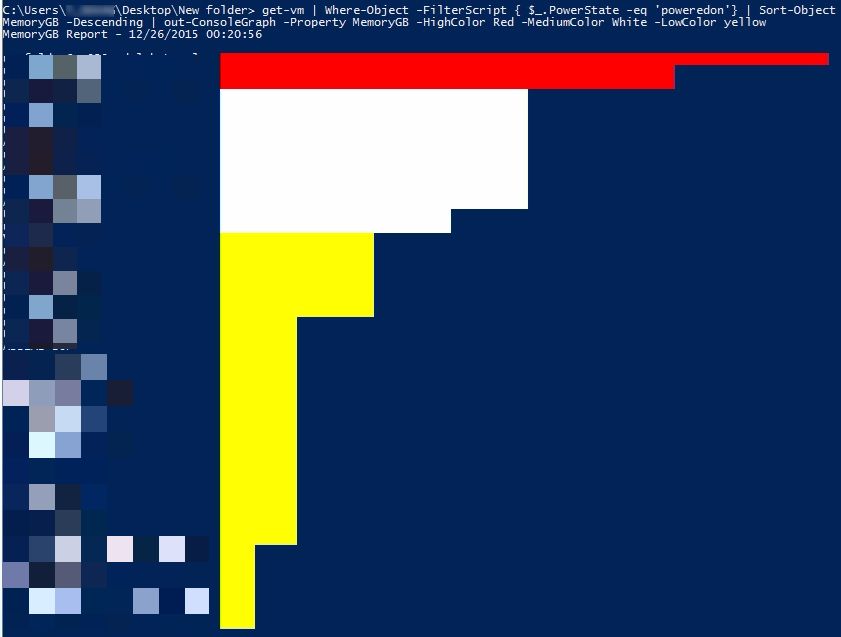
We can choose Sort in to descending order to sort the VMs according to the memory configured on the same.

get-vm | Where-Object -FilterScript { $_.PowerState -eq ‘poweredon’} | Sort-ObjectMemoryGB -Descending | out-ConsoleGraph -Property MemoryGB -HighColor Red -MediumColor White -LowColor yellow

Untitledd_censored

Posted in PowerCLI, Powershell, VMware | Tagged , , , , | 1 Comment

Steps to upgrade the firmware of HP Virtual Connect Module using Virtual Connect Support Utility ( VCSU )

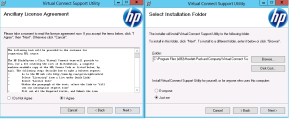
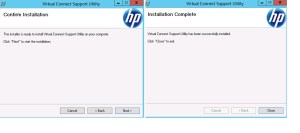
We need to download and install the HP utility-Tool called HP BladeSystem c-Class Virtual Connect Support Utility ( VCSU ) to upgrade the HP Virual Connect Flex Module .

By using the below link , download the tool and install it in your local machine.

http://h20565.www2.hpe.com/hpsc/swd/public/readIndex?sp4ts.oid=5288598&swLangOid=8&swEnvOid=4138

Linux : http://h20564.www2.hpe.com/hpsc/swd/public/detail?swItemId=MTX_23f20c9a46da43d9a75aeb00af

Latest Version : http://h20564.www2.hpe.com/hpsc/swd/public/detail?swItemId=MTX_3b24f68469fb4090a82ea0f398#tab1

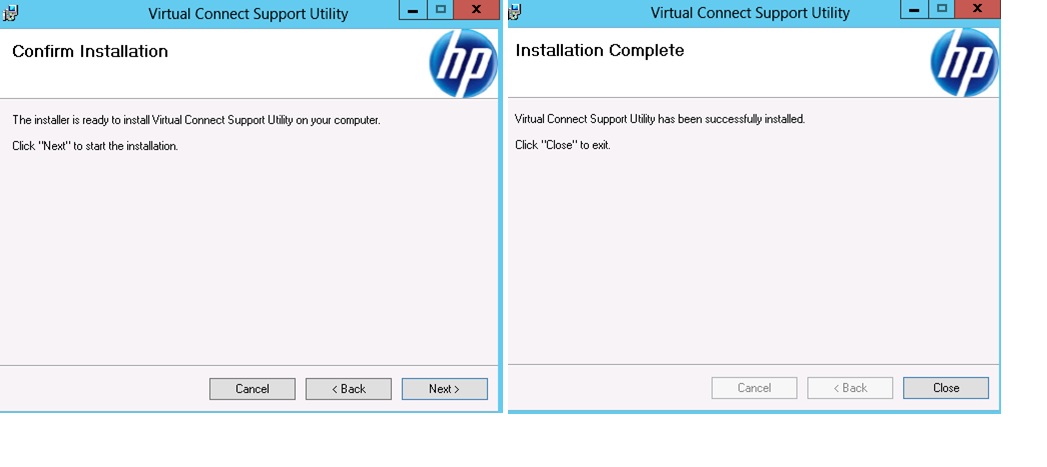
VCSU –  Installation Steps
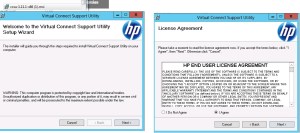
hhp

hed

kd

Once the Installation is completed then open it using the command prompt or we can find it in the start-programs
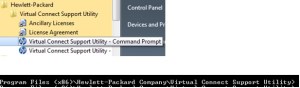
hled

Depends on the model  download the latest firmware .

HP Virtual Connect Flex-10/10D Module for c-Class BladeSystem.

http://h20565.www2.hpe.com/hpsc/swd/public/readIndex?sp4ts.oid=5288598&swLangOid=8&swEnvOid=4138

Use the below command to see the help and other option.

VCSU –a <Action>

 VCSU –a help
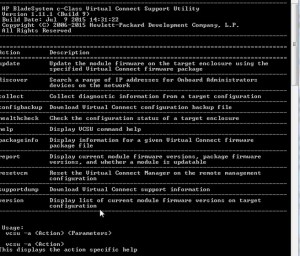
hgd

To check the current module Version

VCSU –a Version

 We need to provide the HP OA IP and its login.

Then it will ask for the Virtual Connect Domain login.
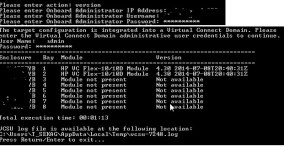
jd

Next will show the steps to take the configuration backup.
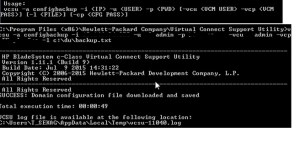
knd

Steps to update the firmware

VCSU –a <Action >

 VCSU –a update

 Syntax
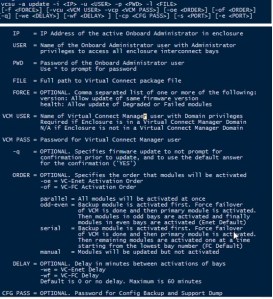
ned

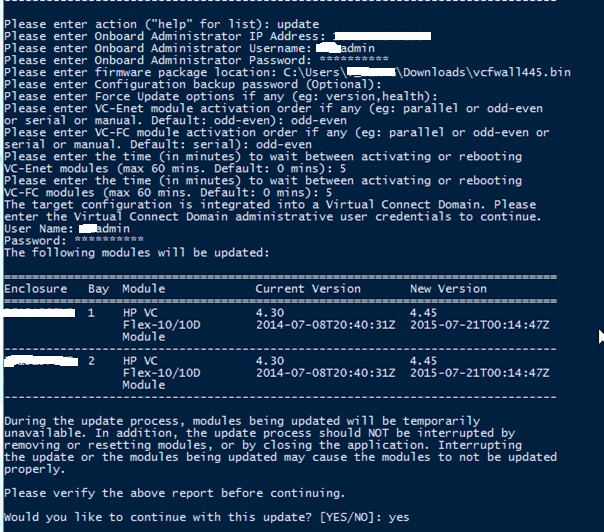
Once provided the below command

VCSU –a update

It will prompt to connect the HP OA and we need to provide the username and password

Next we need to point the firmware download location.

7m

Next it will ask for the password for the backup and also if any force update option.

Since it is Optional and no need , Just give enter to move to the next step.

Next it will ask for VC-Ethernet \VC-Fiber Module activation order

Provide the default option ( odd-even )

0end

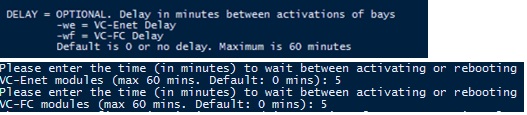
Next it will ask the wait time to activate of bays and reboot.

Provide it as per your environment need.
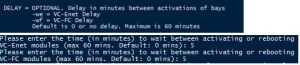
zd

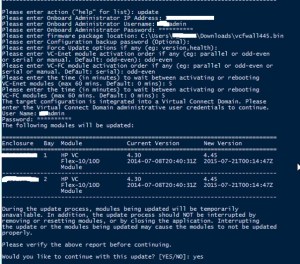
Next it will prompt to connect the Virtual Connect Domain and we need to provide the username and password.

Wait for few seconds and then type ENTER
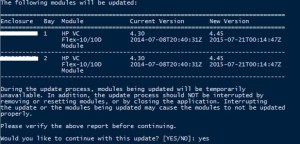
0old

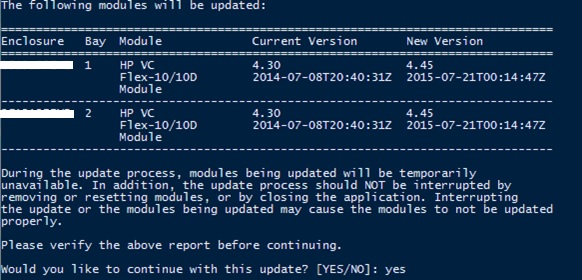
It will show the current version and the New Version

We need to confirm the update – type – YES
kl

Make sure to note the below warning

9iod

 Monitor the update , it will show the % below for the update

pmd

Once the update is completed , It will start the activation.

08d

 It was there for around 15 mins at 20% and noticed that one of the firmware it got activated ..

vcd

Almost after 25 mins and around 20% of the activation , found blades which is running on the enclosure stops pinging and all came up after around 5 mins.

So make sure the blades are configured with proper redundancy to avoid any downtime on blades.
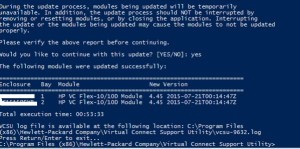
xed

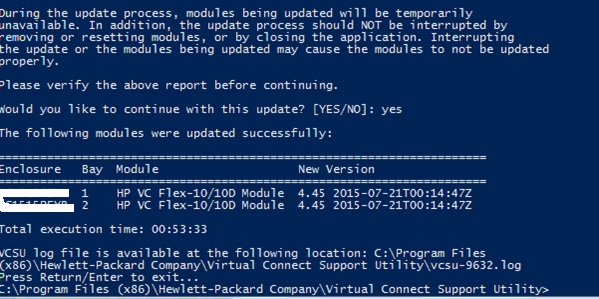
 After 45-50 Mins update has been completed

fullj

Reference :

https://h20565.www2.hpe.com/hpsc/doc/public/display?sp4ts.oid=3942029&docId=emr_na-c04567803&docLocale=en_US

http://h20564.www2.hpe.com/hpsc/doc/public/display?docId=c02616817

Click to access Common%20Myths_2nd_edition_4AA0-4515ENW.pdf

http://h20565.www2.hpe.com/hpsc/doc/public/display?docId=emr_na-c03154250&lang=en-us&cc=us

http://h20565.www2.hpe.com/hpsc/doc/public/display?docId=emr_na-c02885443

Posted in Firmware upgrade, HP | Tagged , , , , | 5 Comments

Powershell script to audit the VMware vCenter\ESXi \ Windows logs.

To troubleshoot the VCenter related issues we usually collect the VMware support logs and if we want to check for any error or specific info , it is very difficult to identify the details  on which appropriate log to check so I wrote the script in which it will unzip the VMware support log and it will ask for the key word to check it in all the log files , once we provided the search key word , it will check and give the output.

Just not only the VMware logs , we can use it for any sort of log searching to easily find the issue.

Once you run the script it will ask for the location of the ZIP file.

21d

Next it will ask for the location to unzip it in to the folder.

23tled

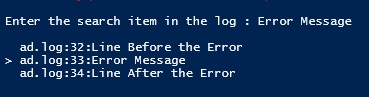
It will ask for the search item in the log and I configured context (1) so that it will display a line before and after the message we are searching.

te56

Download the Powershell script from the below link to search it from the ZIP file.

Dropbox or GitHub

Download the Powershell script for directly searching for the content from the folder and not the zip.

Run the below script from the folder you want to search the log.

Dropbox or GitHub

In case we want to check the ESXi logs , one easy way is using the web browser and in this method no need to have vSphere client or web client.

http://ESXiIP/host

Datastore:

http://ESXiIP/Folder

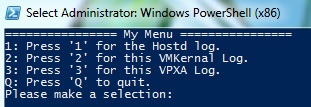
Also I made one more script in which it will ask to connect the ESXi host and it shows the menu in which we have to select the appropriate log type and then search the key word from the log.

powershell1

dded

Make sure Powercli modules have been installed already and also run the below command.

Add-PSSnapin VMware.VimAutomation.Core

Download the script from the below link

Dropbox or GitHub

Hope it will be helpful to search quickly the logs from the VMware and Windows Environment.

Reference : http://wahlnetwork.com/2015/11/19/auditing-enhanced-esxi-6-0-host-logs-powercli/

Posted in Powershell, VMware, Windows | Tagged , , , , | Leave a comment

Reverting to a previous version of ESXi patch,update or upgrade.

This is not something new to the most of VMware Admins out there, but still there are a lot of doubts about this and even VMware support engineer was not sure about the steps so I decided to put few steps with screen shot which help while troubleshooting the issue.

After the ESXi patch or update , if we find any abnormal behavior in the environment ,we can revert the changes to troubleshoot the issue and ever time when we update the ESXi host , a copy of the ESXi build will be saved on the host and very important is it permits only one level of roll back , since only one previous build can be saved at a time , once we reboot it will show up to two builds , one boot build and another standby build.

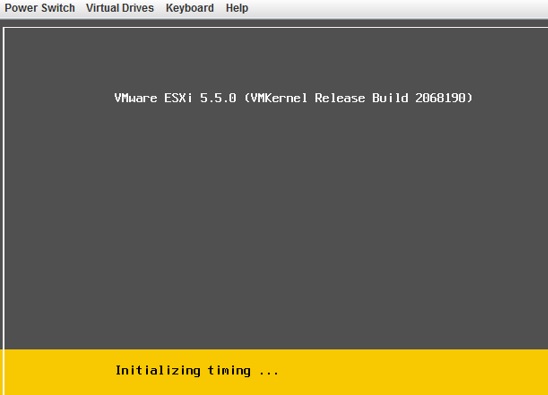
Reboot the host and press Shift+R to select the standby build.

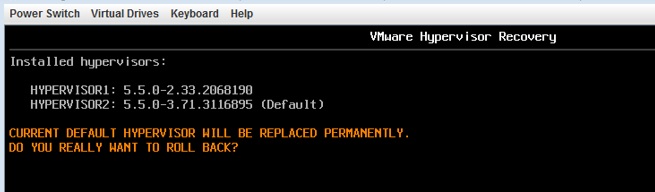
So I want to revert the changes from 5.50 ( 3116895 ) to ( 2068190 )

ddd

It will show the warning Current hypervisor will permanently be replaced
with build: X.X.X-XXXXXX. Are you sure? [Y/n]

Press Shift+Y to roll back the build and reboot.

2ded

Posted in ESXi Patches, Update Manager, VMware | Tagged , , | 1 Comment

VC6.0 Linked Mode roles sync issue between vCenters – ” The data service timed out because a back-end task took more than 120 seconds”

vCenters  ( VCSA ) between different sites have been connected using the linked mode so all the PSCs is pointed to the same domain and because of few issues we have to decommission the PSC\VC in one of the site and have to re-install the same.So we decommissioned the PSC\VC using cmsso-util unregister command and re-installed both again which connects to the same domain to the linked mode with different name.

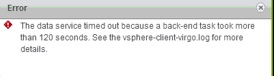
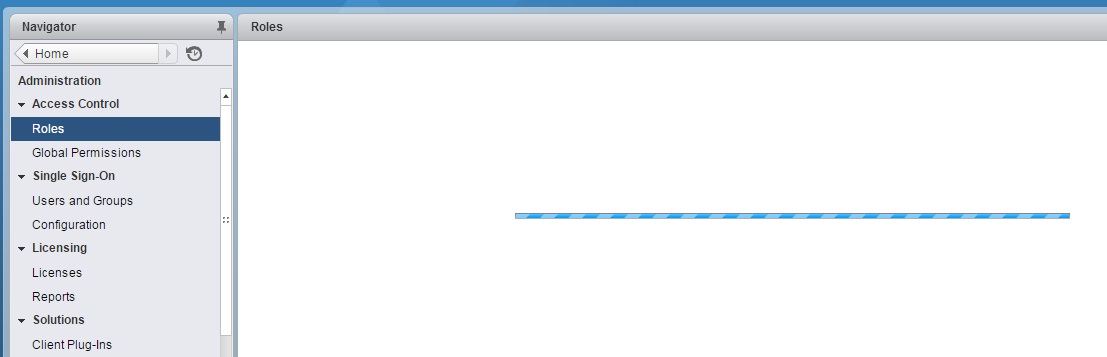
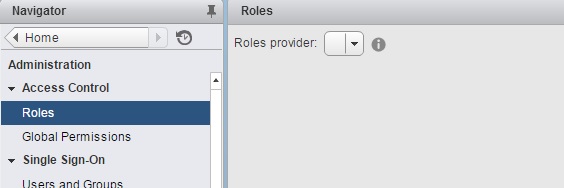
Once the installation is completed , I notice that in roles it is keep on searching and after some time it is failing with the below error.

“The data service timed out because a back-end task took more than 120 seconds. See the vsphere-client-virgo.log for more details “

erro1r

erro12r  error3d

error4d

Initially I was suspecting the issue will be resolved  if we reboot all the PSC\VC in other sites so that  any stale record of the decommissioned PSC\VC will be removed but it failed to resolve the issue .

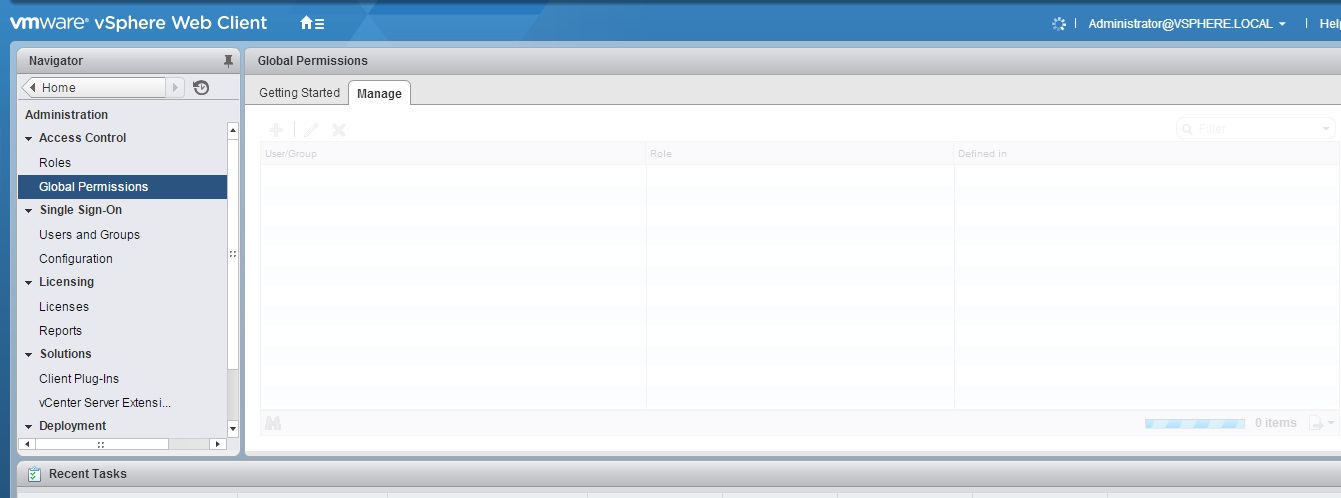
We were trying to run the decommission command again and first we ran the vdcleavefed command but it got failed as usual with error “Confidentiality required “ and I tried cmsso-util unregister command and it took very long time to complete , even though at the end  it is not showing  as successfully completed but in the background it cleaned or unregistered the VC and from the web client immediately it started showing the roles..

So as I suspected it is because of some stale entry of the VC which we retired but the strange thing is when we ran the  “ /usr/lib/vmidentity/tools/scripts/lstool.py list  –url http://localhost:7080/lookupservice/sdk –type vcenterserver “ it was not showing any VC which is related to the decommissioned one but still somewhere the entry was got registered and once we ran the cmsso-util unregister command it cleared all and started working.

Posted in vCSA 6.0, VMware | Tagged , , | Leave a comment

Use windows session authentication greyed out VC6.0 webclient.

Once the installation of PSC\VC installation is completed , we started configuring the PSC to our AD and assigned appropriate users to the roles.While trying to login using the AD account , noticed Use windows session authentication  option is greyed out in the web client.

using the below link tried to fix the issue but no luck.

http://www.virtuallyghetto.com/2015/09/quick-tip-fix-for-cip-no-longer-functioning-in-vsphere-web-client-after-chrome-45-update.html

At last un-installed all the old VC Clients ( 5.5\ 5.1 ) from the laptop and installed the latest VC6.0 which fixed the issue in chrome but still in IE the option is greyed out ..

Posted in vCSA 6.0, VMware | Tagged , | Leave a comment