Lookup service fails with the certificate error for external VMware solution like NSX Manager,VMware vCenter Site Recovery Manager, VMware vSphere Replication or vSheild Manager.

Some solutions, such as VMware vCenter Site Recovery Manager, VMware vSphere Replication, or vSheild Manager are always installed on a different machine than the associated vCenter Server system or Platform Services Controller that manages the certificates for the solution.

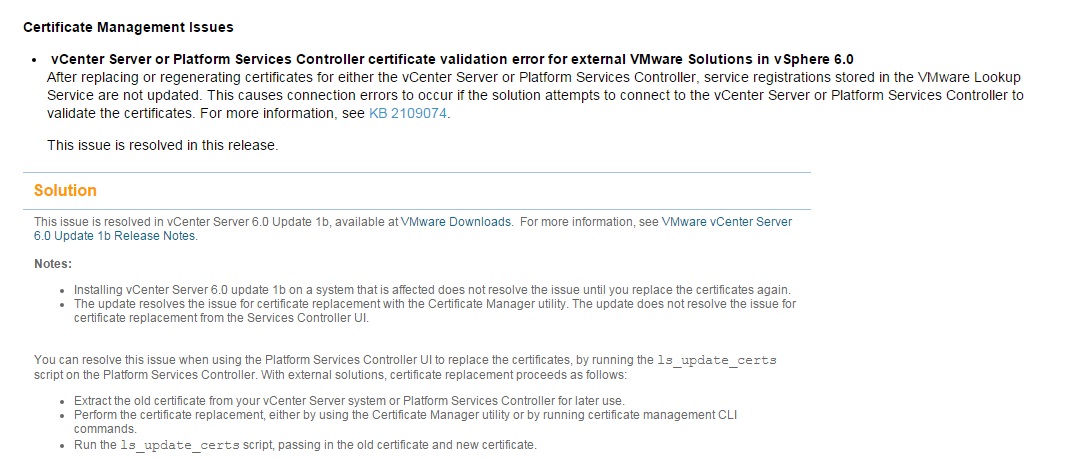
If you replace the Machine SSL certificate of a vCenter Server system or a Platform Services Controller in an environment with an External Platform Services Controller, a connection error results when the solution attempts to connect to the vCenter Server. The reason is that the vCenter Server and the Platform Services Controller use the new certificate, but the corresponding service registrations with the VMware Lookup Service are not updated. When solutions connect to vCenter Server or Platform Services Controller, they look at the service registration, which includes the service URL and the sslTrust string. By default, the sslTrust string is the Base 64 encoded old certificate even if you have replaced the certificate successfully.

VMware has fixed the issue in the latest update VCSA U1b pr U2  so  if we have already updated the machine certificate with the older version then you may face issue while connecting the NSX Manager\Vsphere Replciation ( VR ) to the lookup service with the below error.

newed
To fix the issue we need to follow the KB 2121701 and in case we already changed the machine certificate with the older version ( VCSA 6.0 \ U1a ) and updated the appliance with the latest U1b\ U2 code still we need to follow the manual steps in the  KB to fix the issue.
notesced
So if we want to change the machine certificate then first make sure to upgrade the VCSA ( PSC\VC ) to the latest VMware update ( U1b or U2 )  to avoid the extra work and you can check my other blog on the steps involved to replacing the certificate where I highlighted the changes also.

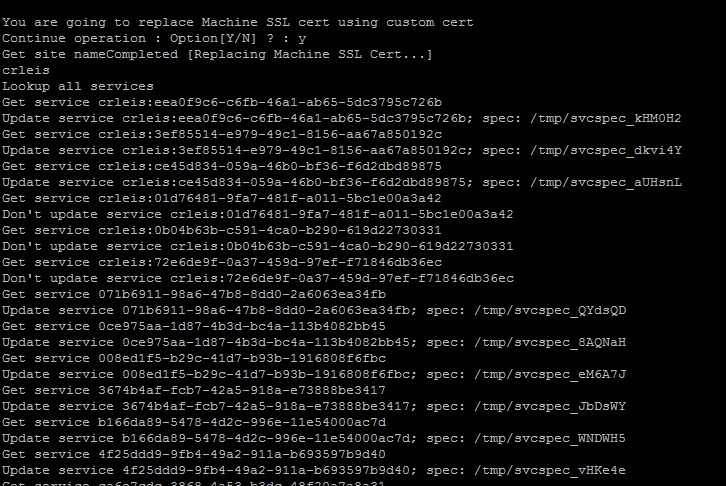
We can notice the below extra output while importing the certificate with the U1b \ U2 update.

new1cert
ced
Reference :
Posted in Certificate, High-Availability, Replacing vCenter 6.0 SSL Certificate, vCSA 6.0, VMware, vShield, vSphere Replication VR | Tagged , , , , , , , , | 1 Comment

Issue while moving ESX host from old VC5.1 to the new VCSA 6.0

We were doing the ESX Host (5.1 )  migration from the old windows VC5.1 to the new VC6.0 appliance , few hosts were having issue while adding it to the new VC and it got failed with the  Time-out Error and not registered in to the cluster.

After adding the ESX host , it will ask to accept the certificate and once we click “yes” it was taking too much time to go the next option and it got failed with the Time-out error .We tried using the IP but that also had similar issue.

So we login to the SSH and restarted all the management services ( services.sh restart ) but that also didnt help and we were suspecting the issue might be because of the certificate from the ESX host and decided to regenerate the esx host certificate again.

Steps followed to regenerate the ESX host certificate.

Log in to the ESXi Shell and acquire root privileges.

In the directory /etc/vmware/ssl, back up any existing certificates by renaming them using the following commands.
mv rui.crt orig.rui.crt
mv rui.key orig.rui.key

Note
If you are regenerating certificates because you have deleted them, this step is unnecessary.

Run the command /sbin/generate-certificates to generate new certificates.

Run the command /etc/init.d/hostd restart to restart the hostd process.

Confirm that the host successfully generated new certificates by using the following command and comparing the time stamps of the new certificate files with orig.rui.crt and orig.rui.key.

ls -la

Once certificate is regenerated , we restarted the management service again using  services.sh restart and added the ESX host successfully without any issue.

Reference :

https://pubs.vmware.com/vsphere-50/index.jsp?topic=%2Fcom.vmware.vsphere.troubleshooting.doc_50%2FGUID-757EEE28-042A-4627-9CB1-2C3388B2062A.html

Posted in ESX command, vCSA 6.0, VMware | Tagged , , , | Leave a comment

How to identify host , datastore and vCenter of the running VM .

when vCenter\PSC is running as the appliance on the  host configured in the same vCenter and in case of  the VM (vCenter\PSC)  failure, we need information about the VM running on which host,datastore to bring it back online.

Also in another situation where in VR vSphere Replication with or without SRM ,vCenter is the key factor to restore the VMs and in that scenario we need to know the datastore in which VCenter is running.

  1. To check the VM running on which datastore.

Login to the powercli and connect to any  ESXi in cluster.

Connect-VIServer ESXiIP

PowerCLI C:\> dir -Recurse -Path vmstores:\ -Include VM NAME AS IN INVENTORY | Select-Object Datastore

vmd

If the ESX is having lot of datastores connected then we can try the below steps.

Login to the ESX SSH

cd  /VMFS/Volumes/

find / -name “vmname.vmx”

In case the result comes with the UID name of the datastroe , instead of name of the datastore then use the below command to find the datastore name.

/vmfs/volumes # find / -name “vm.vmx”
/vmfs/volumes/4906d6-3c160c98/vm/vm.vmx

/vmfs/volumes # esxcli storage filesystem list | grep 4906d6-3 ( it will show the datastore name )

2. To check the VM running on which host.

Login to ssh of any host running on the cluster.

cd /vmfs/volumes/datastore in which VM is running

Look for the latest vmware.log file

cat vmware.log | grep Hostname ( case sensitive )

It will show the hostname.

ped

3. To check the vCenter the VM belongs .

Update 10/07/2022:  https://williamlam.com/2022/10/is-the-vcenter-server-unique-id-still-important-today.html

In huge environment with more number of vCenter across the environment in some situation we need to know which vCenter the VM is running from the guest system.I was searching this in google and found good article which explains the steps.

Read the article for full details and I will show the steps involved .

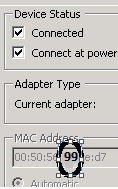
Right click and edit the VM to check the MAC Address or type ipconfig /all from the guest VM CMD.
q2

vCenter Server instance ID” is used for generating virtual machine MAC addresses and MAC address is well known digital identifier which can be relatively simply identified in any operating system.  So what this “vCenter Server instance ID” is? Each vCenter Server system has a vCenter Server instance ID. This ID is a number between 0 and 63 which is randomly generated at installation time, but can be reconfigured after installation. Here in vSphere 6.0 documentation is written that … According to this scheme, a MAC address has the following format:

00:50:56:XX:YY:ZZ
where 00:50:56 represents the VMware OUI,
XX is calculated as (80 + vCenter Server Instance ID),
and YY:ZZ is a random number.

Note 1:

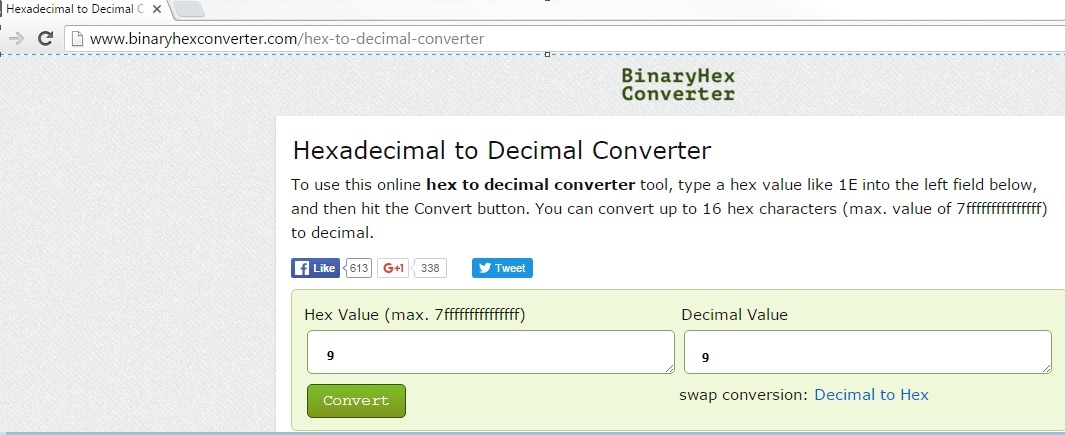
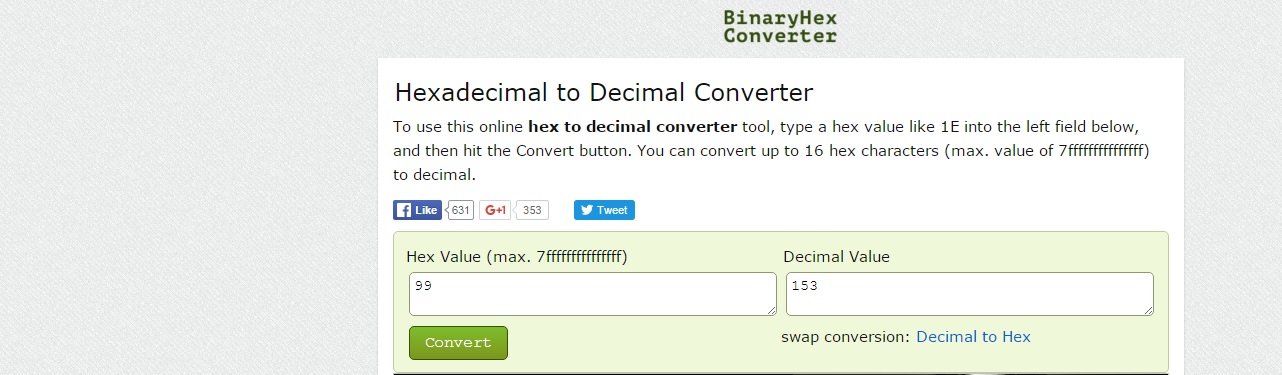
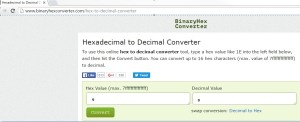
The formula above (80 + vCenter Server Instance ID) is in hexadecimal format therefore in decimal format it is 128 + vCenter Server Instance ID.

use the script mentioned in the article or other websites there to help to convert.
sed

f3d

Note 2:

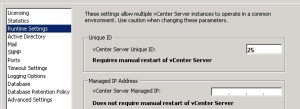
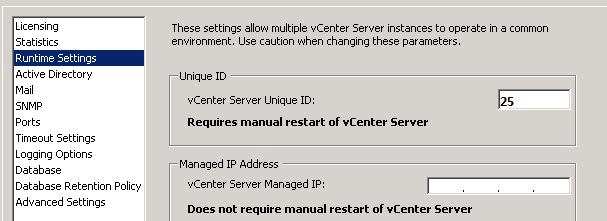
vCenter Server unique ID is generated randomly during vCenter installation. It can be changed after installation in the Runtime Settings section from the General settings of the vCenter Server instance and restart it. Please be aware, that existing Virtual Machines MAC addresses are not changed automatically after ID reconfiguration therefore it is good idea to change vCenter Server unique ID immediately after vCenter Server installation. There are methods how to regenerate VM mac addresses but it requires VM downtime. For more information look at VMware KB 1024025

153-128 = 25

rq2

There are some caveats on this method check the link below for more info.

4. Check my other blog to see which VMDK is associated with which disk in Windows Server.

How to find which VMDK is associated with which disk in Windows Server.

Reference :

http://blog.igics.com/2016/02/how-to-identify-from-guest-os-on-which.html?m=1

Is the vCenter Server Unique ID still important today?

Posted in ESX command, PowerCLI, VMware, vSphere Replication VR | Tagged , , , | 3 Comments

Trend Micro Deep Security Manager 9.6 – Installing the filter driver on ESX5.1 – Part 3

Check my previous blog for Trend 9.5 Installation and its features and also 9.6 update. In this blog we can see the steps to install the filter driver on ESX 5.X under Trend DSM 9.6.

Before going to the details , already in my other blog have details about the Trend Filter driver installation and upgrade steps and for 9.6 SP1 the installation steps is not that much different. Regardless if we using DSM v9.6, if the target host is running ESX 5.x then still we need the filter driver to “prepare” the host and deploy the corresponding DSVA 9.5.

Please refer to the attached screenshot (blue line)

DSVA-ESXi version mapping

Right Click the host and Actions – Deploy Agentless Security

host

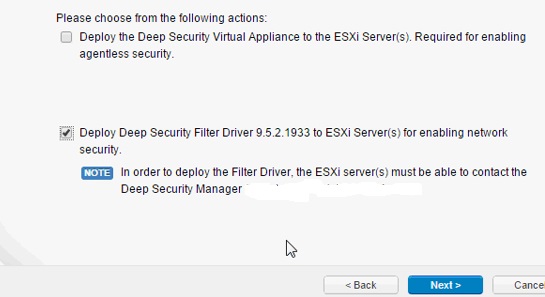
q1ed

Choose the second options to install the Filter Driver.

q2ed

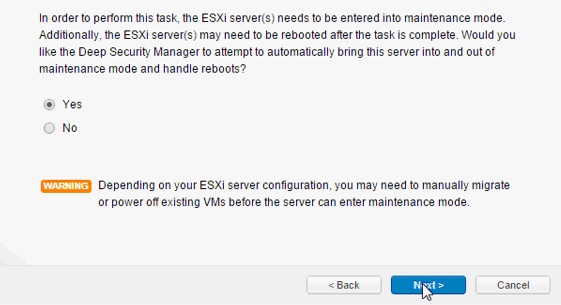
Select to put the ESX host in to MM.

djj

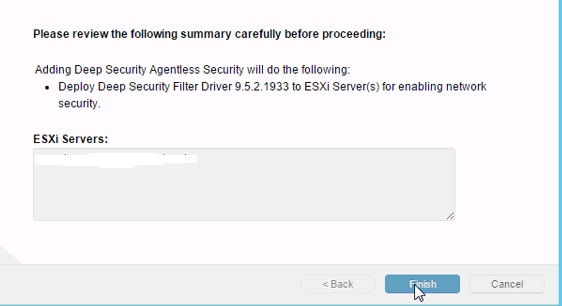
It will ask to review and confirm.

qdjj

6ed

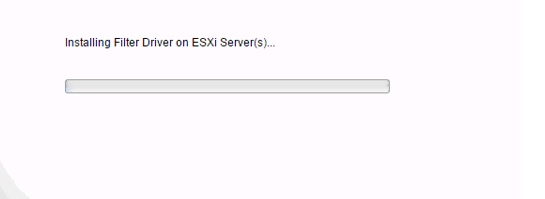
It will reboot the ESX Host.

6ekd

done

Once it is done , proceed with vsheild driver and then DSVA Installation.

wqd

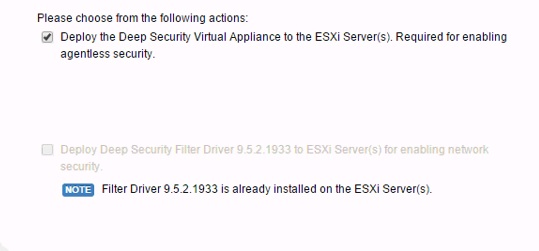
Note the filter driver option will be grayed out now and only it will show the DSVA installation option.

fil

If the ESX version 6.X then it wont show the option to install the filter driver and directly it will go for the DSVA installation.

Related Blogs:

Trend Micro Deep Security 9.5 ( Filter Driver Installation ) – Part 4

Trend Micro Deep Security 9.5 ( Filter Driver and Deep Security Virtual Appliance – DSVA Upgrade ) – Part 14


Posted in Trend Filter Driver on ESX Host, Trend Micro Deep Security | Tagged , , | 4 Comments

How to validate the BIOS firmware before applying it to the HP Blade running ESXi.

Whenever we have any hardware issue or host reboot , vendor first they will recommend to update the firmware . In most cases they will ask to update the BIOS ROM firmware and in our environment as per the recommendation we  upgraded the BIOS in HP ProLiant DL580 G7 Servers running ESXi which caused the performance issue on some of the applications.

Since the performance issue was reported after few months we couldn’t correlate the issue with the BIOS Firmware and after almost a week of trouble-shooting  VMware has confirmed the cause for the issue is BIOS Firmware and recommend to update the next version of the BIOS Firmware.

HP and VMware links have detailed info about the issue.

So after that incident it is  nightmare  when vendor is pointing to update the firmware , especially BIOS Firmware and was checking how to make sure the BIOS firmware version is safe to install on the OS and concluded below few points.

First we need to make sure the BIOS release is at-least 3-4 months old and check the below VMware  PDF from HP to make sure the mentioned firmware is defined and also note the date of the firmware .

Click to access HPE-VMware-Recipe.pdf

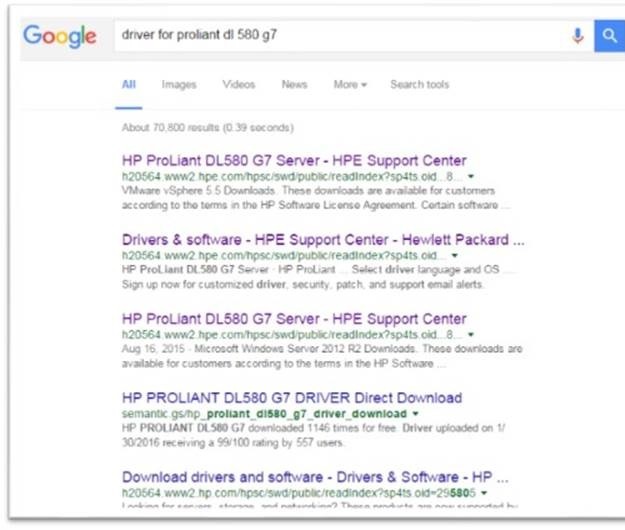
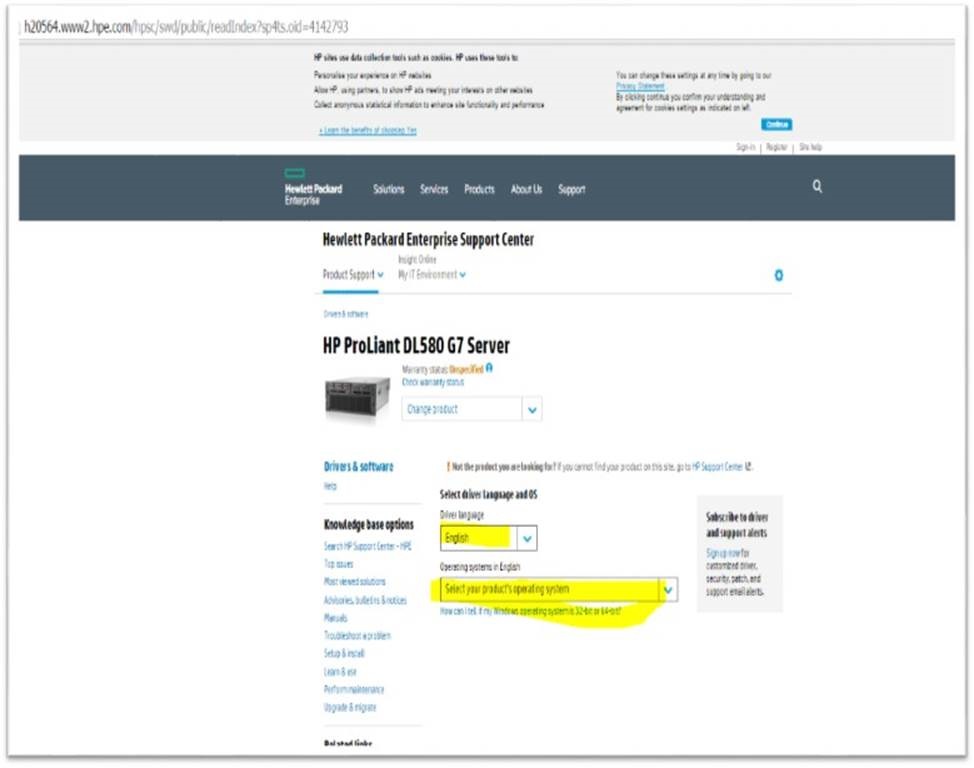
Next search the driver for the hardware version in google and click the link below.


fd

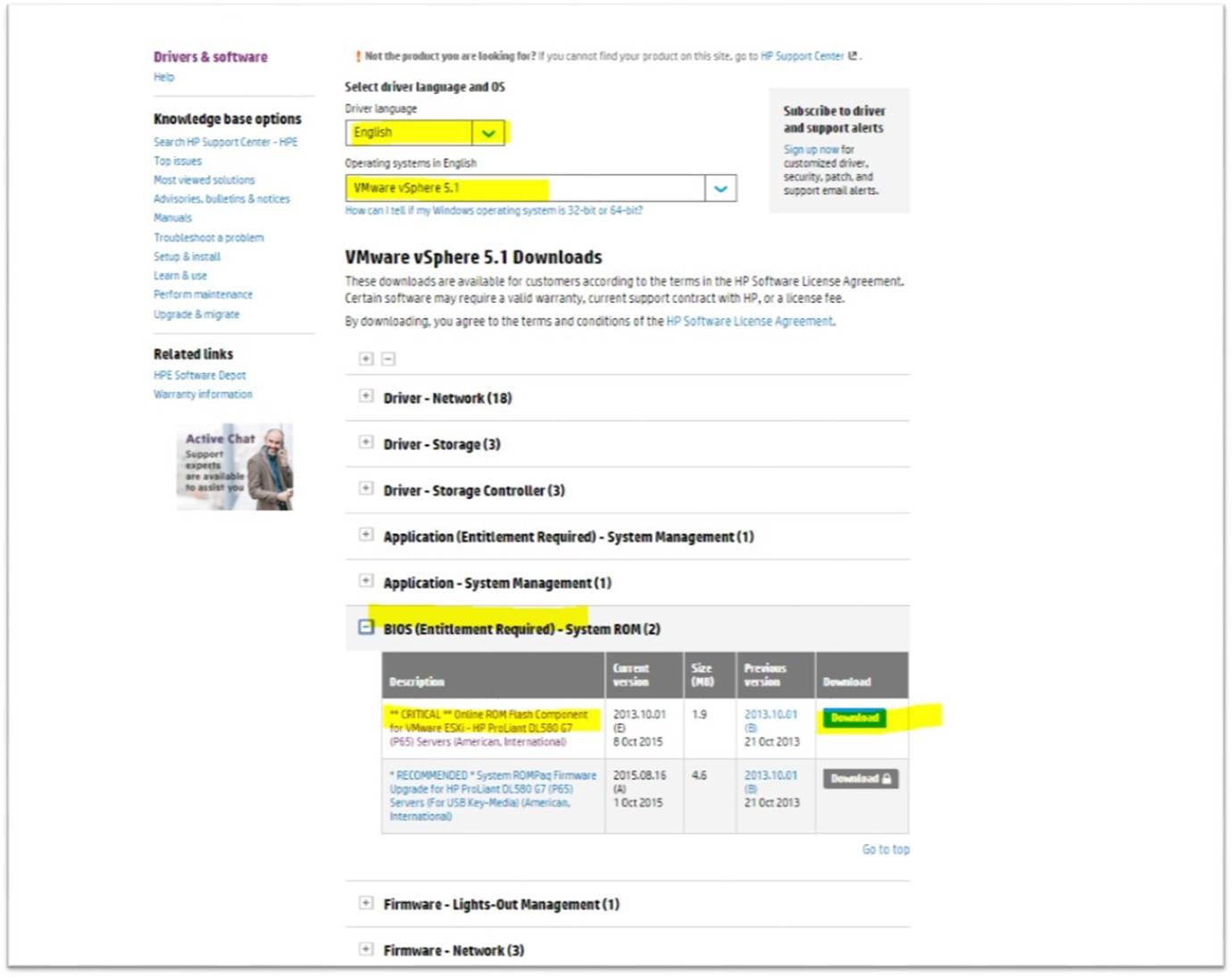
Select the OS Model

fd1

Select the download ( BIOS )

eede

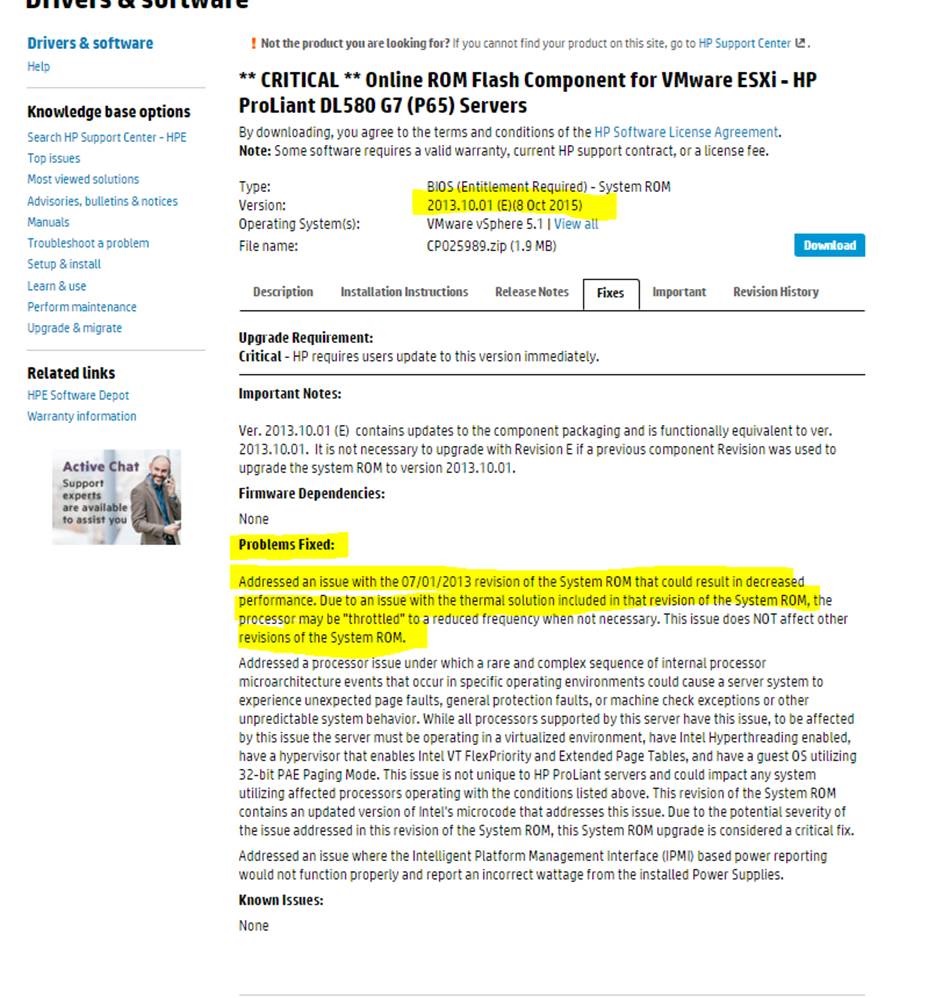
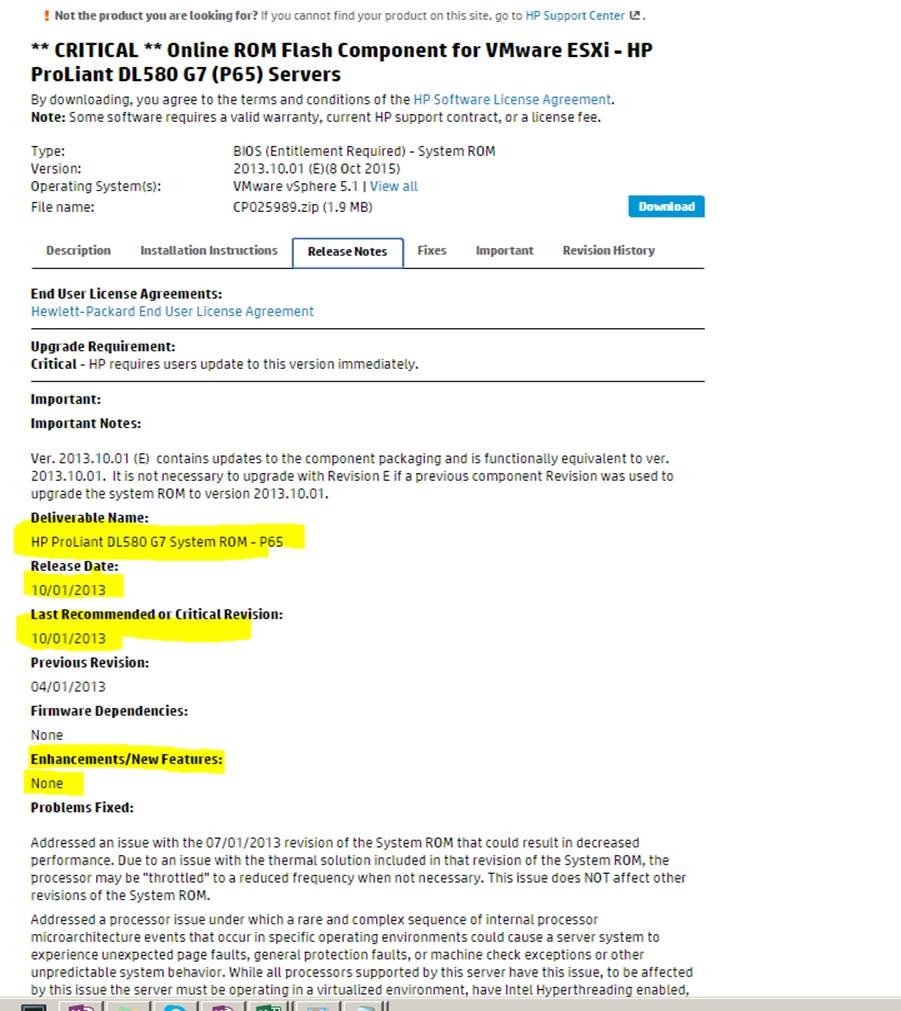
Now go to the Fixes and also Release Notes.

Read the Fixed issue and also Enhancements\New Features.

Make sure what kind of issue it is fixing and also about the new Enhancements and New features.

Also note down the Date mentioned which equals to the HPE-VMware-Recipe list.

For EX for DL580 G7 the BIOS Version and Date recommended in the list.

w3d


fixed


e1ed

Reference :

Click to access HPE-VMware-Recipe.pdf

Posted in Firmware upgrade, HP | Tagged , | Leave a comment

Powershell script to update the Onboard Administrator firmware.

By using the below Powersell script we can update the Onboard Administrator firmware.

We need HP Powershell cmdlet to run this script and download the same from the below link.

http://www8.hp.com/us/en/products/server-software/product-detail.html?oid=5440657#!tab=features

To run this script we need Update-HPOAFirmware cmdlet.

The Update-HPOAFirmware cmdlet downloads a new flash image from the network and uses it to update the Onboard Administrator firmware. If a standby Onboard Administrator is present in the system, then this command flashes and validates its
firmware before attempting to flash the active Onboard Administrator.

A list of connection objects must be provided as a parameter. OA administrator or OA operator access is required to execute this cmdlet.

Warning. It takes several minutes to complete the operation. OA is restarted when the firmware update is complete, so the OA connection will be lost, It will be necessary to reconnect OA for the additional operations.

Download the script from the below location.

Git-hub or Dropbox

Related Links:

Powershell Script to update the ilo firmware from the list of IPs.

Powershell Script to update the ilo firmware on the enclosure blades.

Powershell script to find the ilo firmware version of the blades running on the HP Enclosure.

Powershell script to find the HP valid Onboard Administrators list in the subnet.

Powershell Script to get the specified direct attached blade device serial number.

Powershell script to find the HP Enclosure information

Powershell script to find the current status of the specified HP Enclosure Fan

Powershell script to find the basic health and status of the HP Enclosure

Powershell to find the firmware version of the HP Enclosure Onboard Administrator and its related components.

Steps to upgrade the firmware of HP Virtual Connect Module using Virtual Connect Support Utility ( VCSU )

Posted in Firmware upgrade, HP, Powershell | Tagged , , , , | Leave a comment

Powershell Script to update the ilo firmware from the list of IPs.

By using the below Powershell script we can update the firmware of the HP ilo’s from the list of IPs .

We need HP Powershell cmdlet to run this script and download the same from the below link.

http://www8.hp.com/us/en/products/server-software/product-detail.html?oid=5440657#!tab=features

Make sure to install the HPiloCmdlets-x64.msi and look for the pdf for the installation steps.

To run this script we need update-HPiLOFirmware cndlet .

Download the script from the below location.

Git-hub or Dropbox.

Related Links:

Powershell Script to update the ilo firmware on the enclosure blades.

Powershell script to find the ilo firmware version of the blades running on the HP Enclosure.

Powershell script to find the HP valid Onboard Administrators list in the subnet.

Powershell Script to get the specified direct attached blade device serial number.

Powershell script to find the HP Enclosure information

Powershell script to find the current status of the specified HP Enclosure Fan

Powershell script to find the basic health and status of the HP Enclosure

Powershell to find the firmware version of the HP Enclosure Onboard Administrator and its related components.

Steps to upgrade the firmware of HP Virtual Connect Module using Virtual Connect Support Utility ( VCSU )

Posted in Firmware upgrade, HP, Powershell | Tagged , , , | 1 Comment

Powershell Script to update the ilo firmware on the enclosure blades.

By using the below powershell script we can update the ilo of the blade in enclosure in which we can select the specific blade alone to update or entire blades running on the enclosure.

We need HP Powershell cmdlet to run this script and download the same from the below link.

http://www8.hp.com/us/en/products/server-software/product-detail.html?oid=5440657#!tab=features

Install the HPOACmdlets-x64.msi and look for the pdf for the installation steps.

Get-Help *hp* – It will show all the commands related to the HP.

To run this script we need to have the Update-HPOAiLO cmdlet .

Download the script from the below location.

Git-hub or Dropbox.

Related Links:

Powershell script to find the ilo firmware version of the blades running on the HP Enclosure.

Powershell script to find the HP valid Onboard Administrators list in the subnet.

Powershell Script to get the specified direct attached blade device serial number.

Powershell script to find the HP Enclosure information

Powershell script to find the current status of the specified HP Enclosure Fan

Powershell script to find the basic health and status of the HP Enclosure

Powershell to find the firmware version of the HP Enclosure Onboard Administrator and its related components.

Steps to upgrade the firmware of HP Virtual Connect Module using Virtual Connect Support Utility ( VCSU )

Posted in Firmware upgrade, HP, Powershell | Tagged , , , | 2 Comments

Unregister vSphere Replication from vCenter Server if the Appliance Was Deleted

vSphere replication Appliance was deleted without properly  unregistered it from the vCenter and each time when we login in to the web-client it was searching for the vSphere Replication ( VR ) Appliance and it slowing down the web-client.

There is a separate KB article is available on steps to removing VR when the appliance it is not exist because it was deleted.

Login to the below Vcenter link.

https://<vCenter_Server_address>/mob/?moid=ExtensionManager with vCenter Server credentials

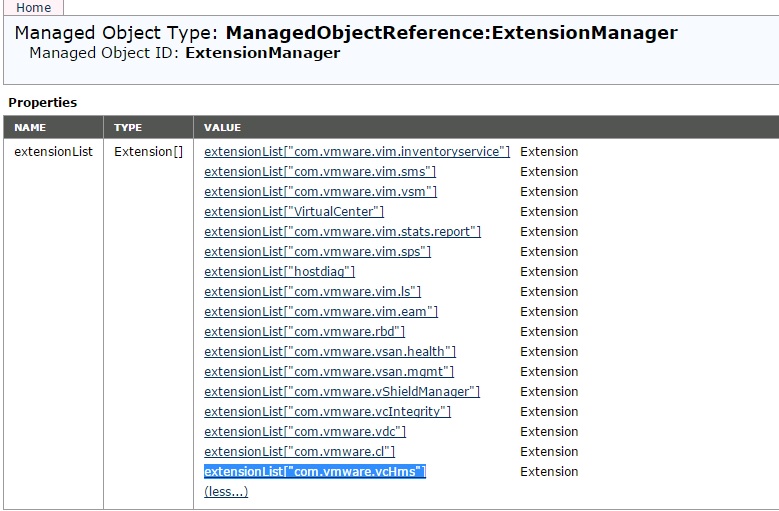
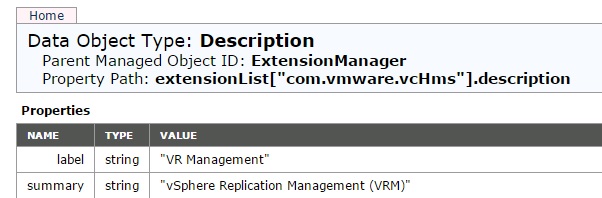
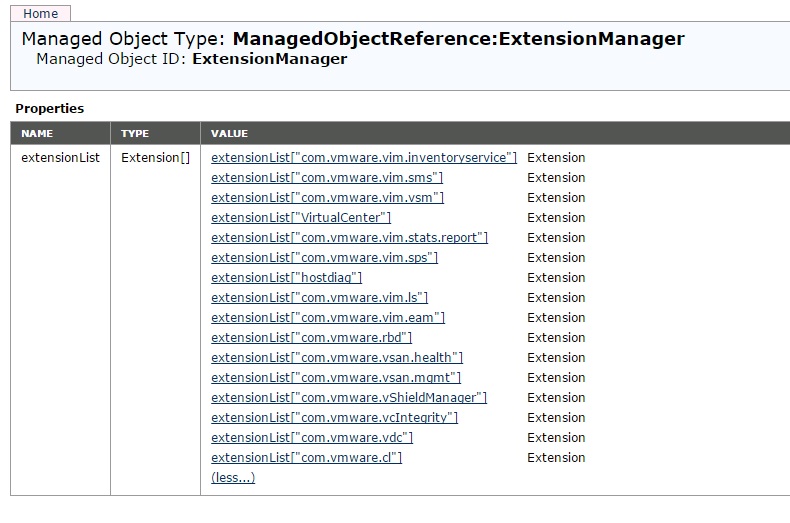
In the extensionList property, click the corresponding link for the com.vmware.vcHms extension key to check the key details.

VR

VR1

Verify that the displayed data is for a vSphere Replication appliance that is already lost.

VR2
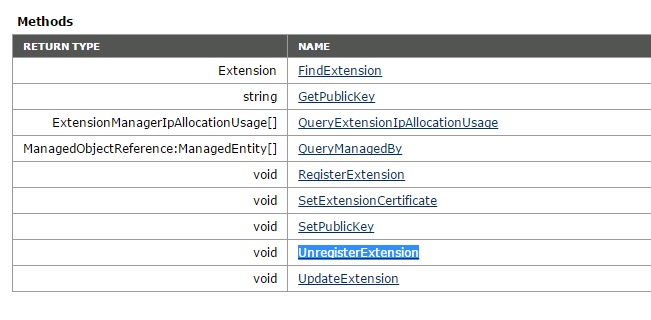
In ExtensionManager, click unregisterExtension.

VR3

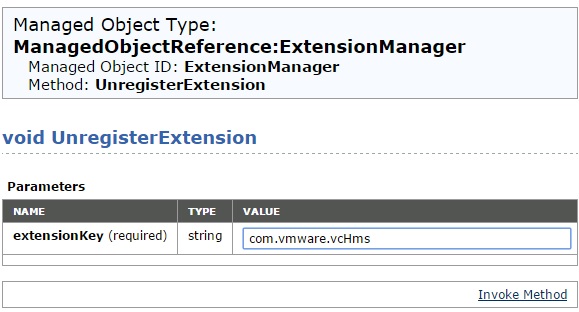
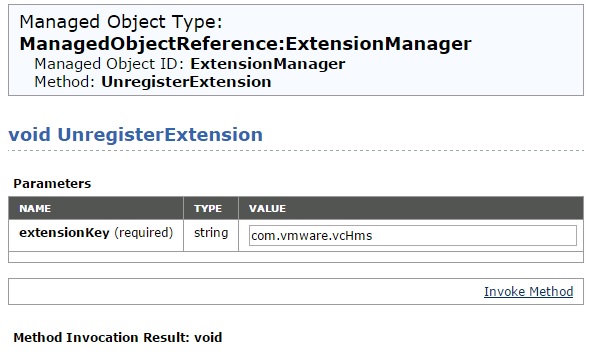
Type com.vmware.vcHms for the extension key value, and click Invoke Method.

VR4

Verify that the result displays void and not an error message.

An error message might appear if the specified extension is not registered, or if an unexpected runtime error occurs.

VR5

Refresh the ExtensionManager page and verify that the extensionList entry does not include com.vmware.vcHms.

VR6

Before removing VR

VR7

After removing VR

VR8

Reference :

http://pubs.vmware.com/vsphere-55/index.jsp?topic=%2Fcom.vmware.vsphere.replication_admin.doc%2FGUID-8110B494-53FC-4B82-8953-1C3E57933909.html

Posted in Vcenter Appliance, vCSA 6.0, VMware, vSphere Replication VR | Tagged , | 1 Comment

Powershell script to re-point\fail-over the VC to another replication Platform Service Controller ( PSC – VCSA 6.0)

Check my other blog for more information on re-pointing the VC to the external PSC , In this blog we can see by using the powershell script to re-point\failover the VC to another replication PSC.

We need cmsso-util to repoint PSC and pls check the  KB 2131191 for detailed information .

I believe currently there is no shell cmdlets from VMware to allow us to run shell commands directly using the powershell\powercli and while searching for any alternative, found the tool plink.exe which allows to run the command using the SSH . Pls refer the blog from Virtu-Al.Net for more info..

Idea of this code for plink.exe was taken from lucd and modified according to the requirement. pls check the help of plink.exe for more info.

To run this script download the plink.exe and provide the path of the same.

Download the script from the below location.

Git-Hub or DropBox

Also there is another script written by virtuallyGhetto to automate the same process which is very helpful to make the re-point operation to automate.


Reference:

http://www.lucd.info/

SSH PowerShell tricks with plink.exe

http://www.chiark.greenend.org.uk/~sgtatham/putty/download.html

http://www.virtuallyghetto.com/2015/12/how-to-automatically-repoint-failover-vcsa-to-another-replicated-platform-services-controller-psc.html

http://kb.vmware.com/selfservice/search.do?cmd=displayKC&docType=kc&docTypeID=DT_KB_1_1&externalId=2131191

https://blogs.vmware.com/vsphere/2015/10/reconfiguring-and-repointing-deployment-models-in-vcenter-server-6-0-update-1.html#comment-489138

Posted in F5 Load Balancer for PSC HA, High-Availability, Platform Services Controller (PSC ), Powershell, vCSA 6.0, VMware | Tagged , , , , | Leave a comment