Trend Micro Deep Security 9.5 ( Citrix VDI Environment-Agent Protection ) – Part 11.

Pls check my previous blogs for the DSM , Relay Server , vShield End Point , Filter Driver ,DSVA, DSA , SSP Server , Policies and Exclusions , Events and Monitoring and VMtools . In this blog we can see the Trend DPM with Pure Citrix VDI Enivronment.

Citrix XenDeskop

Deep Security Virtual Appliance (Agentless) does not work with a pure Citrix environment (ie. VMs running on Citrix XenServer).

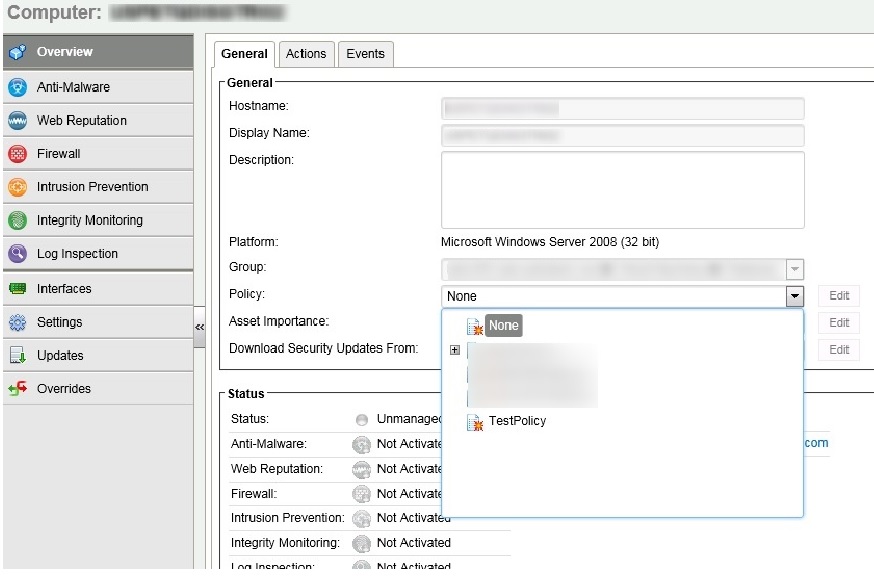
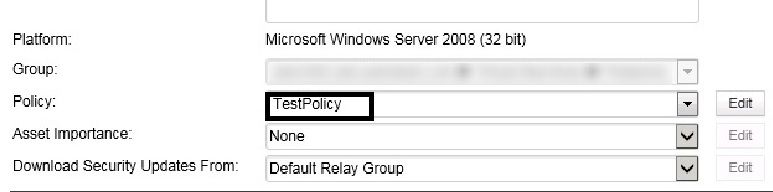
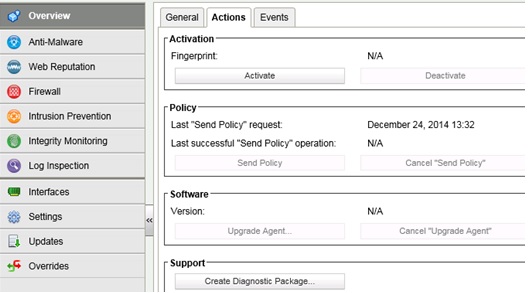
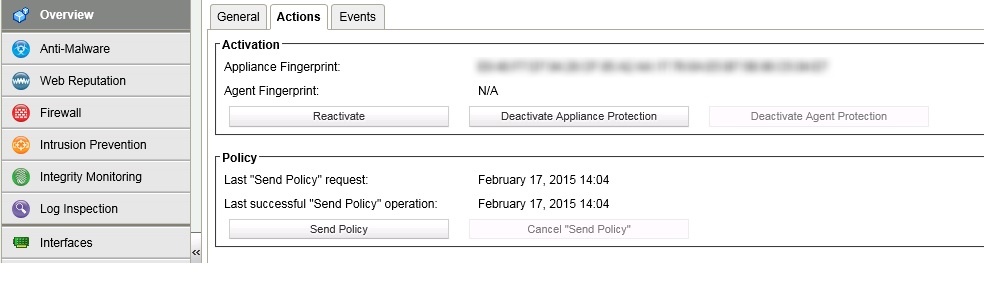
For these environments, the physical agent based solution is recommended. Install the Agents in the Master Golden Image (deactivated mode) and then perform Agent based activation in the provisioning process. We can mention the policy in the script or use an Event Based Task to assign the correct policy based on the attributes available (I.e. Computer Name).

Steps to setup the Master Golden Image.

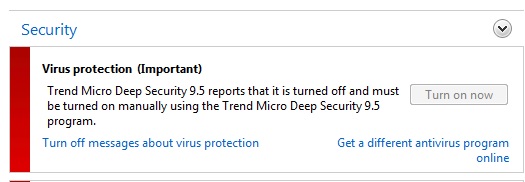
We need to install an un-activated Deep Security Agent on the Golden Image in the Citrix Xen Server environment and uninstall any other 3rd party anti-malware software from the Golden Image as this will cause scan contentions and Trend will take care of the Anti-Virus Windows Notification.

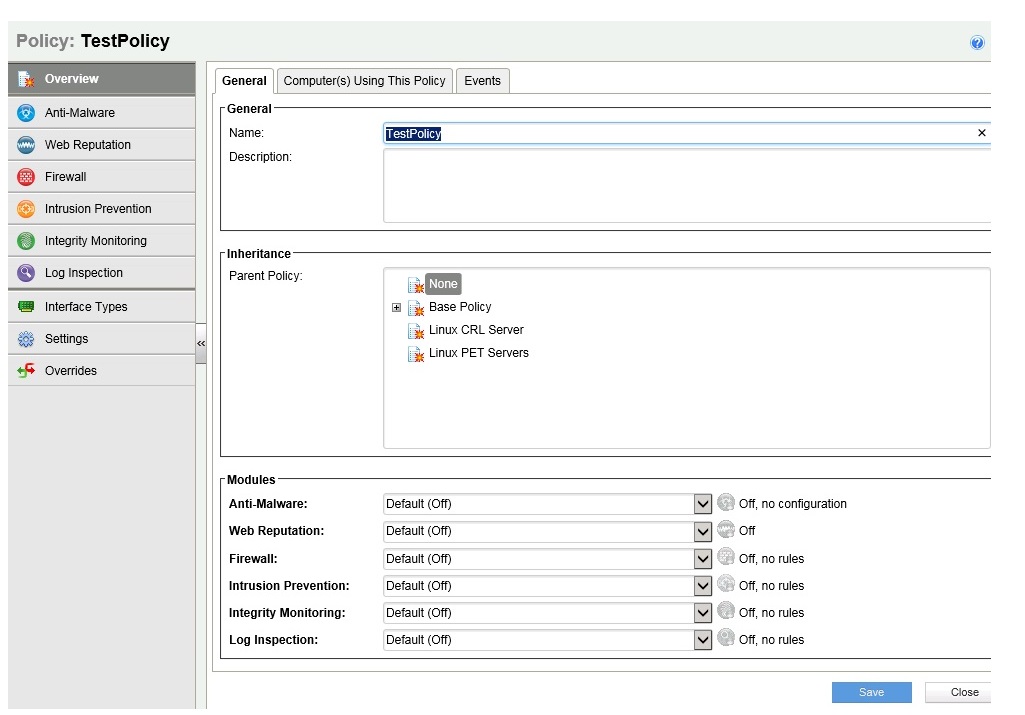
Trendav

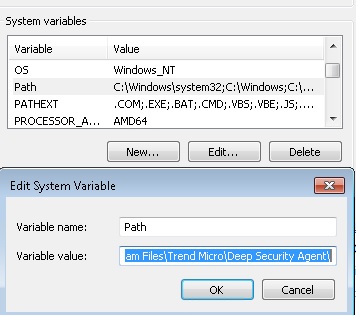
In the Golden Image set the Environment Variables so that dsa_control will consider as the internal command.

1111

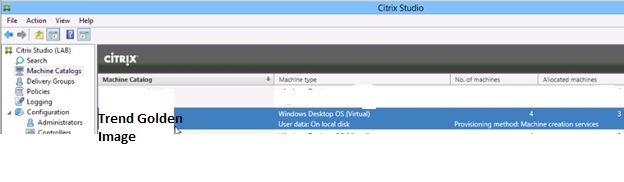
Once the Master Golden Image is setup and ready , We need to create the New VM using the Machine Catalog in the Citrix Studio .

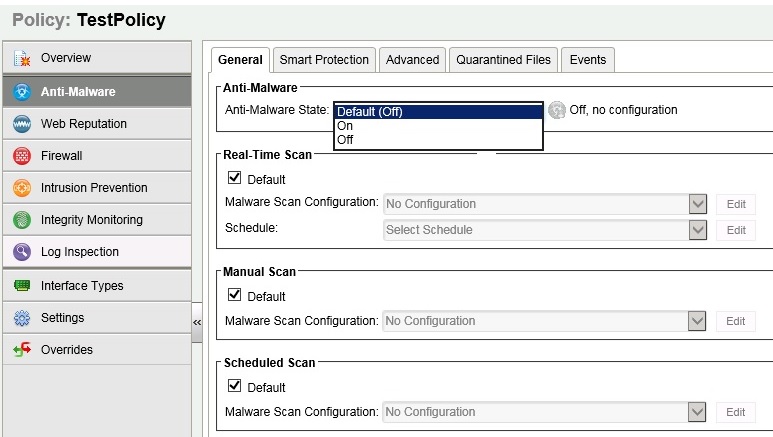
av

Pls check how to enable the activation for the new vm using the Active Directory integration in Trend DSM . We have the option called Event-Based Tasks and look the  Activating the Event-Based Tasks blog for the steps.

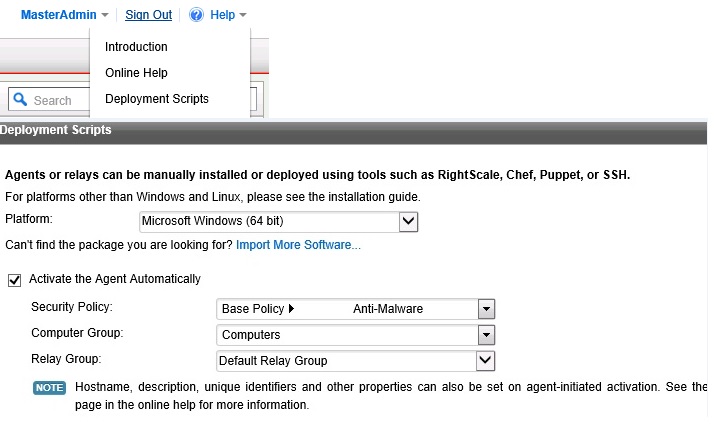
If we dont have the AD integration with the OU folder structure in Trend DSM then we can get the command to activate the agent from the DPM – Help – Deployment Script option by selecting the appropriate Policy , Computer Group and the Relay Group. By having the BAT file in the GPO logon script , agent can be activated .

scriptav

Before configuring it in the login script we can test the activation using the below command.

Pls note command have to be run in CMD prompt with runas Administrator.

c:\Program Files\Trend Micro\Deep Security Agent > dsa_control -a dsm:// (DSM IP address or hostname). “policyid:NO”

To Automate the same we can use a login script and copy the command in to the batch file and apply it to the appropriate OU in the Group Policy as the user logon script or use SCCM and target the service installed to run the command so that it wont be applied to the other VMs.

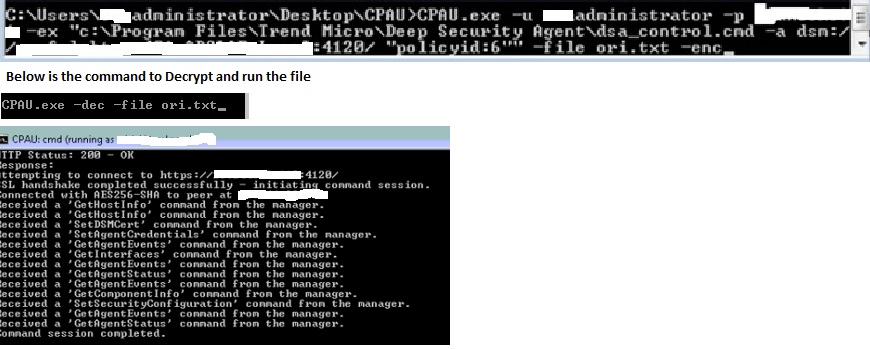
In case if the user doesn’t have the administrator rights on the new VMs and there is no SCCM is used in the environment then we can use the tool called CPAU to activate the agent. This eliminates the need to grant administrator privileges to users who need to activate DSAs on their machines but are being prompted for a username and password.

To create a login script, use a third-party program called CPAU. This tool can encrypt the user’s credentials.

  1. Download CPAU.
  2. Extract CPAU.exe to the desired folder. Take note of the location.
  3. Open the command prompt and go to the location of CPAU.exe.
  4. Run the following command to create an encrypted profile to be used for the login script:

cpau -u <domain\username> -p <password> -ex <“…installation directory\dsa_control.cmd /a dsm://<IP address / hostname>:4120/” -file <filename.txt> -enc

For example:

cpau -u dc4esxi \Administrator -p P@ssw0rd -ex “C:\Program Files\Trend Micro\Deep Security Agent\dsa_control.exe /a dsm://192.168.12.50:4120/” -file dsa_init.txt –enc

In the example above:

  • ‘dc4esxi\administrator’ is the user which has Domain administrator privilege
  • ‘P@ssw0rd‘ is the password
  • ‘C:\Program Files\Trend Micro\Deep Security Agent\dsa_control.exe /a dsm://192.168.12.50:4120/’ is the DSM IP address or hostname
  • ‘dsa_init.txt’ is the encrypted file to be used for the login script

CPAU

5.  Create a login script based on the information below and save it as a BAT file. For example: dsa_logon.bat.

\\ad-dsm\SYSVOL\DC4ESXI.com\cpau -dec -file “\\ad-dsm\SYSVOL\DC4ESXI.com\dsa_init.txt” -hide

where:

  • ad-dsm is the Active Directory server
  • com is the domain
  • txt is the encrypted file
  1. Add the login script by following the procedure in these articles:
  1. Copy the CPAU.exe and dsa_init.txt file to the Active directory location:

\\<active directory server>\sysvol\<domain>

For example: \\ad-dsm\SYSVOL\DC4ESXI.com\

DSA activation will initiate once users log on to their machines.

Once the Login Script is set , When user login in to the New VM , It will initiate the agent activation and in the Trend Console we can notice the New computer is activated with the appropriate policy .

Deep Security Agent and the Citrix target device driver

On Citrix PVS 6.0 Environment, if you plan on installing (In-Guest) Deep Security Agent, the Citrix Target device driver may not be able to connect successfully to the Provisioning Server due to a possible conflict.

Pls note on Machine creation services environment no need to do the below steps.

If you plan on installing Deep Security Agent on a Windows operating system that is connected to a PVS server using disk provisioning, the temporary workaround is to change the tbimdsa driver loading order during system startup from PNP_TDI to NDIS.

To do so, manually change the loading order of tbimdsa driver used by Deep Security Agent.

Go to HKEY_LOCAL_MACHINE\SYSTEM\CurrentControlSet\Services\tbimdsa

Add or modify String “Group” Value to: NDIS

Add or modify DWORD “Start” Value to: 0

By changing the (Group) from PNP_TDI to NDIS and Start value from 3 to 0, it allows tbimdsa driver to load after Citrix driver has loaded.

Reboot the machine and the PVS Target Device will be able to connect to the vDisk upon boot-up.

Reference :  http://esupport.trendmicro.com/solution/en-US/1098061.aspx

Pls check for my Next Blog VDI in ESX Environment ( Agentless)

Posted in Trend Micro Deep Security | Tagged , , , , | 1 Comment

Trend Micro Deep Security 9.5 ( Events and Monitoring ) – Part 10.

Pls check my previous blogs for the DSM , Relay ServervShield End Point , Filter Driver ,DSVA, DSA , SSP Server , Policies and exclusions . In this blog we can see the Trend events and monitoring options..

Deep Security writes information directly into a SQL database.  There are no local file or in windows event logs that gets updated when security events are generated.An alternative is we require additional syslog server implementation.   If you have a syslog server that can write information to a file, the syslog server can accept syslog information from DSM and write the information to a file for monitoring.

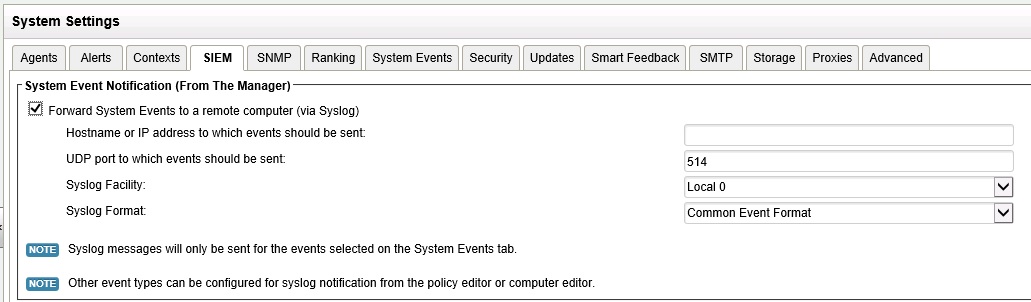
If you configure Deep Security Manager to forward syslog events to an SIEM server, all the events found under Administration >> System Settings >> System Events will be sent to the SIEM Server.

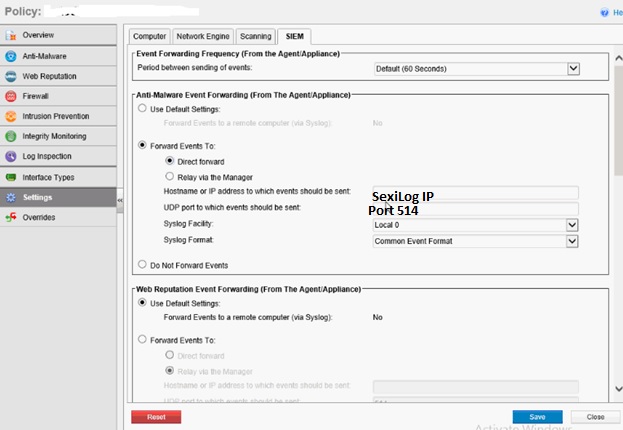
We need to configure it in the policies to send the events to the syslog server so that if any general events in DSM and also Malware events happened in the VM level then it will forward those events to the syslog server and we can monitor it from the logs.

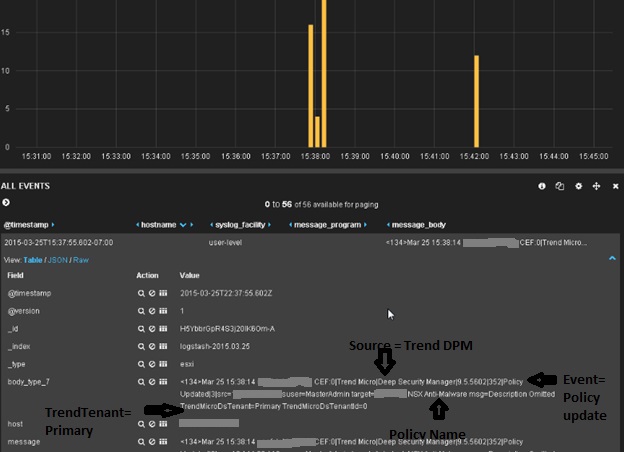
Last week a new free tool called SexiLog has been introduced and its very cool tool and pls see my blog SexiLog for more info and I tested the Trend DSM Events by forwarding it to the SexiLog server which worked with good results.

Go to the Administration – System Settings – SIEM

syslog

Configure the SexiLog server IP with port 514 in the SIEM settings mentioned above  and also under the DSM – Policy ( Select the Policy ) – Settings – SIEM.

Unt

Apply the Policy to the VM in the Computers and you can notice the event in the Sexilog Server.

U

We can see the below Event when we applying the policy to the VM.

U11

Also tested with the Test virus file from the EICAR and when the event happened on the VM , we can see the Graph in SexiLog with the same time stamp.

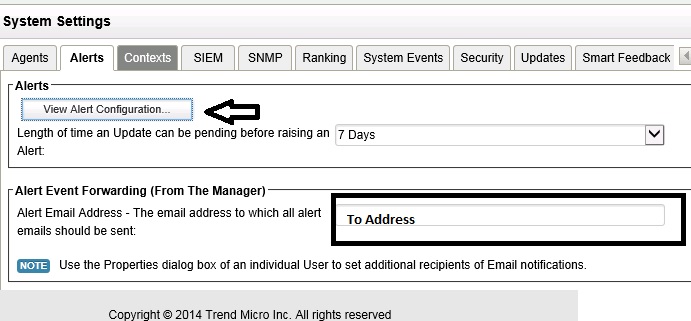
We can also use Deep Security Manager  to configure an SMTP server to send email if any alert occurs.  This can be found under the Web Console >> Administration >> System Settings >> Alerts and SMTP tab.

smtp

rrd


titled

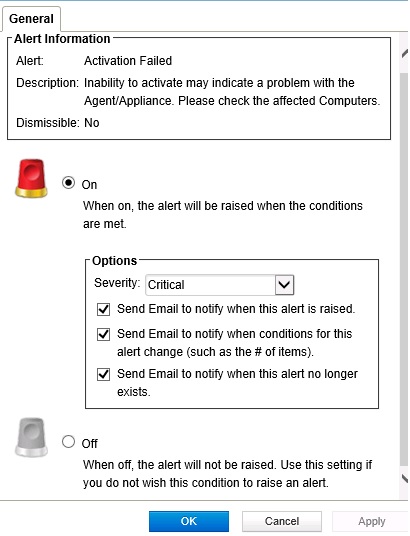
We can choose any particular alert is required the mail notification or not.

U1ntitled

Update : This option is default now.

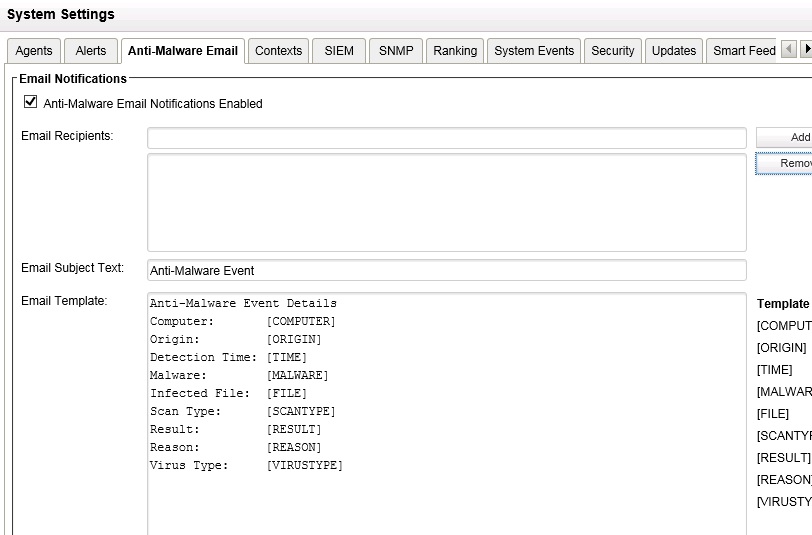
By default Anti-Malware Email alert wont be shown in the DSM and We only need to run the DSM_C.exe command to enable the notification feature.

dsm_c -action changesetting -name “com.trendmicro.ds.antimalware:settings.configuration.eventEmailTabVisible” -value “true”

The “Anti-Malware Email” Tab to configure the notification recipients can be found under Administration >> System Settings.

t1d

Trend with vRops.

Trend is the first vendor who have the adapter for collecting the security events in vROPS .We can integrate the Trend DPM with VMware vCenter Operations Manager which give the visibility into security events on the protected VMs from the  vCenter Operation Manager console.

Requirements

Trend Micro
• Deep Security Manager v9.x, installed
• Access to the Deep Security Manager web console via a browser
• The Deep Security Manager server must have network access to the vCenter on which VMware
vCenter Operations Manager is installed.
• The Deep Security Management Pack for vCenter Operations package
(DeepSecurityAdapter-1.x-x.pak) must be available to the VMware vCenter Operations
Manager web console in a local directory.
• The Deep Security Management Pack for vCenter Operations certificate importation script (importcert).

Pls download the adapter and the script from the below link

http://downloadcenter.trendmicro.com/index.php?clk=tbl&clkval=4370&regs=NABU&lang_loc=1

Tools


Trend Micro Deep Security Management Pack version 1.0.0 for vCenter Operations

vCenter Operations Platforms Supported:

  • vCenter Operations Advanced Edition Version 5.8.1
  • vCenter Operations Advanced Edition Version 5.8.2
  • vCenter Operations Advanced Edition Version 5.8.3
  • vCenter Operations Advanced Edition Version 5.8.4

Note: Only vCenter Operations Advanced and Enterprise Edition is supported as the management pack adaptor will require the use of Custom Dashboards

Deep Security Manager version Supported:

  • Deep Security Manager version 9.0 – build 4017
  • Deep Security Manager version 9.5 – build 2456

Not Supported:
Any products and versions not mentioned above

As per the Trend vRealize 6.0.1 version is under development and it will be available only after june.

VMware
• VMware vCenter, installed (up to two vCenters are supported)
• VMware vCenter Operations Manager v5.8.x (Advanced Edition), installed (requires custom
dashboard functionality)
◦ SSH access to the Analytics VM of the vCenter Operations Manager vApp.

Installation Steps

First create the user with Auditor role in DPM.

Enable the SOAP Web Services API in DPM

Administration – Advanced – SOAP Web Service API.

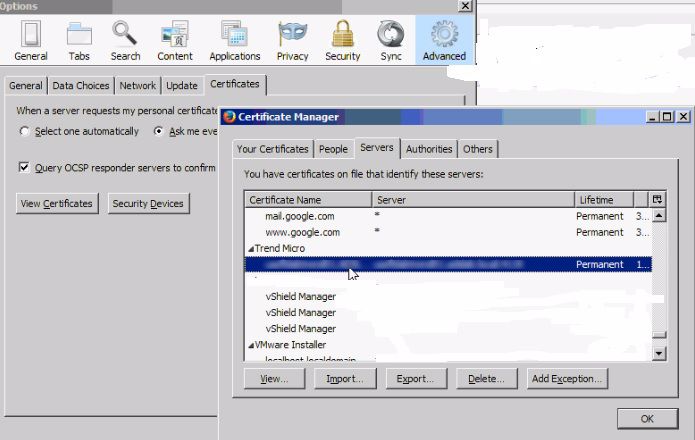
Export the Deep Security Manager Certificate from the Firefox – Options – Advanced – Certificate – Certificate Manager – Servers tab – Export – Select X.509 format – Save the certificate to a file.

firefox

Import the Deep Security Certificate and also the import-cert script into vCenter Operations Manager nad pls note use root user and copy it to /root.

Login in to the Analytics VM via Putty as the root user.

Run the below command from the /root

chmod +x import-cert   and  ./import-cert

And give the full path /root/Deep Security Certificate File.

If you get the below error while running the script then check the binary is enabled in SCP or else just copy the content in the script and paste it in the file directly in the console.

Error

file

Next install the managment pack in vCOPS.

Oen the vCenter Operations Manager web console and go to the Administration page.

https://vcenter operation manager/admin

On the Update tab, click the Browse button and locate the Deep Security Management Pack for
vCenter Operations package (DeepSecurityAdapter-1.x-x.pak )
Select the Pak file and click Open
Click the Update button
Accept the License and click OK
Wait for Update to complete
Open the VMware vCenter Operations Manager web console interface and go to the Custom Interface page. ( https://<vCenter Operations Manager>/vcops-custom

Go to Environment > Configuration > Adapter Instances

In the Collector menu, select “vCenter Operations Standard Server”
In the Adapter Kind menu, select “Deep Security Adapter”
Click the Add New Adapter Instance icon ( )
In the Add Adapter Instance window, enter the following:
◦ Collector: vCenter Operations Standard Server
◦ Adapter Kind: Deep Security Adapter
◦ Adapter Instance Name: A name for this instance of the Deep Security adapter
◦ Deep Security Manager Host: the hostname or IP address of the Deep Security
Manager – Version : 9 \ Port:4119 \ Auto Discovery:True \ Credential: enter the admin user name and click test.

Since we have upgraded the vROPS to 6.1 , couldn’t test the performance and the below content is taken from the reference link.

Performance Analysis

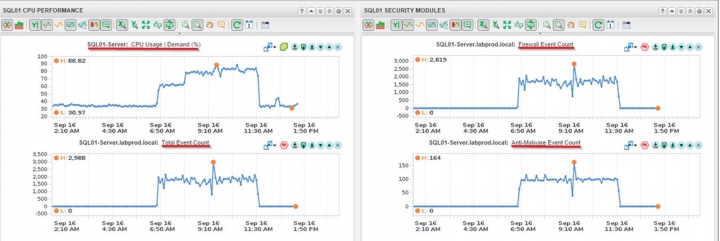
Trend Micro Deep Security with VMware vCenter Operations Manager v5.8.x (Advanced edition) enables organizations to compare security event activity with performance activity. For example (image 2), we are looking at SQL server (top left) activity. We can see that at the CPU Demand is at 30 percent and then increases sharply to 88 percent. The security event metrics (bottom left) show that the number of security events has also gone up. The detailed information for the security activity (right) shows that these events were due to firewall and malware events being triggered. The jump in security activity and possible threats is likely impacting the performance and causing the spike. The operations team can now inform the security team of their findings and the machines with security events can be examined in detail.

11

Security Analysis

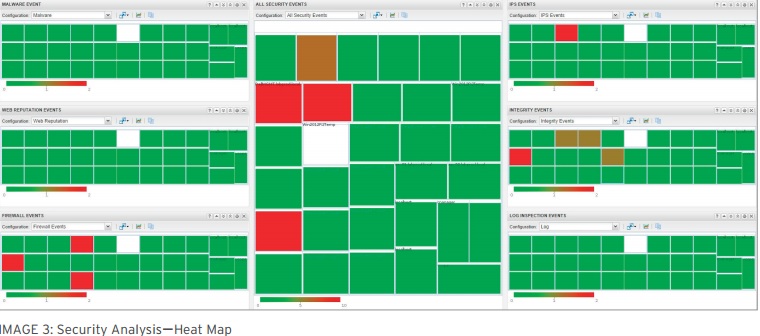
The Deep Security Heat Map (image 3) quickly lets you see which computers are under attack the most at any given time. Like other vCenter Operations Heat Maps, green indicates fewer events occurring on a particular computer while red indicates more security events triggered. These events can be any of the events in Deep Security Manager; Anti-Malware, Intrusion Prevention, Integrity Monitoring, Firewall, and Web Reputation.

12

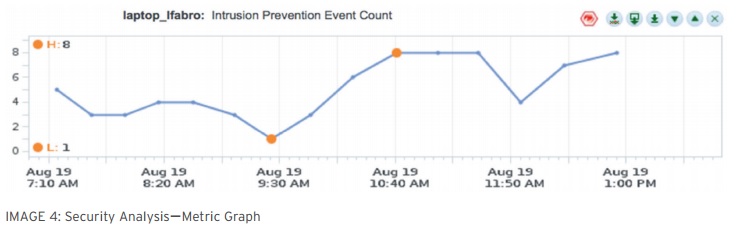
Clicking on the Heat Map will give you the Metric Graph (image 4) for that particular machine. Operations teams can see individual graphs for each type of security event: Anti-Malware, Intrusion Prevention, Integrity Monitoring, Firewall, and Web Reputation. These graphs share critical information such as total events over time and highest/ lowest event counts. This enables a quick overview of the peak time events are being triggered, as well as the specific security events being triggered.

13


Next topic is just want to share some of the methods to ensure the availability of the DSVA.

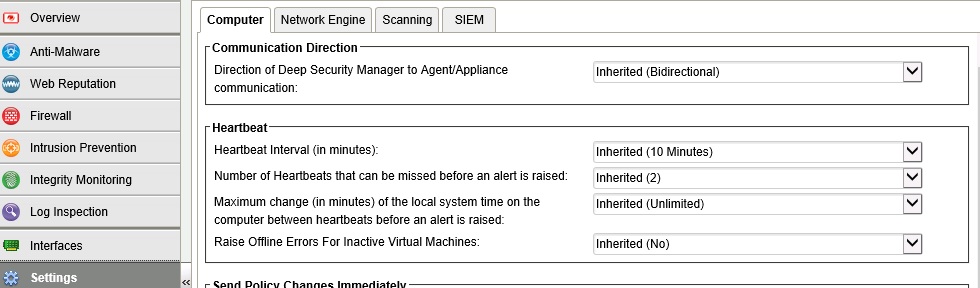
We have the options to set the DSVA Heartbeat so that if DSVA have missed communicating to the DSM for the mentioned period then DSM will get an Alarm which can be setup to send mails to the administrator.

HB

Also we can set vSphere Alarms so that if DSVA went down it will create the Alarm for the same.

Next Blog we can see Trend DPM with VDI Environment.

Reference Link.

http://downloadcenter.trendmicro.com/index.php?clk=tbl&clkval=4370&regs=ae&lang_loc=2

Click to access vmware-vrealize-operations-management-packs-wp-en.pdf

https://solutionexchange.vmware.com/store/products/trend-micro-deep-security-management-pack-for-vcenter-operations#.VQi31o7F-R4

Click to access vCenter_Operations___Deep_Security_Solution_Brief56e0a35dbb05f07e9c84e39fac8dc06e.pdf


Posted in Trend Micro Deep Security | Tagged , , , , , , | 1 Comment

Options to find a MAC Address in VMware Environment.

In one of my ESXi host we have found the alert mentioning the NFS IP Conflict and it points the specific  MAC address as the owner . I was looking to find the Host\IP which is causing the conflict and found some various options to find the results from both the ESXi \VM level and hope it will be useful to share the information..

Method 1 – Simple commands

First by using the below command and it will search all the VMFS datastores and give the result with the appropriate VMX which is very useful to find the MAC of any VM vnic.( Below command is from the Reference Link )

find /vmfs/volumes | grep .vmx$ | while read i; do \ grep -i “00:50:**:**:**:**” “$i” && echo “$i”; done

mac

If it couldn’t get the result then it will give the empty message..

Other Options :

Display the list of known network neighbors in the ARP and ND cache for all VMkernel network interfaces using one of the command

Next if we want to list the Mac of the VMKNIC then we can use the below command

esxcli network ip neighbor list 

mac1

By using the VMware debug mode we can try the below command

vmware -l

To Determine the MAC address of an ESX Hosts administration interface.

# ifconfig |grep -i hw

The output appears similar to:

vswif0    Link encap:Ethernet  HWaddr 00:50:56:41:5A:59

The MAC address is found in the first line after HWaddr.  In this example, the MAC address is 00:50:56:41:5a:59.

Note:  The ESX host uses self-generated addresses starting with 00:50:56 (as opposed to the burned-in address of the interface itself).

Alternatively, review the outputted information and MAC addresses from the command esxcfg-nics -l.

Method -2 – DHCP Server

Another way to find the Mac address is from the DHCP Server , Go to the Scope – Address Lease , It will list all the IPs with the Mac address but it will help only for the DHCP IPs and not for the static address .

Method-3 – ARP 

Next step is to try the ARP command which will give the list of recently resolved IP addresses to MAC address mapping from the ARP cache.

To populate the ARP table, ping a broadcast IP address to get a reply back from all hosts listening on the same subnet.

For example :ping 10.10.10.255

To list the ARP table, run the command:

arp -a

Have a try on both from the ESX and the Vcenter so that we can get more chances to find the IP..

Method 4 – find the manufacturer.

If you suspect the MAC is from any hardware like printer then we can try the below link to find the manufacturer.

http://curreedy.com/stu/nic/

Method – 5  How to find the MAC of the ESXi servers using the PowerCLI.

Pls see the below reference link for the info of the script and I just copied the main content of the script here..

1
2
3
4
Get-VMHost | `
  Get-VMHostNetworkAdapter | `
  Where-Object {$_.Mac -eq "00:50:56:78:98:a2"} | `
  Format-List -Property *

The Get-VmMacAddress function use the function to find the MAC of the VM using the powerCLI.

Method -6Free Tools

Lot of free tools are available in the internet like IP Scanner but the tool have to scan the entire network ..


Reference:

How to use VMware vSphere PowerCLI to find an ESX/ESXi server by MAC address

How to use VMware vSphere PowerCLI to find the MAC addresses of a virtual machine

http://kb.vmware.com/selfservice/microsites/search.do?language=en_US&cmd=displayKC&externalId=1008184

Finding a MAC Address in VMware ESX

Determine IP Address From a MAC Address

Posted in VMware | Tagged , , , , | 3 Comments

Trend Micro Deep Security 9.5 ( VMtools Installation with vShield driver) – Part 9

Pls check my previous blogs for the DSM , Relay ServervShield End Point , Filter Driver , DSVA, DSA , SSP Server , Policies and exclusions . In this blog we can see the VMtools Installation with vShield driver in VMs.

After applying the policy and activating it to the DSVA , we need to install the VMtools with vShield Driver to route the VM traffic to the DSVA for the scanning.Already I explained basic requirements and the function of the vShield End Point Driver  in my previous vShield End Point blog and now we can see the VMtools installation.

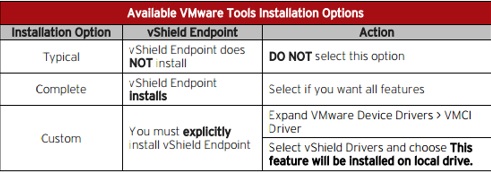
VMware includes the VMware vSheild Endpoint Driver in VMware Tools 5.x but the installation doesn’t install it on the Guest by default. To install it on the VM ,we have three options below.

VMtools11


PIC was taken from the Trend doc..

VMtools Installation Steps below.

Interactive Tools Upgrade.

Select the VM from the Vcenter – Right Click – Guest – | Install\Upgrade VMware Tools.

VMtools1

Select Interactive Tools Upgrade.

vmtools2


Login to the the Console to the VM and Run setup64.exe from the mounted volume.

vmtools3

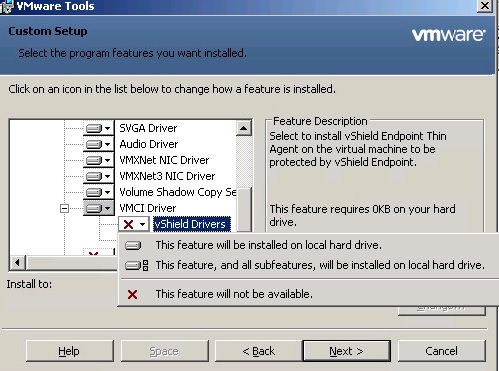
Ensure that you select the option to install the vShield Drivers (Under the VMCI Driver option). This will need a reboot of the VM. This will need a reboot of the VM.

vmtools4

vmtools5

vmtools6


Another Method to install the VMtools.

If it is the existing VM and already had VMware Tools installed but not the vShield Driver then we can install the driver using the following advance option which no need for the reboot.

Select the VM from the Vcenter – Right Click – Guest – | Install\Upgrade VMware Tools.

Select Automatic Tools Upgrade.

Enter the below in Advance Options.

/S /v “/qn REBOOT=R ADDLOCAL=VShield”

/S /v “/qn REBOOT=R ADDLOCAL=ALL REMOVE=Hgfs,WYSE”

or else open the CMD of the guest and Run

setup64.exe /S /v /qn REBOOT=R ADDLOCAL=VShield

By using the PowerCLI script also we can do the same , just got the info from the below reference link and it will be useful to implement on huge environments.

$ComputerName = <vm-name>
$vCenter = <vcenter-hostname>
Connect-ViServer $vCenter
Mount-Tools -VM $ComputerName
$DriveLetter = Get-WmiObject Win32_CDROMDrive -ComputerName $ComputerName | Where-Object {$_.VolumeName -match “VMware Tools”} | Select-Object -ExpandProperty Drive
$ScriptText = “$DriveLetter\setup64.exe /S /v `”/qn REBOOT=R ADDLOCAL=ALL REMOVE=Hgfs,WYSE`””
Invoke-VMScript -VM $ComputerName -ScriptText $ScriptText -ScriptType bat

Same Script can be used on multiple systems by using the below.

$Vms= Get-Content C:\system.txt – ( Mention the Guest system name or IP )
$vCenter = “Vcenter Name”
Connect-ViServer $vCenter
Mount-Tools -VM $vms
$DriveLetter = Get-WmiObject Win32_CDROMDrive -ComputerName $vms | Where-Object {$_.VolumeName -match “VMware Tools”} | Select-Object -ExpandProperty Drive
$ScriptText = “$DriveLetter\setup64.exe /S /v `”/qn REBOOT=R ADDLOCAL=ALL REMOVE=Hgfs,WYSE`””
Invoke-VMScript -VM $vms -ScriptText $ScriptText -ScriptType bat

By using the PStools – Psesex.exe also we can update the vShiled driver on Multiple Computers.

First Mount the drive to the Guest VMs.

Run the Psesex command as below:

@file – PsExec will execute the command on each of the computers listed
in the file.

cmd – To enter in to the remote system CMD and use ” ” double quote to execute the second command.

C:\Data\HCL\PsTools>psexec.exe @c:\data\systems.txt cmd /c “d:\setup64.exe /S /v “/qn REBOOT=R ADDLOCAL=ALL REMOVE=Hgfs,WYSE””


Verifying the Driver Installation.

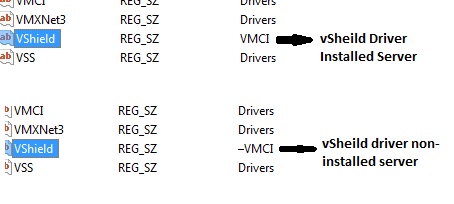
We can also verify the server with  vSheild driver installed or not , On the windows registry go to search and look for the VShiled , it will point to the below path.

Vmtools13

We can find the installed and non-installed components of the VMtools from the registry , any component ( – ) with the symbol at beginning means its not installed on the server.

VMtools21


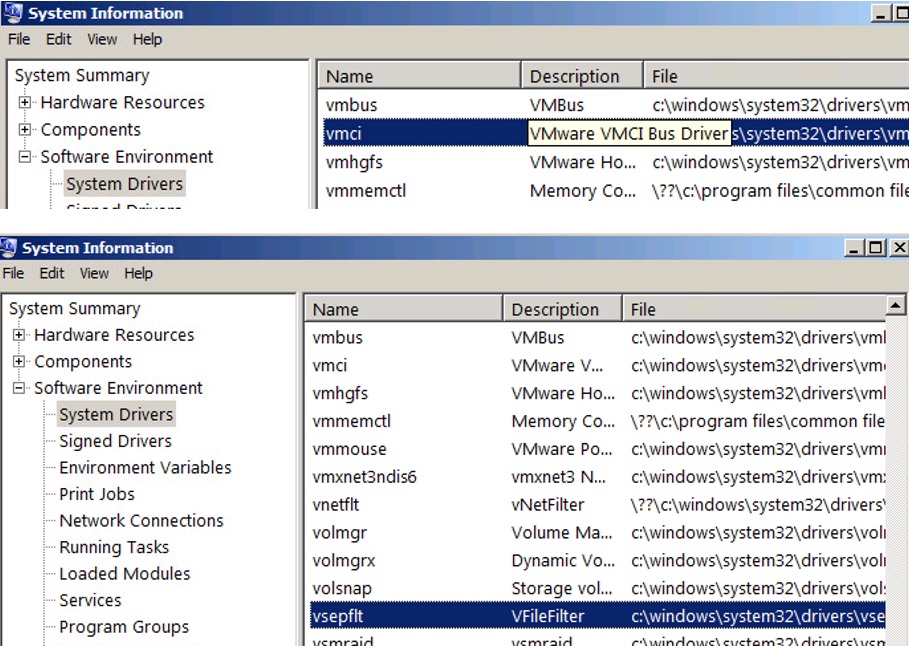
Also under System Information – Driver we can verify the same..

Trendvsheild6


By using the below script we can verify the vshield driver on the guest VMs.(Script was taken from the below reference link )

Save the below content in to the .PS1 extension.

Open the Powercli and  Login to the VC and then execute the below script.

.\script.ps1 > output.txt

$vms=GET-VM | Where-Object {$_.PowerState -eq “PoweredOn” }
ForEach($vm in $vms)
{
if (Get-VMguest -VM $vm | Where-Object {$_.OSFullName -like “*Microsoft*”})
{
Invoke-VMScript -VM $vm -GuestUser “username” -GuestPassword “password” -ScriptText “sc query type= driver | find `”vsepflt`” ” -ScriptType bat | format-list vm,name,ScriptOutput
}
}

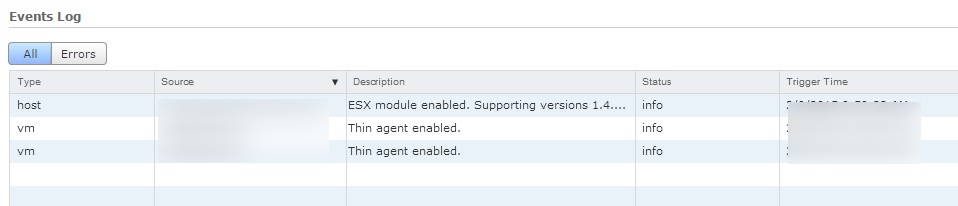
By login to the  vShield Manager also , we can check the Thin Agent Enabled VMs.

Logon to vShield Manager – Datacenters – Select the Datacenter – Select the ESX Host – EndPoint tab.

vshil2

ESXi 5.5 VMware Tools:

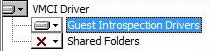
In ESXi 5.5 update 2 vSheild driver is renamed to Guest Introspection Drivers in VMtools and as per the VMware it is just the name change and the functions will be the same.


VMtools22


In My Next Blog we can see the Trend Events and  log.


Reference :  http://www.bonusbits.com/main/HowTo:Add_Vmtools_vShield_Drivers_for_Endpoint_Protection_on_ESX_VM

http://www.unknownfault.com/2014/12/powercli-script-to-query-all-windows.html


Posted in Trend Micro Deep Security, vShield Endpoint | Tagged , , , , , | Leave a comment

Trend Micro Deep Security 9.5 ( Policies and Exclusions ) – Part 8

Pls check my previous blogs for the Trend  DSM , Relay Server , vSheild Endpoint, Filter Driver , DSVA, DSA and SSP Server. In this blog we can see the policy creation and applying it in the VMs with the exclusion list.

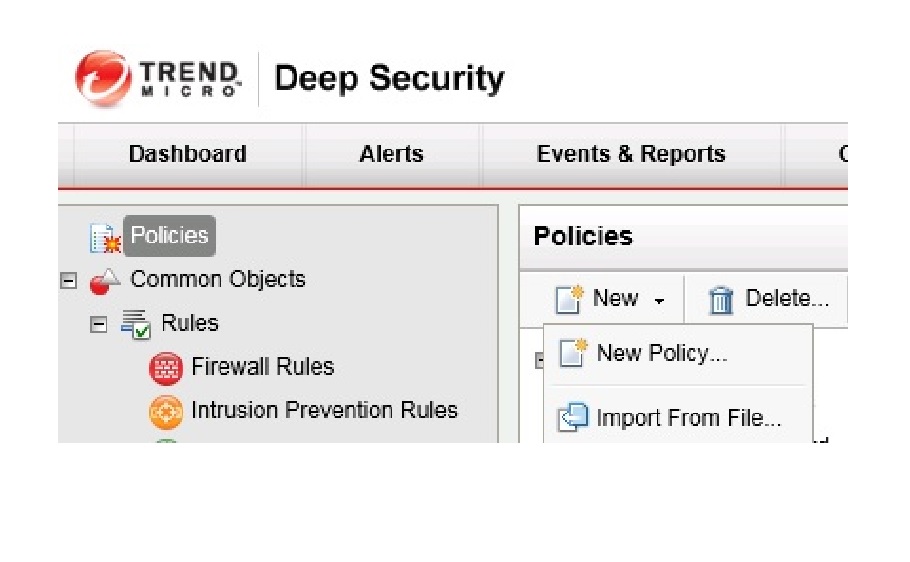
To create the Policy in the DSM go to the the Policy tab.

Policies – Click New Policy

Pol1

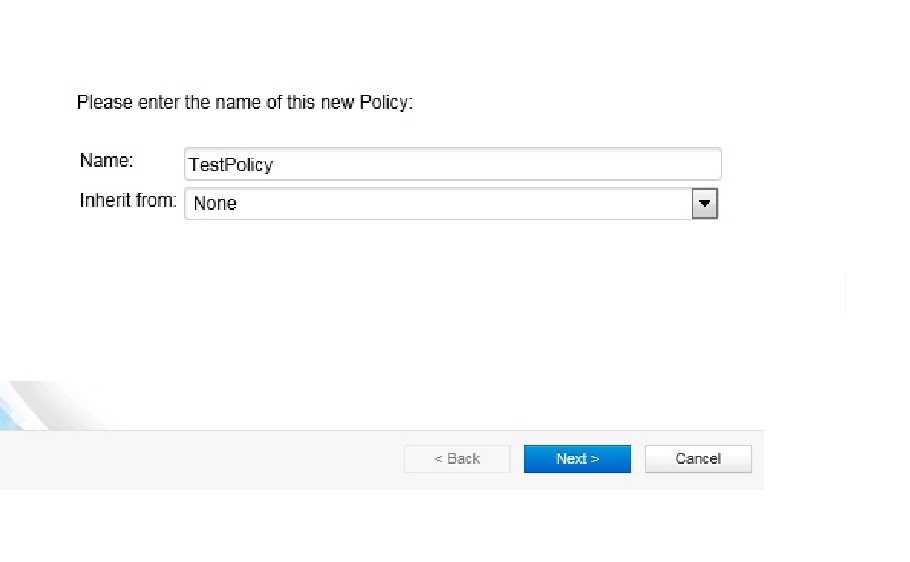
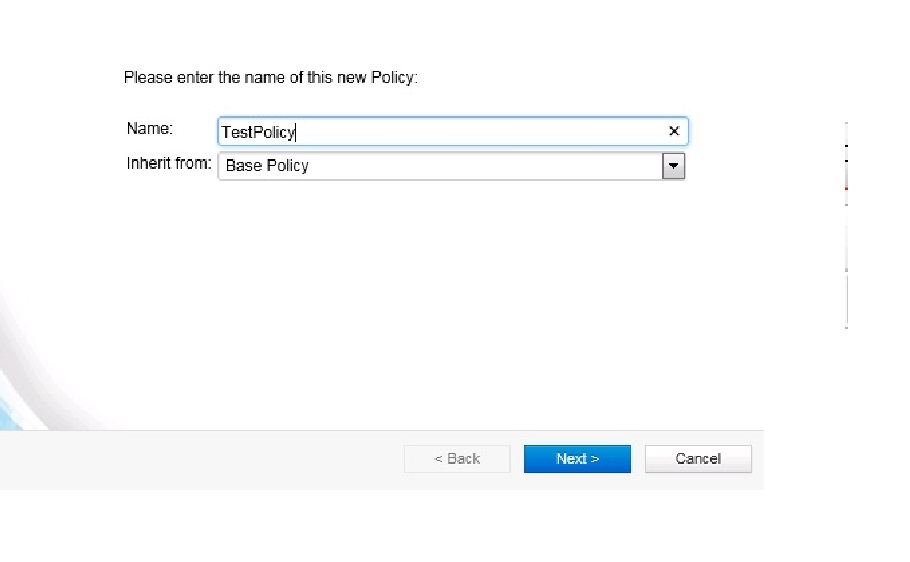
Give the name for the Policy and we can choose the base policy as inherit or None.

Pol2Pol3

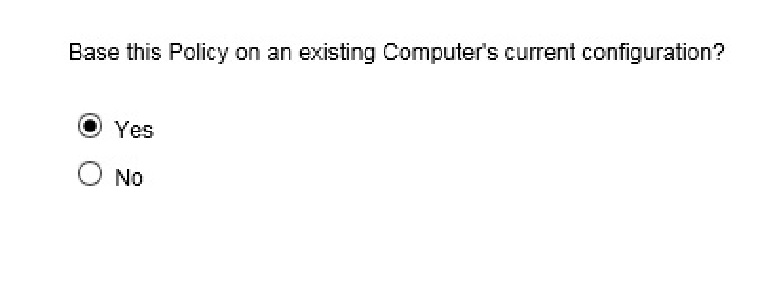
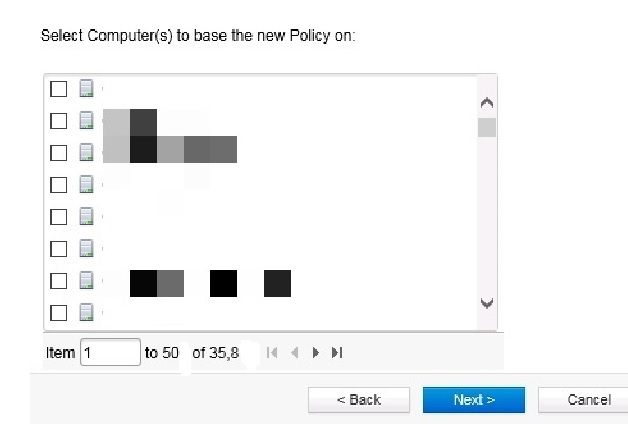
We can place the new policy to the computers directly.

Pol4 pol5

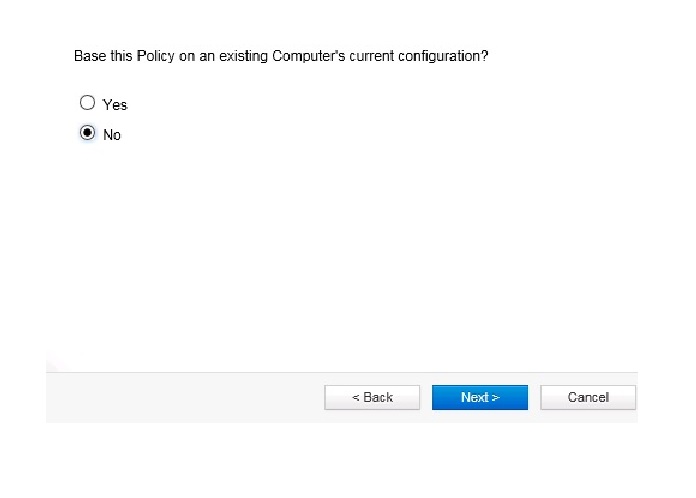
In Case if we choose NO then we need to select the policy from the computer console.

pol6pol7

Next we need to enable the Anti-Malware and other protection on the policy.

pol8

Pol9

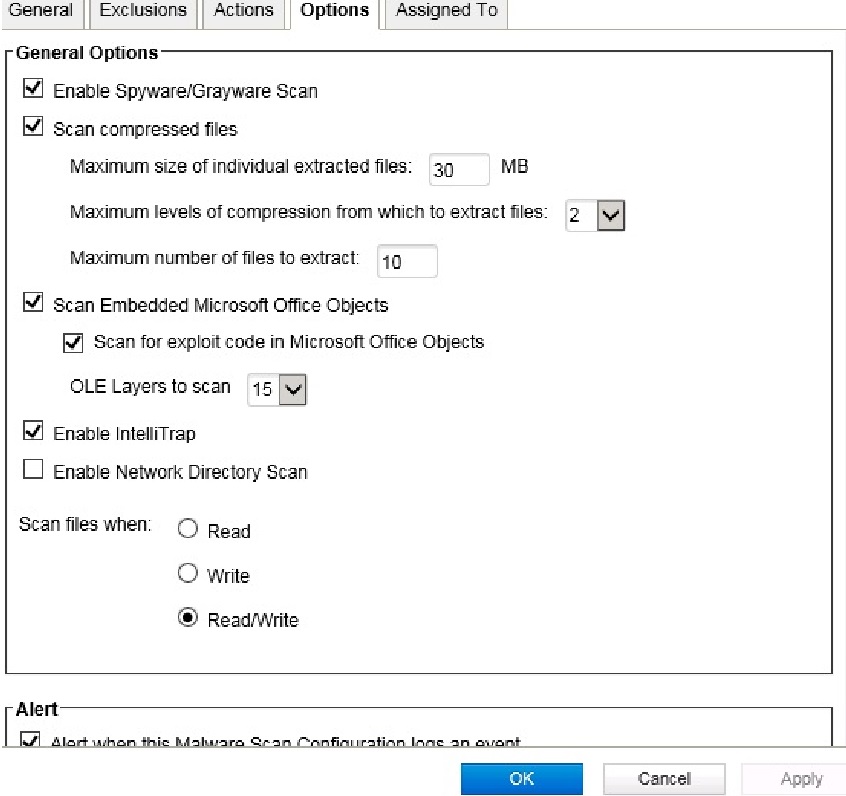
Next Remove the Default from the Real-Time Scan option and Select the Malware Scan configuration.Click Edit and create the new Exclusion Rule.


Pol10

In Schedule always recommended to have it Every Day All Day option for the Real-Time Scan.

Pol10

Pol11

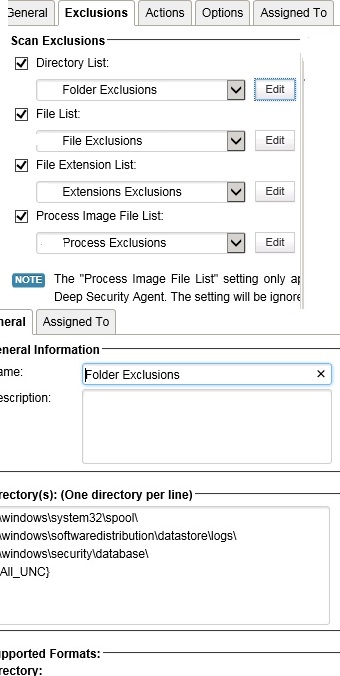
Select the Files and Folder as per our company scan exclusion policy.

Pol12

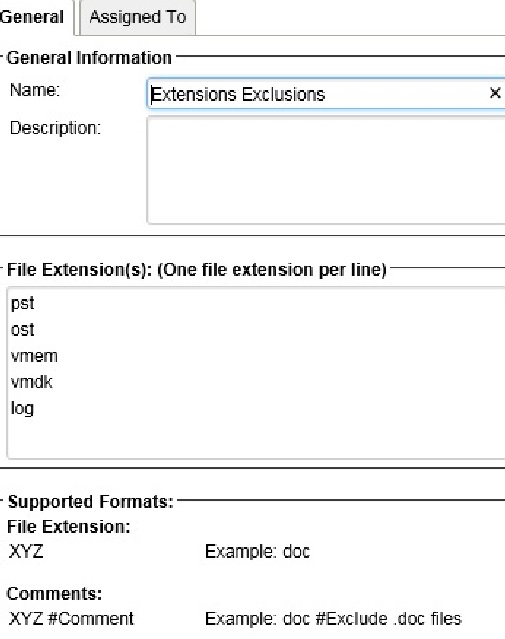
Select the Extension Exclusion and the files extensions as per the requirements .

Pol14

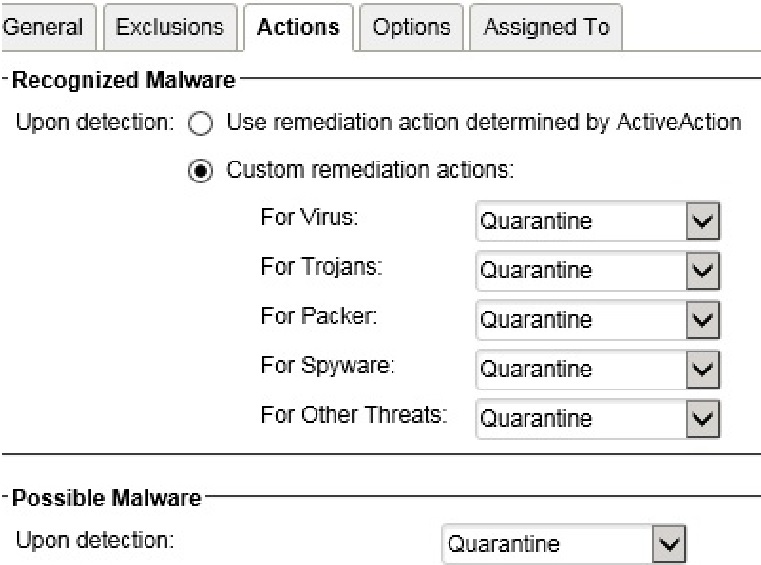
Next Select the Actions and choose appropriate actions .

Pol15 Pol16

Once the policy is set then next go the computer and select the computer in which policy have to be applied.

Note that  we can apply the policy to the group of computers also.

Go to the General – Policy – Select the Policy which we created ( TestPolicy )

Pol17 Pol18


Next Go to the Action tab and Activate the VM.

activate

act1

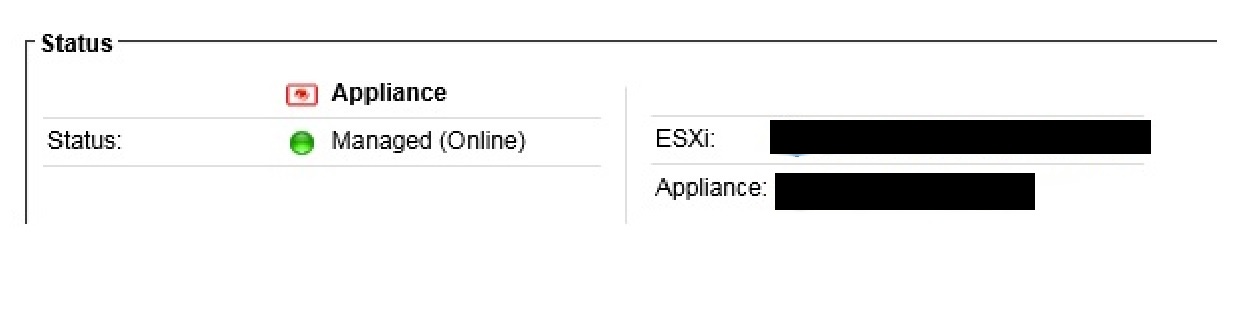
We can check the status in the General – Status section which will show the corresponding ESXi and the DSVA information.

1111_censored


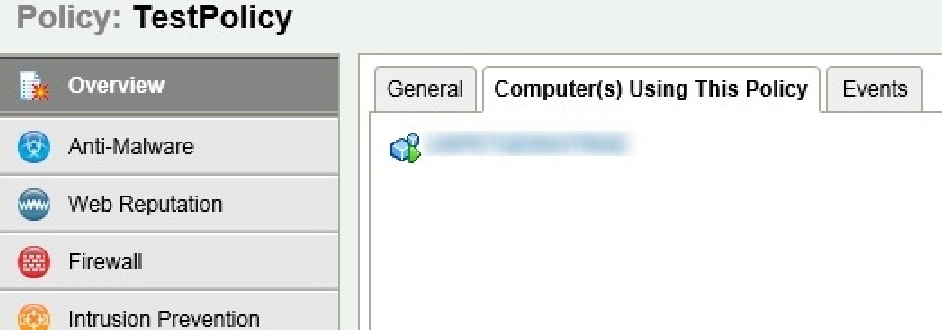
Once the policy is applied , We can see the computers using the policy in the Policy tab.

Pol21


Pls check the below KB for excluding UNC Path.

http://esupport.trendmicro.com/solution/en-US/1096634.aspx


Scan Caching

Scan Caching improves the efficiency of on-demand scans performed by the Virtual Appliance. It eliminates the unnecessary scanning of identical content across multiple VMs in large VMware deployments.

In addition,

• Integrity Monitoring scan caching speeds up Integrity Monitoring scans by sharing Integrity Monitoring scan results.

• Anti-Malware on-demand caching speeds up scans on subsequent cloned/similar VMs

• Anti-Malware Real-time caching speeds up VM boot and application access time

• Concurrent Scan feature allows further overall scan time improvement by allowing multiple VMs to be scanned concurrently

scan cach

In the next blog we can see the VMtools installation with vShield Endpoint driver installation .

Posted in Trend Micro Deep Security | Tagged , , | 5 Comments

Trend Micro Deep Security 9.5 ( Smart Scanning Protection Server – SSP Server) – Part 7

Pls check my previous blogs for the Trend Micro Deep Security 9.5 on the below topics and in this blog we will see the installation of Smart Scanning Protection Server – SSP Server and its function.

Previous Topics.

Trend Micro Deep Security 9.5 ( DSM ) -Part 1

Trend Micro Deep Security 9.5 (Relay Server) -Part 2

Trend Micro Deep Security 9.5 ( vShield Endpoint ) – Part 3

Trend Micro Deep Security 9.5 ( Filter Driver Installation ) – Part 4

Trend Micro Deep Security 9.5 ( Deep Security Virtual Appliance-DSVA) – Part 5

Trend Micro Deep Security 9.5 ( Deep Security Agent ) – Part 6


Deep Security Smart Protection Server

Deep Security Relay is there to allow the Deep Security Manager to see what components are available for download from the Trend Micro ActiveUpdate site, whenever you trigger a component update in Deep Security Manager, the Deep Security Relay is the one responsible for carrying out the download activities.  The downloaded files are stored in the Deep Security Relay.  When computers performed their updates, they download directly from the Deep Security Relay.  The relay holds all the update components with the exception of Smart Scan Pattern and the BF pattern file which is used by Smart Scanning.

 The Smart Scan Pattern file is a cloud pattern that resides on the internet on our Smart Protection Network or locally via a Standalone Smart Protection Server.Like the Relay server we can have the separate Smart Protection Server in each location.

When anti-malware is enabled and is configured to use Smart Scanning, what happens is that a file scanning is verified against a local pattern file (Smart Scan Agent Pattern) this contains half of the virus signature.  The file hash signature is then compared against the BF pattern which also resides locally, the BF pattern will determine if the file hash signature needs to be sent to Smart Protection Server.  If scanning is required, the file information is sent to Smart Protection Server to be verified against the Smart Scan Pattern file.When anti-malware is using conventional scanning model, the file is verified against the local virus pattern file.

There is a feature called “Web Reputation” which is used by the DSVA. When someone tries to access a URL on the VM, the rating of that URL is checked by the DSVA first. This makes sure that the URL is not a malicious URL. To check the rating of the URL, DSVA has to send that query to the Smart Protection Server. Smart Protection Network is available globally on the Internet by Trend Micro. By default DSVA will use that. Ensure these sites are allowed through your company firewall/proxy when using the global Smart Protection Server:

ds90-en.url.trendmicro.com (Used for Web Reputation queries – WRS) ds8.icrc.trendmicro.com (Used for File Reputation queries – Anti-Malware Smart Scan) To void Internet traffic going to the global servers, it is recommended to install a local standalone Smart Protection Server

To achieve Smart Scanning full capability, the computer needs to be able to download “Smart Scan Agent Pattern” from the Deep Security Relay and at the same time able to connect via port 80 or 443 to a Smart Protection Server.

The Standalone Smart Protection Server installer can be downloaded from this URL.

http://downloadcenter.trendmicro.com/index.php?regs=NABU&clk=latest&clkval=4556&lang_loc=1

If using VMware, create a new Virtual Machine with CentOS 5 64-bit.

If your VMWare version (such as 3.5 and 4.0) does not support CentOS, use Red Hat(R) Enterprise Linux(R) 5 64-bit.

Note: Only Virtual NIC E1000 and VMware VMXNET3 NICs are supported.

Installation Steps of Smart Protection Server.

Copy the ISO in the new installed Smart Protection Server.

SMS


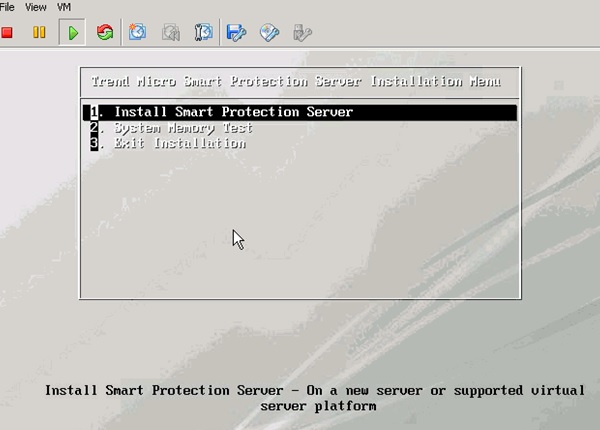
Click Install Smart Protection Server

sps1 sps2 sps3

If its not match the system requirements then it will show the below warnings.sps4

sps5 sps7

We need to give the Root and Admin password details.sps9 sps10 sps11 sps12 sps13 sps14

Once the Installation is done then login using the admin credentials

sps15

sps16


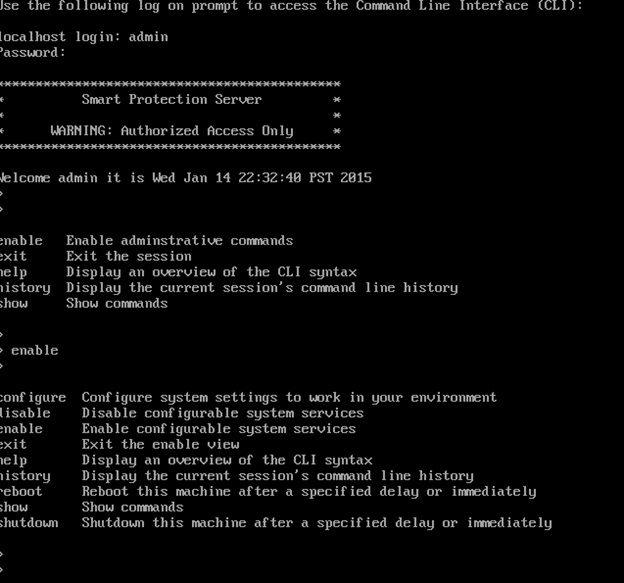
Pls find the below commands which we can use to configure the Smart Protection Server.

sps17

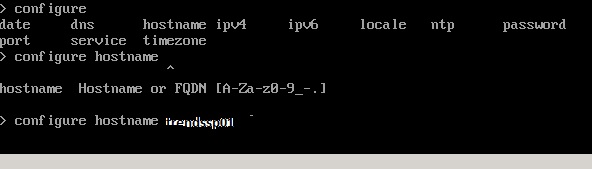
Use the below command to configure the Hostname and IP Address.

Configure hostname  <HOSTNAME>

Configure ipv4 static IP \ NetMask \ Firwall.

Show ipv4 address – To show the IP.

Show ipv4 gateway – To show the Gateway.

Show ipv4 route – To shoe the route.

sps18

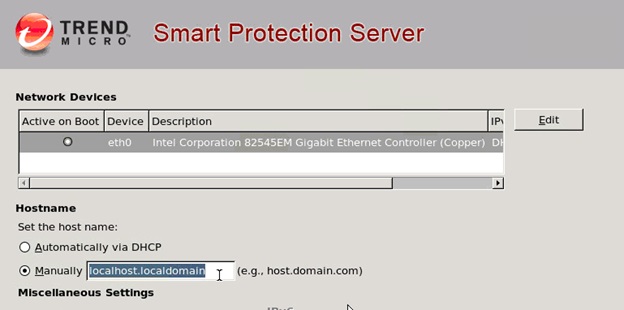
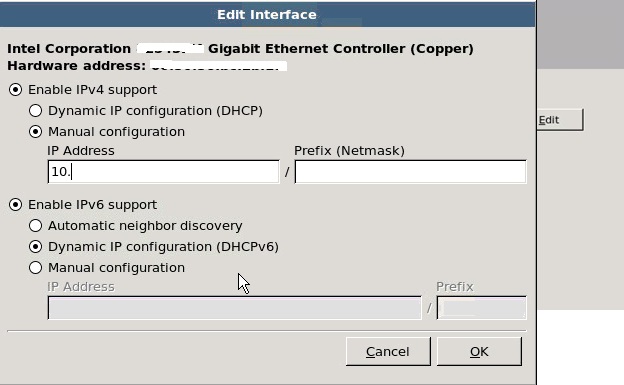
Or we can provide during the installation itself.

.sps19 sps20

Once the configuration is done then reboot the server .

Login using the IP configured in the web console with the admin credentials.

sps21

sps22_censored

Pls note the link in the server address above from the Smart Protection Server http:/IP/tmcss.

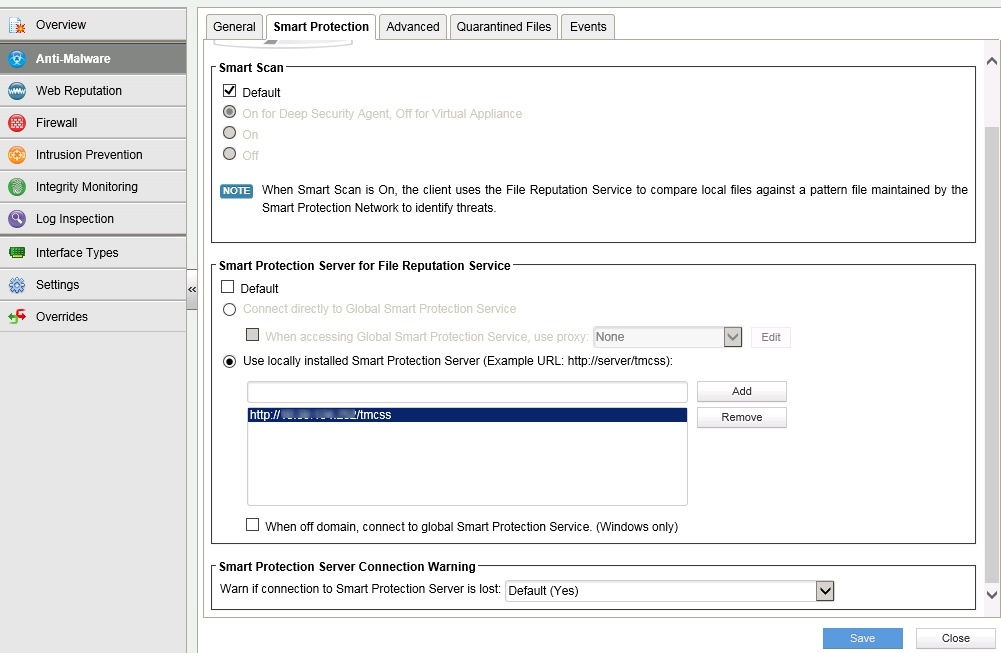
Go to the DSM – Policy – Anti-Malware – Smart Protection – Remove the Default and choose the locally installed Smart Protection server and add the http:/IP/tmcss.

SMs_censored

Use the same method if enabling the web Reputation in the policy.


In my next Blog we will see configuring the policy to the VMs and setting up the exclusions.


Posted in Trend Micro Deep Security, VMware | Tagged , , | 1 Comment

Trend Micro Deep Security 9.5 ( Deep Security Agent ) – Part 6

Pls check my previous blogs for the DSM , Relay Server , vShield Endpoint, Filter Driver and DSVA installation and  all its features.In this Blog we will see the Deep Security Agent functions and steps involved to install it in Linux and Physical Windows Server.

Deep Security Agent  : Non-Windows VMs (such as Linux), the agent is deployed directly to the VM’s OS computer, providing Intrusion Prevention, Firewall, Web Application Protection, Application Control, Integrity Monitoring and Log Inspection protection. This is the traditional client-server deployment model and the agent could be included within the imaging process or pushed out from the DSM.

Deep Security Agent

  • Memory:

◦ with Anti-Malware protection: 512MB

◦ without Anti-Malware protection: 128MB

  • Disk Space: 1GB

◦ with Anti-Malware protection: 1GB

◦ without Anti-Malware protection: 500MB

◦ with Relay functionality enabled: 8GB

  • Supported Platforms: Windows, Linux, Solaris, AIX, HP-UX, CloudLinux, Amazon Lin ux, Oracle Linux, Ubuntu, SuSE.

Like DSVA make sure the PORTS are open in firewall between Linux installed agent server and DSM\Relay server.

DSM –> DSA installed Linux Server

port used: 4118 for manager initiated communication

DSA installed Linux Server–> DSM

port used: 4120 for agent initiated communiction

DSA installed Linux Server –> Relay

Port used: 4122 for sending updates etc

Pls check the below link for kernel support by Trend.

For Deep Security v9.6

For Deep Security v9.5 SP1

For feature_matrix

Installation Steps of DSA in Linux Server.

In Linux Server pls follow the below steps to install the agant.

Go to the linux machine –

Copy the rpm file to the Linux machine.

Install the agent.  #rpm -ivh filename.rpm

After the installation, check the status of the ds_agent.  #service ds_agent status

Activate the machine using the Deep Security Web Console.

If the machine shows managed (online) status, then proceed to assign a security policy with anti-malware feature enabled.

Wait for a few minutes and see if anti-malware protection comes online.

Anti-Malware Engine offline after DSA instillation. 

Once the DSA Installation is completed , Linux Server have to report to DSM with Anti-Malware Engine online , In case if its showing offline then check the Relay Server service and also thethe above mentioned ports between Linux server and Relay Server . If port is open but still the engine is offline then follow the below method to fix the same.

DSA

. Unassign the Security Policy from the machine

De-activate the agent.

Go to the linux machine, uninstall the ds_agent and Re-install with the same installation steps.

DSA Additional Information:

We can see Deep Security Agent releted files in the below path.

Go to cd\opt\ds_agent

linux

To get logs related to DSA  Under log :

more messages | grep filter

To get the Installation related files:

rpm -ql ds_agent.

linux2


DSA Installation on Windows Physical Machines , Its very straight froward , just down load the latest agent from the local in DSM and start the installation like below.

wdsa


wdsa1


Once the installation is completed , we can see the icon in the status bar and also the agent in the services..


wdsa2

wdsa3

In My Next Blog we can see the Installation and function of Trend Smart Protection Server.

Posted in Trend Micro Deep Security | Tagged , , , | 1 Comment

Trend Micro Deep Security 9.5 ( Deep Security Virtual Appliance-DSVA) – Part 5

Pls check my previous blogs for DSM , Relay Server , vShield Endpoint and Filter Driver installation and its functions.

Update:2\27\2016

Also check the new blog about Trend DSM9.5 upgrade to 9.6 and steps to install the filter driver \ DSVA on ESX5.x under Trend DSM 6.0 SP1

In this blog we will see the deployment of the Deep Security Virtual Appliance-DSVA with ESXi Host and its features which I learned from my experience and also shared the important contents from the Trend articles which was very useful for my deployment.

In this section we will see the below topics about the Deep Security Virtual Appliance-DSVA.

1. Basic functions and the requirements of DSVA.

2. Installation Steps of DSVA.

3.Verifying the installation of DSVA.

4.Deep Security Virtual Appliance (DSVA ) failure or down.

5.Advantages\Disadvantages of DSVA.

6.Deep Security Virtual Appliance (DSVA) Networking.

7.Sizing recommendations for DSVA.

8.Upgrading of Deep Security Virtual Appliance (DSVA).

Basic functions and the requirements

Once the filter driver is installed the next step is to install the DSVA and it will be installed on every ESXi Host.DSVA enables agentless Deep Security control and management with the hypervisor, providing Anti-Malware, Intrusion Prevention, Integrity Monitoring, Firewall, Web Application Protection and Application Control protection to each VM. DSVA will communicate directly with the DSM and it is recommended to enable the affinity rules within VMware to lock each DSVA to their required ESXi host.

DSVA and Filter Driver Package It is required to download the Filter driver and DSVA installer packages onto Deep Security Manager prior to deploying DSVA and adding the vCenter server onto DSM

DNS Resolution : Ensure that the DSVA can resolve the FQDN of the Deep Security Manager and that the ESX server is able to connect to the DSM FQDN at port 4119. There will be issues installing the driver and deploying DSVA if ESX cannot do so.Ensure that the DSM and vShield Manager FQDN can be resolved by DSVA.

VMware tools : There is no need to update the VMware tools within the Deep Security Virtual Appliance. DSVA uses the device drivers that come with the version of tools it was built with. When an upgrade of tools is done, DSVA may not start.

Change the default password : Default password for the deployed DSVA image is “dsva”. We recommend that this be changed after the install. To do so, press and select the option “Configure Password” on the console.

Do not vMotion DSVAs : Make sure that the DSVAs do not vMotion. For this reason, the recommended naming convention for the appliances is to use the name of the ESXi host (it is located on) pre-fixed or suffixed. Better way to avoid the vMotion is to configure the DSVAs in local datastore of the ESX and name the DSVA similar to the corresponding ESXi host so that it is easy to identify which DSVA belongs to which ESXi.

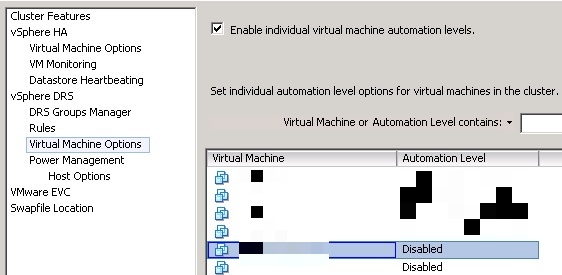
The DSVA deployment wizard will set the “Automation Level” to “Disabled” in the DRS settings for the cluster. This means that the DRS will not vMotion the DSVA by default.
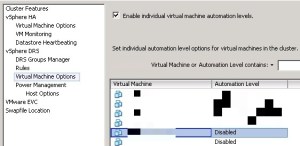
DSVA_censored

Make sure DSVAs are always on and the first to start up after maintenance.If maintenance is required on the ESXi host and DSVA needs to be shut down, ensure that it is the first VM to start running after the maintenance.In the latest patch 2 for 9.5 SP1 and in 9.6 version , if you put the ESX in to MM then it automatically shutdown the DSVA and no need any manual step required to do the same.

Ports to be opened to activate the DSVA.

DSM –> DSVA/DSA – Port used: 4118 for manager initiated communication

DSVA/DSA –> DSM – Port used: 4120 for agent initiated communiction

DSVA/DSA –> Relay – Port used: 4122 for sending updates etc

Deep Security Virtual Appliance

  • Memory: 4GB
  • Disk Space: 20GB
  • VMware Environment: VMware vCenter 5 and ESXi 5

Installation Steps of DSVA.
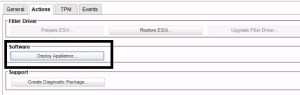
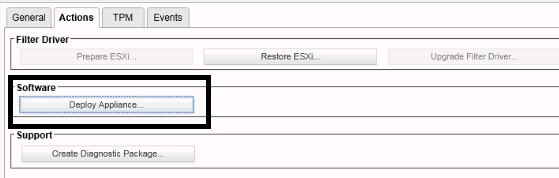
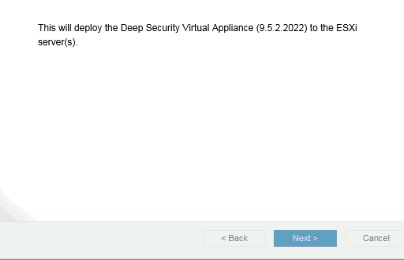
DSVA1DSVA2

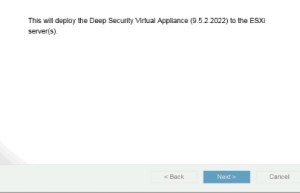
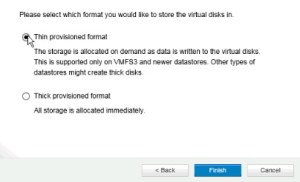
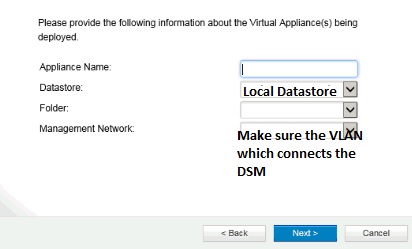
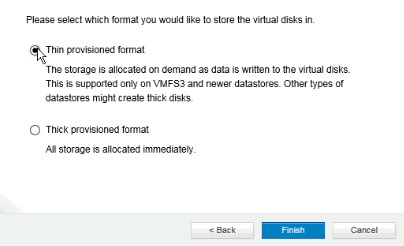
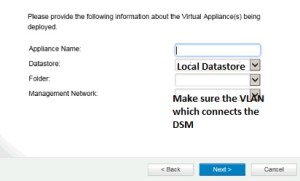
Pls make sure to select the local datastore and also the Vlan which connects the DSMDSVA3dsva4dsva5dsva6dsva7dsva8
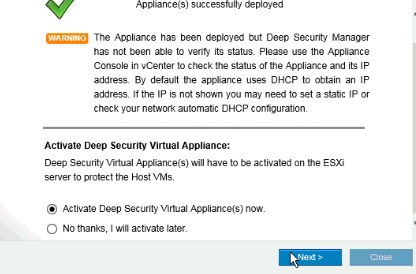
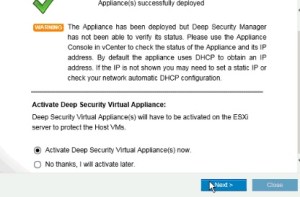
Activate the DSVA and also select the appropriate policy for the same.
dsva9dsva10

Once the activation is completed , we can verify the installation of the DSVA .

Verifying the Installation of the DSVA.

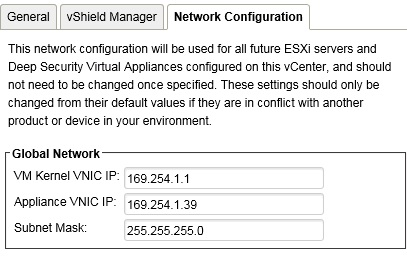
Once we added the vCenter and the vSheild Amanger, we can see the two IPs in the network configuration properties  ( VM Kernel VNIC IP and Appliance VNIC IP ). It is the default IPs assigned on 169.254.1.1/24 , If need we can change the same but need to do before the filter driver installation on the ESX host.
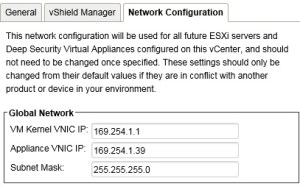
DSVA vnicip

VM Kernel IP.

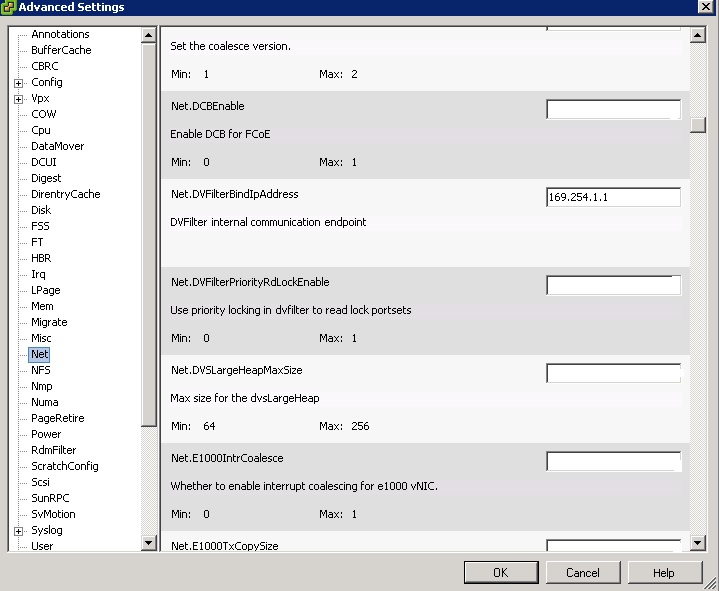
If we check the advance settings of the ESXi host, we can find the kernel IP 169.254.1.1 .
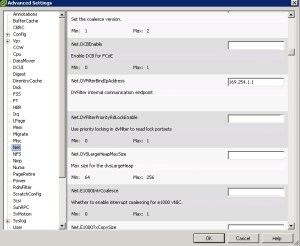
DSVA vnic

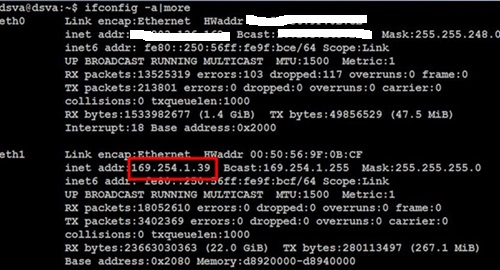
 Appliance IP.

After the DSVA deployment the internal IP – 169.254.1.39 will be assigned , this IP will be the same for each appliance deployed in  ESX cluster from each host.Pls note the External IP which we use to assign is different and its used for Managment.

Also the following entries should be in the VMX file of the DSVA:

filter0.name = “dvfilter-faulter”

filter0.param0 = “dvfilter-dsa”

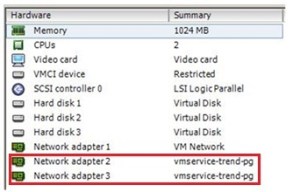
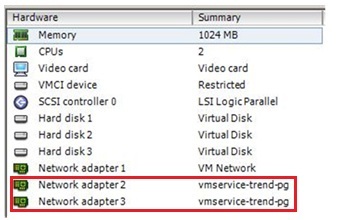
The second and third vNIC of the DSVA should connect to vmservice-trend-pg:
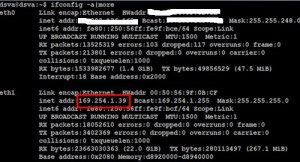
dsva12 dsva11

Pls note that first two adapter ( 1 and 2 ) should be in E1000 and the last network adapter 3 must be in VMNET3 . If any change in the network adapter type then the communication between the ESX – DSVA will fail  and it will cause slowness on the VM traffic so dont ever change these settings and leave the default which comes with DSVA.

From the DSVA we can run the ping test to check the connection to the host.

~ # ping 169.254.1.1
PING 169.254.1.1 (169.254.1.1): 56 data bytes
64 bytes from 169.254.1.1: icmp_seq=0 ttl=64 time=0.173 ms
64 bytes from 169.254.1.1: icmp_seq=1 ttl=64 time=0.127 ms
64 bytes from 169.254.1.1: icmp_seq=2 ttl=64 time=0.109 ms
— 169.254.1.1 ping statistics —
3 packets transmitted, 3 packets received, 0% packet loss
round-trip min/avg/max = 0.109/0.136/0.173 ms

From the Host we can check the DSVA and also the EPSec Service configuration.

Log on to ESX – SSH

Try “esxcfg-advcfg –get /UserVars/VshieldEndpointSolutionsConfiguration” command

Host without  DSVA configured then we will get the below result.

Host without DSVA

we will get the below result when host is running with the DSVA .

Host with DSVA

vmkping 169.254.1.39

PING 169.254.1.39 (169.254.1.39): 56 data bytes
64 bytes from 169.254.1.39: icmp_seq=0 ttl=64 time=0.173 ms
64 bytes from 169.254.1.39: icmp_seq=1 ttl=64 time=0.127 ms
64 bytes from 169.254.1.39: icmp_seq=2 ttl=64 time=0.109 ms

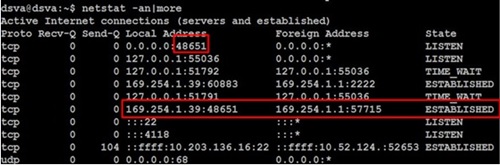
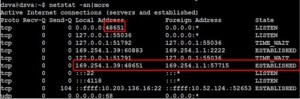
The 48651 port of the Antimalware process should display “LISTEN” whereas the connection between 169.254.1.39 and 169.254.1.1 should display “ESTABLISHED”.

Run the commands from the DSVA – ( Press F2 )

“~$ netstat –an | more” to verify.
DSVA13

Run the command “~$ ps –ef | grep ds_filter”  to verify the Ds_filter process (PID).

We can find the DSVA logs under  /var/opt/ds_gent/diag/ds_agent.log

23d

DSM Policy functionality and the Network flow during the Deep Security Virtual Appliance (DSVA ) failure or down.

ESXi host will forward the packets to DSVA for scanning if the appliance is properly registered and drivers are properly bound to each other.As long as the DSVA remains responsive, meaning cpu usage is normal, status remains managed (online) status on the web console, DSVA should be able to process the packets without interfering with guest virtual machines activities.

Only when the DSVA hanged, on those instance packets may get dropped.   When that happens, shutting down the DSVA is a quick fix to the problem, this removes the network binding and ESXi host stops forwarding packets to DSVA.   We then need to collect DSVA logs to determine the root cause why DSVA went into a non-responding state.

Also when DSVA is down anti-malware and integrity monitoring functionality will not work.As far as the Firewall and IPS is concerned, the network traffic of the NICs goes through the VMware dvfilter Kernel Module installed as a part of the “Prepare ESX” operation.

In non-NSX environment , the traffic tagged with “dvfilter-dsa” is intercepted by the DVFilter Firewall ruleset and then forwarded to the dvfilter-dsa Kernel Module – the Trend Micro Filter Driver installed as a part of the “Prepare ESX” operation. The Filter Driver dvfilter-dsa (which resides on the ESXi host) performs the Firewall and Stateful checks then sends the raw packets that require the Intrusion Prevention analysis to the DSVA via the NIC VMXNET buffer interface using the VMSafe API. So if the DSVA goes down then the Stateful and firewall will still work but the Intrusion Prevention will not.

Please note, In an NSX based setup even the firewall and statefull will also take place at the DSVA. So if the DSVA goes down, Stateful Firewall and IPS will not work.

Advantages\Disadvantages  of Deep Security Virtual Appliance (DSVA)-based protection:

Advantages of DSVA-based protection

  • No footprint on protected virtual machines (VMs)
    Protection will not result to resource contention on the VMs.
  • Minimal update-related traffic
    The absence of components on the VMs means that only update-related traffic such as virus pattern update, scan engine update, etc. occurs on the DSVA. The VMs are not affected by component updates.

Disadvantages of DSVA-based protection:

  • Lack of in-memory scanning
    If a Trojan manages to enter the VM, subsequent pattern updates may be able to detect the file component of the malware, but will not be able remove its in-memory components.
  • No damage cleanup
    Because of the absence of an in-guest component, the DSVA does not have the Damage Cleanup Service functionality which addresses changes to the Windows registry and similar malicious alterations.
  • Limited HIDS capability
    The DSVA is only limited to File-based Integrity Monitoring. It does not have the Log Inspection functionality.
  • Lack of recommendation scan functionality (For DSVA 8.0 and below only)
    The DSVA cannot retrieve metadata from the VMs that it protects, so the Deep Security Manager is not able to automatically ascertain the security requirements. Thus, the assignment of Deep Packet Inspection (DPI) and Integrity Monitoring (IM) rules is manual.

These disadvantages can be addressed by installing a DSA on the VM. However, a DSA will negate the DSVA advantages on resource contention and bandwidth conservation. Thus, administrators must assess the security needs of their environment to determine the appropriate combination of DSA-based and DSVA-based protection.

Deep Security Virtual Appliance (DSVA) Networking :

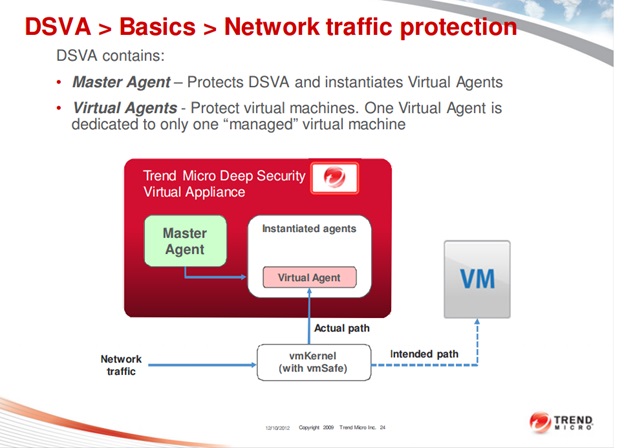
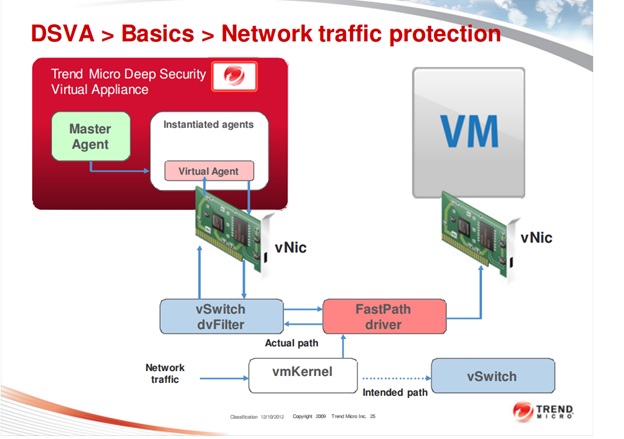
Pls check the below reference link for the more information and the below Pic and info is taken from the same link..
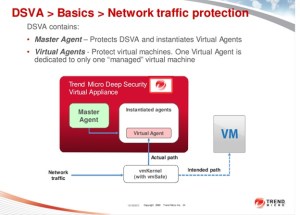
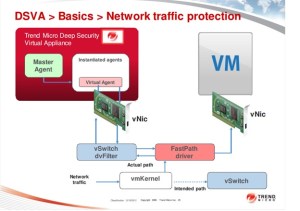
DSVA15

DSVA16

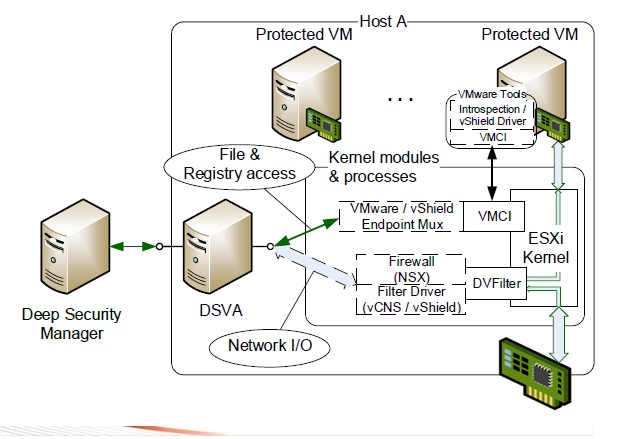
The Agentless protection protects Virtual Machines running on the ESXi host without installing the Deep Security software on them. The VM network I/O is intercepted on the ESXi hypervisor level and the vShield VMCI Drivers installed together with the VMware Tools implement the file and registry access operations
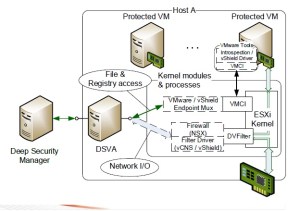
DSVA17

Access files and Registry on the VMs:

Agentless protection will use two different transport layers, EPSec ( vSheild EndPoint) driver is provided by VMware and it creates the EPSec transport and VMsafe-Net modules will create the traffic between the vSwitch portgroup and the VM’s virtual NIC.Network traffic to be inspected is routed through the VMsafe-Net Transport to the DSVA, which is registered with the VMsafe-Net driver provided by Trend Micro. While VMsafe-Net can operate on all packets passed through the VMsafe-Net components, EPSec only operates on that traffic sent to it via the EPSec Driver within the VM. This driver is required as file open and changes must be sent through the EPSec path to the DSVA. Not all file/block traffic is sent through the EPSec paths to the per-vSphere host DSVA. On file open the file blocks are sent, and from then on only the changed blocks.

The vShield / VMWare Endpoint framework includes the vShield (v.5.x), VMware Endpoint (v.6.0) or Guest Introspection (v.6.1) service installed on the Host and the vShield / Guest Introspection Drivers installed on protected VMs. Deep Security uses this solution to implement the Anti-Malware scanning, Integrity Monitoring and Recommendation Scans on DSVA.

Network Scanning / Fast Path:

The Fast Path of the network scanning refers to the usage of the filtering extension of the ESXi Firewall (so-called DVFilter) to extract and redirect traffic to the loadable kernel module.

In vShield / vCNS 5.x, Deep Security Filter Driver receives the traffic and implements the Firewall and Stateful checks configured from Deep Security.

In NSX (v.6), the NSX Firewall receives the traffic and redirects it to DSVA for inspection.

Network Scanning / Slow Path:

DSVA implements the Intrusion Prevention and Web Reputation checks of the network traffic. When integrating with VMware NSX, DSVA also implements the Firewall and Stateful checks.

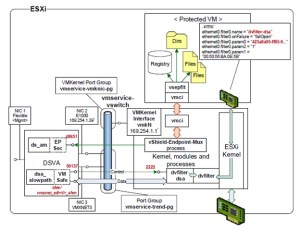
The processing of the network traffic relies on the VMSafe API and includes the following modules, connections and activities:
DSVA18

Data path:

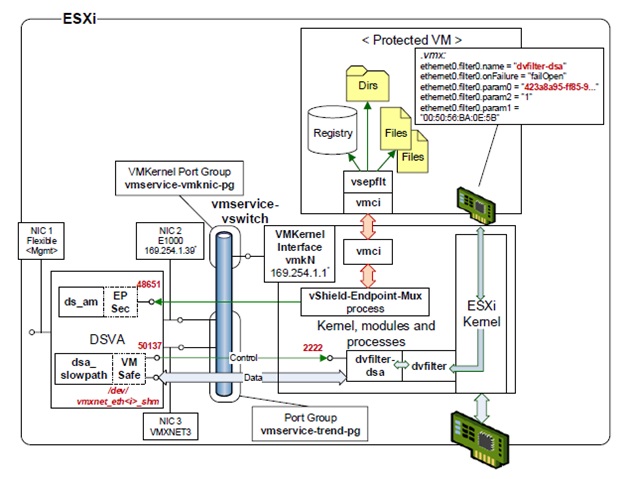
All protected guest VMs get additional NIC settings that specify the network filter name – dvfilter-dsa – and parameters, such as the BIOS UUID and the MAC address.The network traffic of the NICs goes through the VMware dvfilter Kernel Module installed as a part of the “Prepare ESX” operation.

The traffic tagged with “dvfilter-dsa” filter is intercepted by the DVFilter Firewall ruleset and then forwarded to the dvfilter-dsa Kernel Module – the Trend Micro Filter Driver installed as a part of the “Prepare ESX” operation.

The Filter Driver dvfilter-dsa performs the Firewall and Stateful checks then sends the raw packets that require the Intrusion Prevention analysis to the DSVA via the NIC VMXNET buffer interface using the VMSafe API

The dsa_slowpath DSVA process receives the raw packets from the /dev/vmxnet_eth_shm buffer associated with the NIC VMXNET interface using the VMSafe API and performs the Intrusion Prevention analysis.

Control communication:

The control communication between the DSVA dsa_slowpath process and the dvfilter ESXi kernel Module is implemented via TCP using the DSVA NIC E1000:

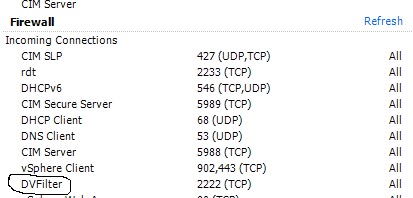
  • The dvfilter Kernel Module listens on port 2222 for TCP connections from the DSVA.
  • The DSVA dsa_slowpath process listens on a dynamically assigned port for TCP connections from the dvfilter Kernel Module.

Sizing recommendations for DSVA.

Scan Cache settings:

Know the different Scan Cache settings, so you can calculate how much additional memory you need for the DSVA.

The Scan Cache function, which can enhance DSVA performance, was introduced in Deep Security 9.0. However, these settings are not included in the Scan Cache Configuration because the settings determine how the DSVA manages Scan Cache rather than how scan caching is carried out.

Scan Cache settings are controlled at the policy level, and can be accessed by opening a Policy Editor and going to Settings > Scan > Virtual Appliance Scans area.

These are the Scan Cache settings:

  • Max Concurrent Scans

This determines the number of scans that the Virtual Appliance will perform at the same time. The recommended number is four. If you increase this number beyond eight, scan performance may begin to degrade. Scan requests are queued by the Virtual Appliance and carried out in the order in which they arrive.

  • Max On-Demand Malware Scan Cache Entries

This determines, for Manual or Scheduled Malware Scans, the maximum number of records that identify and describe a file or other type of scannable content to keep. One million entries will use approximately 100MB of memory.

  • Max Malware Real-Time Scan Cache Entries

This determines, for Real-Time Malware Scans, the maximum number of records that identify and describe a file or other type of scannable content to keep. One million entries will use approximately 100MB of memory.

  • Max Integrity Monitoring Scan Cache Entries

This determines, for Integrity Monitoring, the maximum number of entities included in the baseline data for Integrity Monitoring. Two hundred thousand entities will use approximately 100MB of memory.

Based on these settings, determine the amount of memory you have to add to your DSVA.

By default, DSVA is assigned 2GB of memory. Here is the recommended memory for the DSVA machine, depending on the number of virtual machines per ESXi Host.

  • Increase the memory to 2GB for a DSVA protecting 1 to 50 virtual machines.
  • Increase the memory to 4GB for a DSVA protecting 51 to 100 virtual machines.
  • Increase the memory to 8GB for a DSVA protecting 101 to 150 virtual machines.
  • Increase the memory to 8GB for a DSVA protecting 151 to 200 virtual machines.
  • Increase the memory to 12GB for a DSVA protecting 201 to 250 virtual machines.

CPU scaling is not required if only the Anti-Malware feature is used.

DSVA19

Upgrading of Deep Security Virtual Appliance (DSVA).

  1. From the vCenter, Power-off the Deep Security Virtual Appliance (DSVA).
  2. Right-click on the DSVA and delete if from the Disk. Set the ESX on Maintenance Mode.
  3. Delete the EPSEC driver. From the vShield Manager console, select the ESX host. Go to Summary tab and uninstall vShield Endpoint
  4. Log on to the DSM console and initiate Restore ESX. It will delete all drivers installed and put them in “Unprepared” state.ESX will be restarted On the DSM console, right-click on VMware Center and initiate Synchronize. Initiate Prepare ESX afterwards
  5. Deploy DSVA.
    Note: Do not activate the DSVA yet after installation. You need to configure it first.
  6. Change the Network Adapter settings to be in the same network as the DSM.
  7. Log on to the DSVA console using the Username/Password: dsva.
  8. Define the Hostname, IP address, and Timezone.
  9. Restart the DSVA console.
  10. Log on to the DSM console. Verify that DSVA is now appearing. Right-click on DSVA and then click Activate.

Also we can select which version we need to deploy by going to the below path.

Administration – System Settings – Updates

dsdva

Note: Aside from the pop-up window that appears after you initiate an action from the DSM, please also check the activity under Recent Tasks window fo the vCenter to verify if the action has already been complete or not.

In my Next blog I will explain about the Deep Security Agent .

Reference :

http://vmug.nl/downloads/VMUG2012/Albert%20Kramer%20&%20Danny%20Claproth%20-%20Making%20the%20most%20of%20vShield%20with%20agentless%20security%20from%20Trend%20Micro.pdf

http://esupport.trendmicro.com/solution/en-us/1098155.aspx

Click to access deep-security-virtualization-practice-en.pdf
Posted in Trend Micro Deep Security | Tagged , , , , , | 3 Comments

Trend Micro Deep Security 9.5 ( Filter Driver Installation ) – Part 4

Pls find my previous blogs about Trend DSM , Relay Server Installation and vShield Endpoint and in this blog we can see the Filter Driver Installation and its function.

Update:2\27\2016

Check the blog to install the filter driver on ESX5.x under Trend DSM 6.0 SP1

The Filter Driver is installed on each host in the cluster and the driver will interact between the ESXi and the DSVA which will re-directs the traffic from the ESXi networking layer to the DSVA to scan and also it is responsible for sending over the connection states of a VM to the other host when a VMotion moved the VM to the another host. We need Filter driver for Trend to manage the VMs and DSVA appliances which will put the ESX host in Maintenance Mode and also reboots the host during the installation.
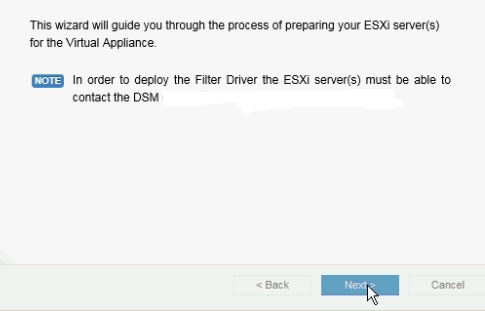
Allow DSM to put the ESXi host in/out maintenance mode when installing the driver, the ESXi server will be put into maintenance mode, thus, schedule the deployment of DSVA and the Filter Driver carefully. When preparing the ESX box, allow the Deep Security Manager to automatically bring the host into and out of maintenance mode (via the deploy wizard).
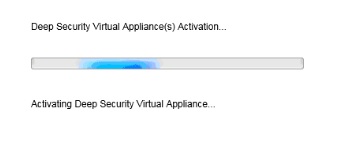
Filter Driver Installation.

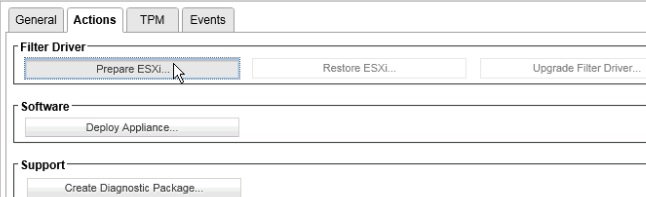
Go to the Computers – vCenter – Host and Clusters and select the host . Right-click Prepare ESX.

Filterdriver

filterdriver2

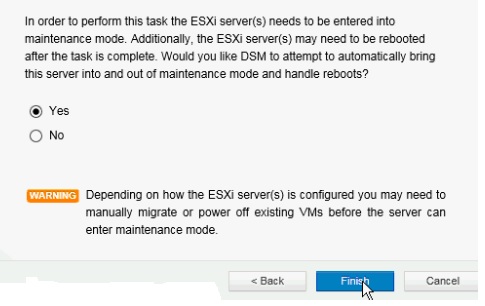
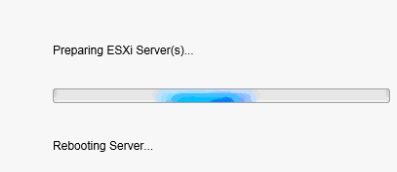
Select yes and click finish,  which will put the ESX in MM also note it will reboot the host after the installation.

filterdriver3jpg

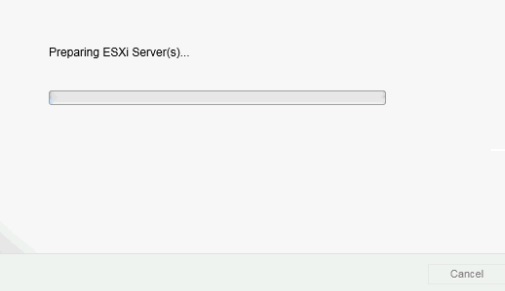
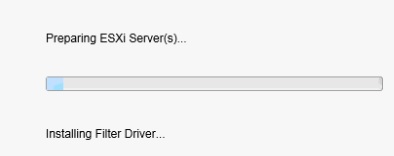
Preparation will start installing the filter driver and also it will configure the VMSERVICE-VSWITCH and creates the VM port group on the isolated network which was created as part of the vShield Manager.

Filterdriver4

Filterdriver5

filterdriver6

filterdriver7

filterdriver9

Filterdriver11

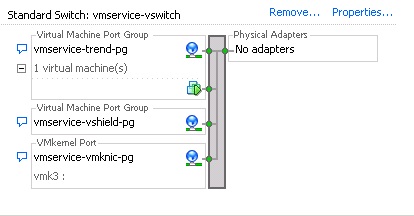
Once the ESX host has been rebooted it will be in the Maintenance Mode , remove the same and we can see the extra port group vmservice-trend-pg in the vmservice-vswitch.

trendvSheild4

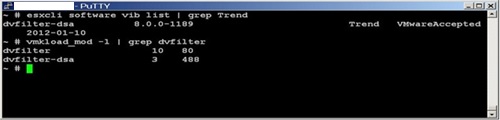
We can find the Filter Driver and the modules are running by using the below command.

~ # esxcli software vib list | grep Trend

Run this command to check the modules:

~ # vmkload_mod -l | grep dvfilter

Filterdriver12

The IP of the DVfilter should match the VM Kernel VNIC IP found in the Deep Security Manager (DSM) console, under the Network configuration tab of vCenter Properties.

VM Kernel IP.

If we check the advance settings of the ESXi host, we can find the kernel IP 169.254.1.1 .

DSVA vnic

To verify, run the command “~ # esxcfg-advcfg –get /Net/DVFilterBindIpAddress” . The value of DVFilterBindIpAddress should be 169.254.1.1.

The predefined port 2222 should be open for inbound for DVFilter use. Use TELNET command to check if the port is open.

dvfilter

In My Next Blog we can see the Deep Security Virtual Appliance ( DSVA )

Posted in Trend Micro Deep Security, VMware | Tagged , , | 4 Comments

Citrix NetScaler virtual machine network connectivity issue.

Citrix NetScaler virtual machine is one of the VM running in our environment and it was reported that VM loses network connectivity after entering the authentication in the web console of the NetScaler application , Initially we thought it would be some application configuration issue and application owner tried some troubleshooting steps but no luck .Later they went with the new deployment of the NetScaler OVF but still we had the same issue..

Then we started thinking the last changes we made in our environment and it was ESX upgrade to 5.1 to 5.5 with patch 2302651 , based on that we started to investigate the issue and found with the help of VMWARE KB article that after patching the ESXi host to version 5.5 Update 2 (build 2143827), 5.1 Patch 6 (build 2191751), or a later build, we will experience these symptoms and its not the ESXi bug or issue. An upgrade of the Netscaler appliance resolves the issue.

Workaround 1:

Install NetScaler VPX appliance on a previously known good VMware version and build.

Workaround 2:

Add the line hw.em.txd=512 in the loader.conf.local file.

To add the line hw.em.txd=512 in the loader.conf.local file:

  1. Log in to the Citrix NetScaler virtual machine appliance as root.
  2. Locate the loader.conf.local file on the Netscaler virtual machine appliance by running this command:find / -name loader.conf.localNote: The loader.conf.local file may not exist. If so, create this file under directory /flash/boot.
  3. Add this line in the loader.conf.local file.hw.em.txd=512
  4. Save the changes.
  5. Restart the NetScaler virtual machine appliance.

Reference: http://kb.vmware.com/selfservice/microsites/search.do?language=en_US&cmd=displayKC&externalId=2092809

http://support.citrix.com/article/CTX200278

Posted in Citrix NetScaler | Tagged , , | Leave a comment